How to Use Google Gemini Omni: Create AI Avatar Videos and UGC Content (Complete Guide)
Google just launched Gemini Omni, a brand-new AI video model that lets you create AI avatar videos with your own face and voice. Here's exactly how to use it, step by step.

Google just dropped something genuinely exciting, and if you're a content creator or digital marketer, you need to pay attention to this one.
It's called Gemini Omni, Google's new AI video model that replaces Veo inside the Gemini app. And what makes it different from everything else out there is this: you can now create AI videos starring your own face and your own voice, all from a simple text prompt.
Think of it like Nano Banana, the AI photo feature in Gemini, but for videos. You type what you want, pick your avatar, and Gemini generates a realistic video of you saying and doing exactly that, whether you're walking in Dubai, reviewing a product, or talking directly to the camera.
In this guide, I'll walk you through exactly how to set it up, how to create your first AI avatar video, and how to use the new Agent mode in Google Flow to take things even further with UGC-style content creation.
What Is Google Gemini Omni?
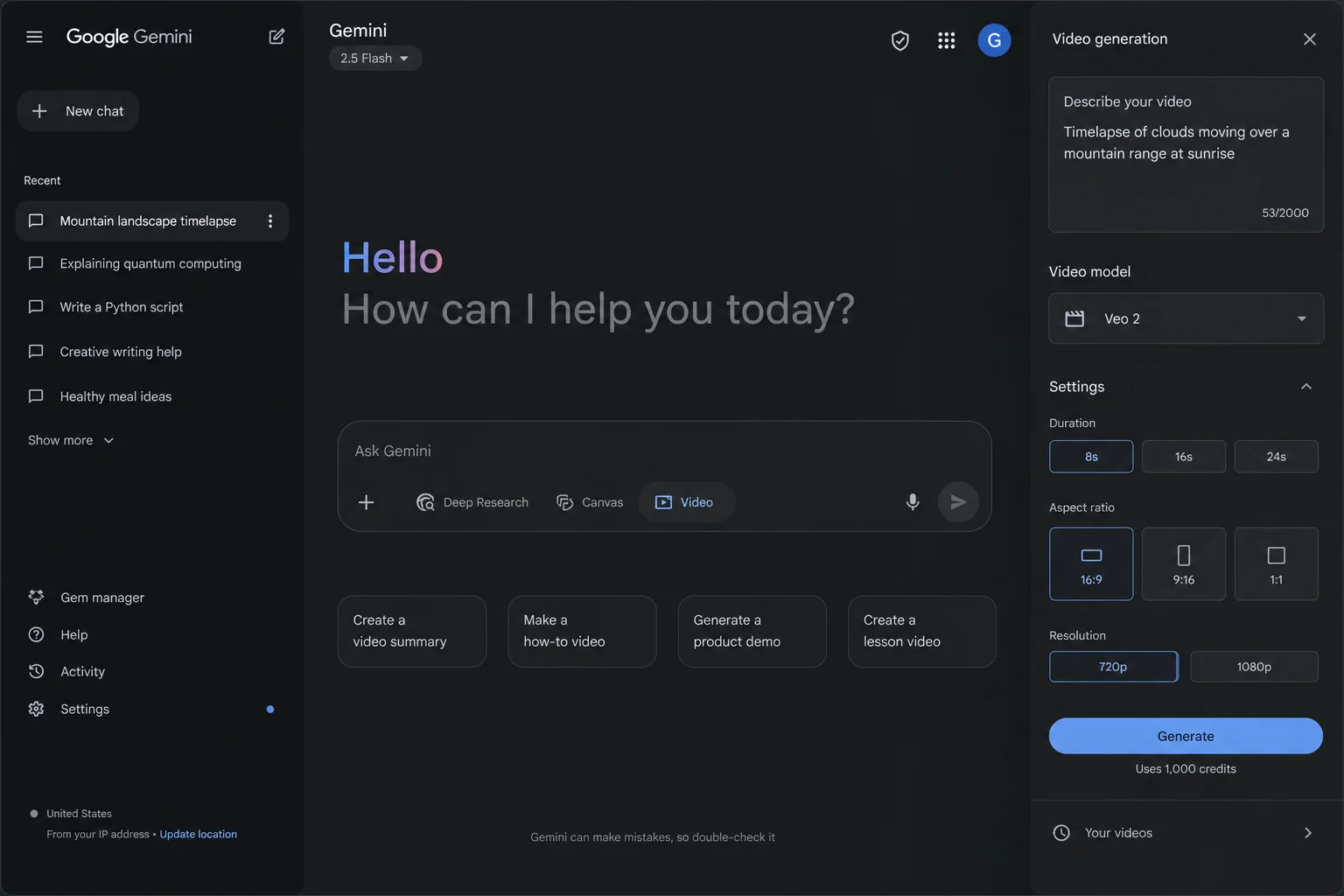
Gemini Omni is Google's latest multimodal AI video model. The name tells you everything: omni means all inputs, all outputs. You can feed it text, images, audio, or existing video clips, and it generates video from any combination of those inputs.
It replaces the previous Veo models inside the Gemini app and brings a major upgrade: character consistency. That means your avatar's face, voice, and appearance stay stable across the entire video, which was a massive problem with earlier AI video tools.
The model was announced at Google I/O 2025 and has since rolled out to paid plan users globally. If you're in India and have a Jio SIM with an active unlimited 5G plan of Rs. 349 or above, you can claim 18 months of Google AI Pro for free, which gives you access to Gemini Omni. More on that in the pricing section below.
There are two main places you'll use Gemini Omni:
- Inside the Gemini app, to create avatar-based AI videos of yourself
- Inside Google Flow, to create more advanced videos including UGC content with models and products
Let's go through both, step by step.
Step 1: Create Your AI Avatar in Gemini
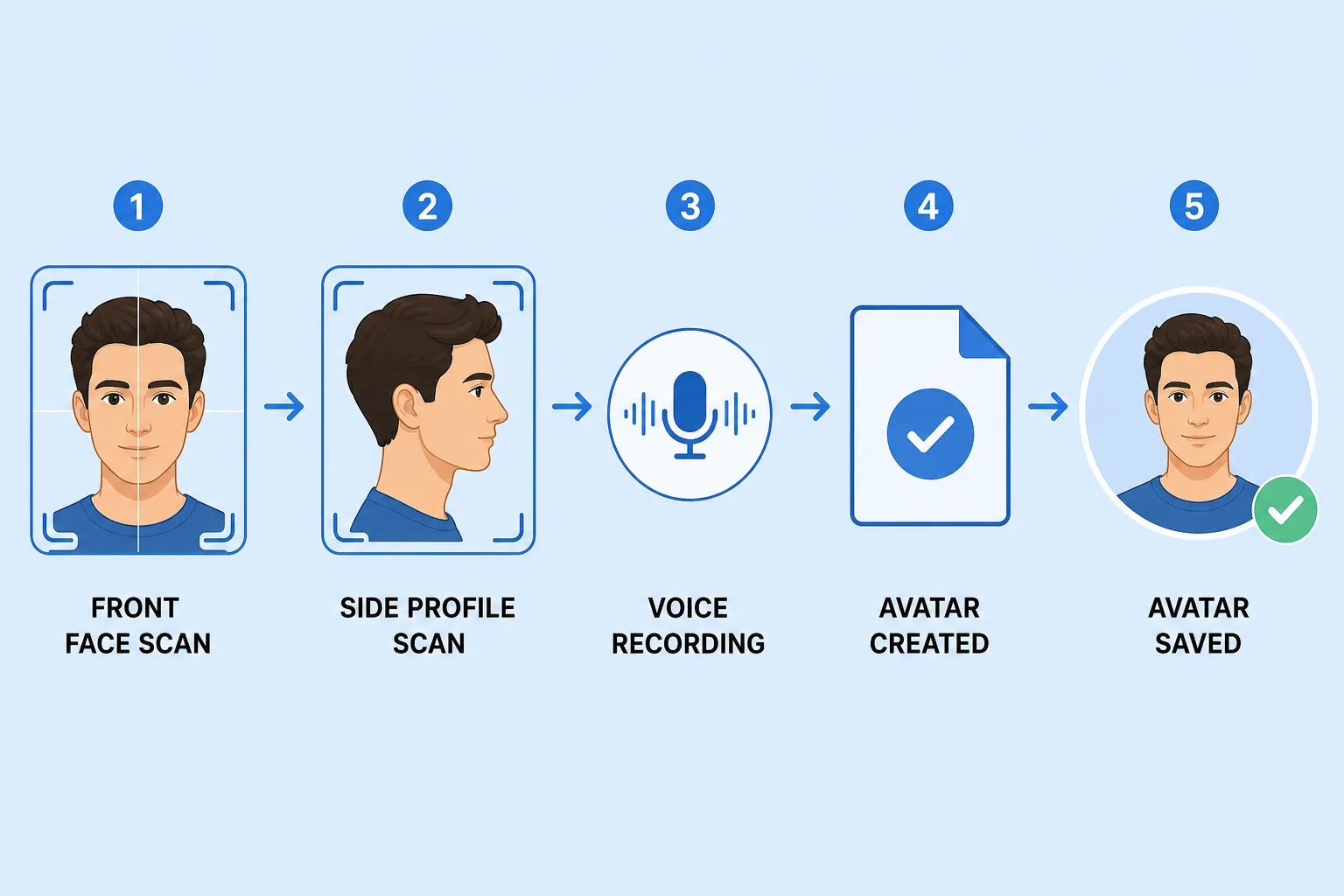
Before you can generate any AI videos of yourself, you need to set up your avatar inside the Gemini app. This is a one-time setup that takes just a couple of minutes.
Here's exactly how to do it:
- Open the Gemini app on your phone or PC. You'll notice the interface has been updated with a blue glow effect and a fresh new look.
- Go to Settings. This option is available on both mobile and desktop.
- Inside Settings, find the Avatar option and select it.
- Gemini will show you a series of numbers to read aloud. This is how it captures your voice so it knows how you speak.
- After the voice recording, it will ask you to look left, right, and straight ahead. Follow the on-screen instructions so Gemini can capture your face from multiple angles, including front and side profiles.
- Once done, save your avatar. It gets stored in your account and is ready to use across all your video generations.
That's it for setup. Your avatar is now locked in and will maintain consistent appearance and voice in every video you generate. This is what makes Gemini Omni so powerful for creators who want to build content at scale without being on camera every single time.
Step 2: Generate Your First AI Avatar Video
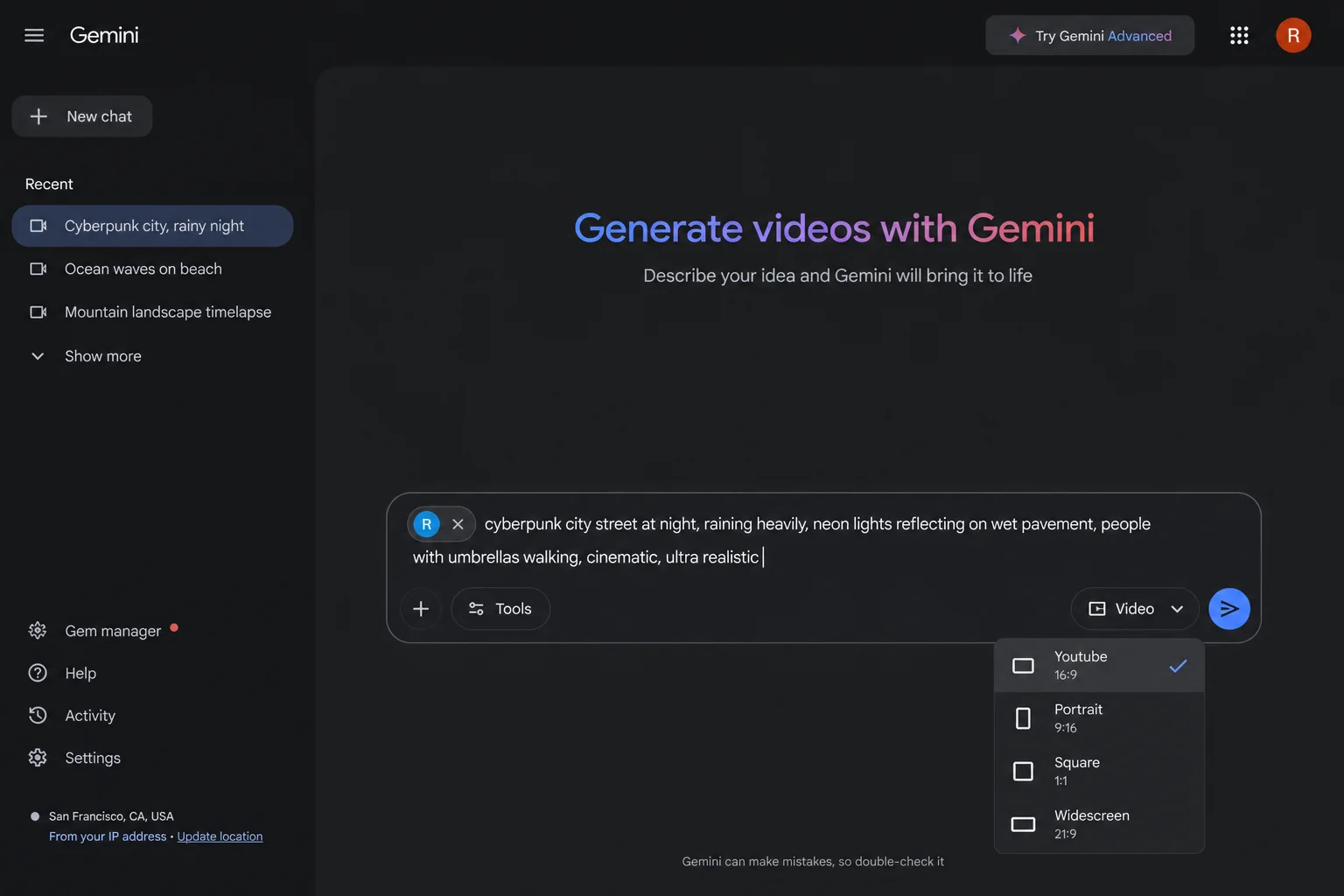
Once your avatar is created, generating a video is surprisingly straightforward. Here's the full process:
- In the Gemini app, tap the + button and select Create Video.
- You'll see two options: ready-made templates you can use in one click, or a custom prompt. Let's use the custom prompt for maximum control.
- In the prompt field, type @ and your saved avatar will appear as a suggestion. Select it to tag your avatar in the prompt.
- Now write your scene in simple, plain language. You don't need to use technical terms. Describe the location, outfit, time of day, and any dialogue you want your avatar to speak.
Here's an example prompt that actually works well:
@[your avatar] walking in Dubai. Wearing white denim jacket, white t-shirt, black jeans, white shoes. Golden hour lighting. Say in a happy tone in Hindi: "Yeh mera AI avatar hai jo Dubai mein ghoom raha hai!"
Once you've written your prompt:
- Choose your format: Landscape for YouTube, Portrait for Reels or Shorts.
- Hit Submit and wait for the video to process.
- When it's ready, download it directly from the interface.
Currently, Gemini Omni generates 10-second clips and gives you up to 3 videos per day on the Pro plan. That's enough to test ideas and create short-form content consistently. If you need longer videos or higher volume, the Ultra plan gives you more.
This is honestly one of the most practical AI video tools I've seen for Indian creators. Instead of spending hours on camera, you can describe a scene, pick your outfit in the prompt, and have a polished-looking video ready in minutes. If you're already using AI tools to automate your marketing workflows, adding Gemini Omni to your content stack makes a lot of sense.
How to Use Google Omni in Google Flow (with Agent Mode)
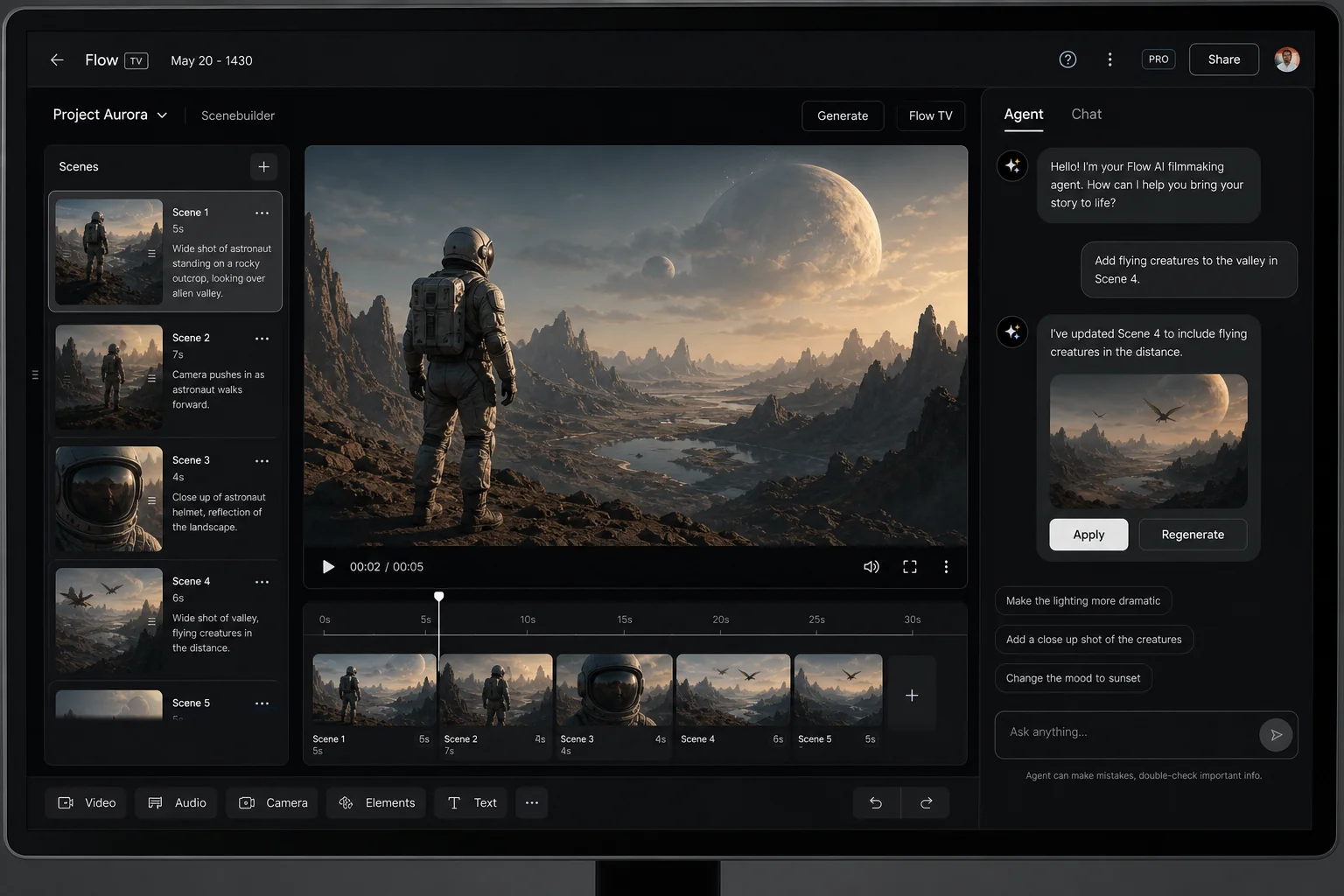
Beyond the standard Gemini app, Gemini Omni is also available inside Google Flow, which is Google's dedicated AI filmmaking tool. And it just got a major upgrade with a feature called Agent mode.
Here's how to get there:
- Search for Google Flow and open the website.
- Click New Project.
- You'll now see a new option labeled Agent in the interface. This is the new feature that makes Flow dramatically more useful for content creators.
What Agent Mode Actually Does
In older versions of Google Flow, every time you wanted to make a new video or tweak an existing one, you'd have to re-upload your photos, re-enter your model references, and basically start from scratch.
Agent mode fixes that completely. It works like a WhatsApp conversation with an AI. You upload your assets once, describe what you want, and the Agent remembers everything in that session. If you want to change something after the video generates, you just type what you want changed, and it handles it without you needing to re-upload anything.
This is a huge time saver for anyone creating multiple variations of a video, which is exactly what brands and creators need for testing content.
Creating UGC Videos with Google Flow + Agent Mode
One of the most interesting use cases for Google Flow's Agent mode is creating UGC (User-Generated Content) style videos for brands and products. Here's a real example of how to do it.
The Setup
Let's say you want to create a video where a model holds your product and talks about it directly to the camera. In this case, say it's a mango chocolate bar. Here's the step-by-step:
- In Google Flow, create a new project and drag and drop two images: one of your product and one of your model. Both uploads will appear in your project workspace.
- Click on the Agent button to enable Agent mode. A chat panel will open on the side of the screen.
- Now write your prompt in plain, conversational language. Tag your assets using @, just like in the Gemini app.
Example UGC Prompt
Here's a prompt structure that works well for product UGC videos:
UGC video of @[model photo] holding @[product photo] in her hand. She is talking directly into the lens. She says: "Okay, honestly I thought mango and chocolate would be a weird combo, but this is actually so good."
Before you hit generate, check the settings panel for two things:
- Aspect ratio: Set it to 9:16 for vertical Reels/Shorts format, or 16:9 for YouTube.
- Generation count: The default is 2x (two videos). If you want to save credits, set it to 1x.
- Model selection: Switch from Veo 3 to Omni Flash for faster generation.
Hit Generate. The Agent will ask you to approve the credit cost (around 30 credits) before it starts. Approve it and wait for the video to finish.
What Happens Next (And Why Agent Mode Is Powerful)
Once your video is ready, say you want to tweak the dialogue or change the model's background. With Agent mode, you just type the change into the chat. You don't need to re-upload the model photo, re-upload the product, or rewrite the full prompt.
The Agent has the full context of your session. This is what makes it feel less like a tool and more like a creative collaborator. For anyone doing AI-powered lead generation or content marketing for businesses, this kind of iterative video creation workflow can save hours every single week.
Who Can Access Gemini Omni? (Pricing Breakdown)
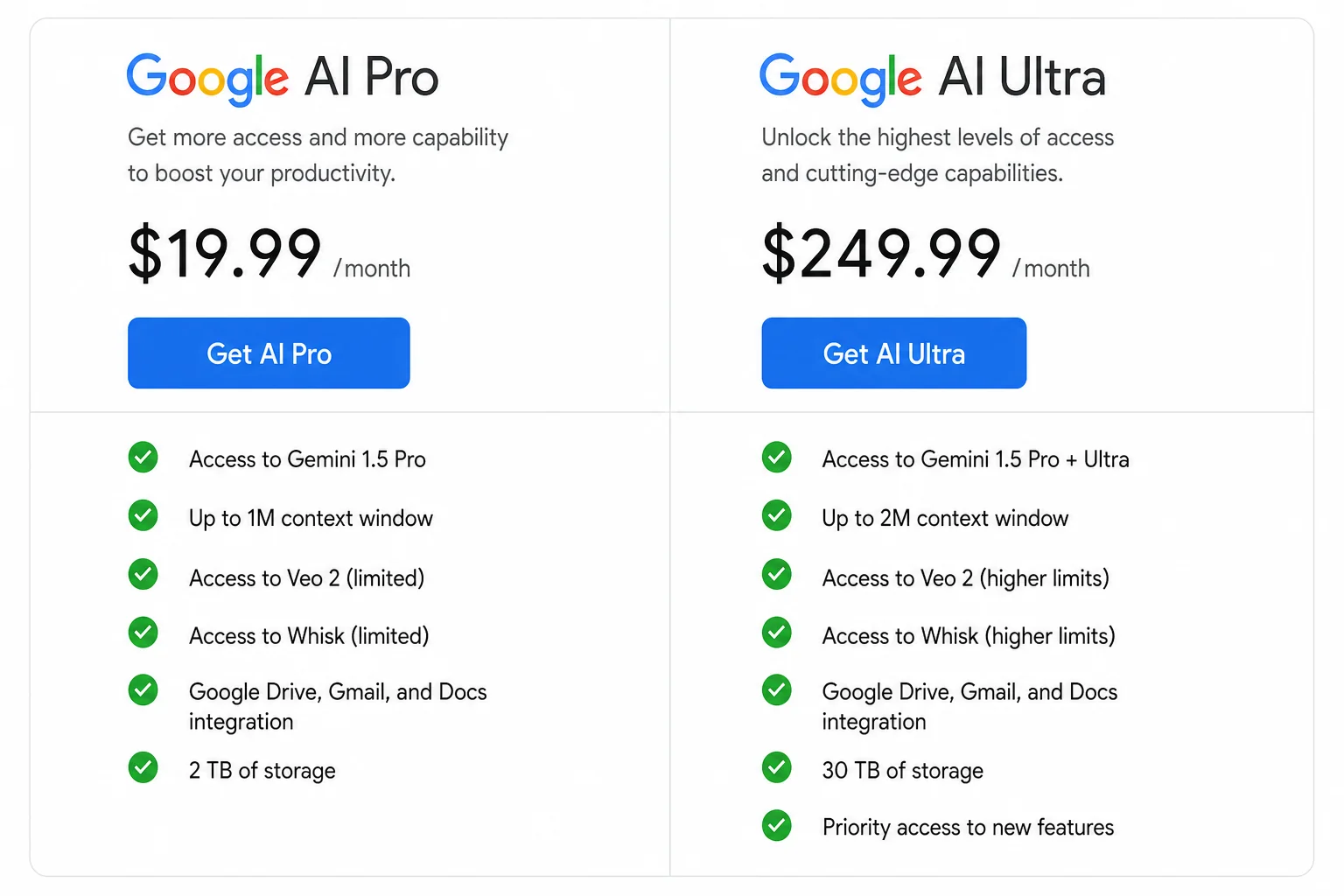
Gemini Omni is not available on the free Gemini tier. You'll need a paid Google AI subscription to access it. Here's a breakdown of your options:
| Plan | Price | Gemini Omni Access | Daily Video Limit |
|---|---|---|---|
| Google AI Free | Rs. 0 | No | None |
| Google AI Pro | Approx. Rs. 1,950/month | Yes (limited) | 3 videos/day |
| Google AI Ultra | Rs. 6,500/month | Yes (full access) | Higher limits |
| Jio SIM (Rs. 349+ plan) | Free for 18 months | Yes (Pro level) | 3 videos/day |
The Jio Deal (Best Option for Indian Users)
If you're in India with a Jio SIM on an unlimited 5G plan of Rs. 349 or above, you can claim 18 months of Google AI Pro for free. That's a subscription worth Rs. 35,100 at zero extra cost beyond your existing mobile plan.
To claim it:
- Open the MyJio app and log in.
- Look for the Google Gemini offer banner on the home screen.
- Tap the banner, hit Get Started, and link your Google account.
- Your 18-month Google AI Pro subscription activates immediately.
This is genuinely one of the best deals in tech right now for Indian creators. You're getting access to Gemini Omni, Google Flow, Imagen (the Nano Banana tool for AI photos), 2TB of Google One storage, and much more, all for free. If you're already building AI-powered marketing systems for Indian businesses, adding Gemini Omni to your toolkit becomes a no-brainer at this price point.
Quick Recap: Gemini Omni vs Google Flow
| Feature | Gemini App (Omni) | Google Flow (Agent Mode) |
|---|---|---|
| AI Avatar with your face + voice | Yes | Partial (no personal avatar) |
| Custom text prompts | Yes | Yes |
| Product + model UGC videos | No | Yes |
| Conversational editing (Agent) | No | Yes |
| Video length | 10 seconds | Up to 8 seconds (Omni Flash) |
| Best for | Personal avatar content | Brand and product videos |
Frequently Asked Questions
What is Google Gemini Omni?
Gemini Omni is Google's newest AI video generation and editing model. It replaces the Veo models inside the Gemini app and supports creating videos from text prompts, images, audio, and existing video clips. It includes an avatar feature that lets you create AI videos with your own face and voice.
Is Google Gemini Omni free to use?
No. Gemini Omni requires a paid Google AI subscription (Pro or Ultra). However, if you're in India on a Jio unlimited 5G plan of Rs. 349 or above, you can claim Google AI Pro for free for 18 months via the MyJio app.
How long are the AI videos you can create with Gemini Omni?
Videos generated in the Gemini app are currently 10 seconds long. Google Flow with Omni Flash also generates short clips. Longer video creation is possible by stringing multiple clips together in editing.
Can I change the language of the dialogue in my AI avatar video?
Yes. You can specify the language directly in your prompt. Just add something like "say in Hindi in a happy tone" and include the actual dialogue text. The avatar will speak in the language you specify.
What is Agent mode in Google Flow?
Agent mode is a new feature in Google Flow that turns the tool into a conversational video creation experience. Instead of re-uploading assets and rewriting prompts for every change, you chat with the Agent to iterate on your video, and it retains context from the session so you don't have to repeat yourself.
Do I need to be on camera to use the avatar feature?
You do need to record your face and voice once during the initial avatar setup. After that, you never need to be on camera again. Gemini Omni uses that saved avatar to generate new videos from text prompts without any further recording from you.
What's the difference between Gemini Omni and Veo 3?
Gemini Omni is the successor to Veo inside the Gemini app. It adds avatar support, improved character consistency, conversational editing, and multimodal inputs. Veo 3 is still available inside Google Flow alongside Omni Flash for more advanced cinematic video creation.
Conclusion
Google Gemini Omni is a big deal for content creators, and not just because the videos look impressive. The real value is in how accessible and repeatable it makes video creation.
Set up your avatar once, and you can generate AI videos of yourself in any location, wearing any outfit, saying anything, without touching a camera. Add Google Flow's Agent mode into the mix, and you've got a full UGC video production pipeline that runs entirely on prompts.
For Indian creators especially, the Jio deal makes this a free upgrade to your content toolkit. If you haven't claimed your free Google AI Pro subscription yet, go do that now before the offer changes.
And if you're thinking about how to use AI video tools as part of a broader content and automation strategy, check out how to connect AI tools to your website for automated content workflows or explore the full potential of AI studio tools for lead generation. There's a lot more you can do once the video side is sorted.
Give Gemini Omni a try, and let us know in the comments what kind of videos you're planning to make with it.