How to Use Claude Opus 4.8 for Free for 30 Days (Using GitLab)
You can access Claude Opus 4.8 completely free for 30 days through GitLab's free trial. Here is exactly how to do it.

Do you want to use Claude Opus 4.8 — Anthropic's most powerful model — completely free? In this post, I am going to show you exactly how you can use the official Claude Opus 4.8 model for one full month, at zero cost. Watch every step carefully and do not skip any part, because after reading this you will be able to use this model just like I do.
What Is GitLab and Why Does It Give You Free AI Access?
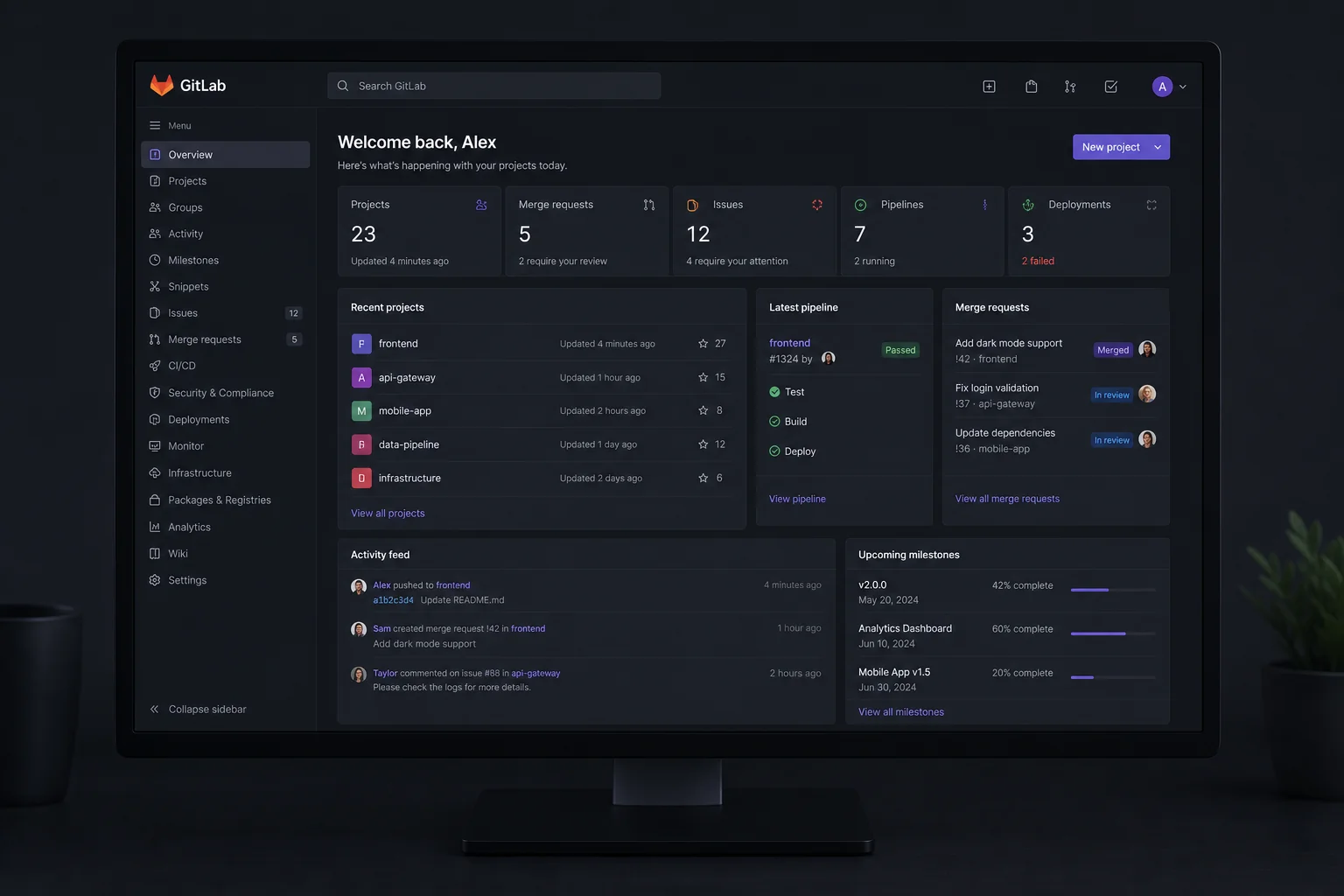
The website you need to go to is called GitLab. They offer a free trial, but it does come with some complications — they do not make it easy to activate. That is exactly why I am walking you through it step by step so you do not miss anything.
GitLab is primarily a platform for code hosting and collaboration, but as part of their AI tooling suite (GitLab Duo), they give you access to a wide range of AI models during the trial period. And yes, Claude Opus 4.8 by Anthropic is one of them. If you are curious about building AI-powered tools and automations, check out how you can also connect Claude AI to WordPress for content workflows.
Step 1: Sign Up for GitLab
First, open Google and search for GitLab. Click the first official link that appears and open the GitLab website.
You do not need to use a private browser tab. You can use any browser, any tab — a normal browser works perfectly fine. I am using a private tab only because I am already logged into GitLab on my normal tab, and I want to show you the full signup flow from scratch.
On the sign-in page, you will see several options: Google, GitHub, Bitbucket, Salesforce, or a regular email signup. I am going to use Google. Click Google, then enter the email address you want to sign up with, and click Next. After that, click Continue to proceed.
Once you sign up, GitLab will send a verification code to the email address you used. Copy that code from your email and paste it into the verification box on the GitLab page. Then click Verify Email Address.
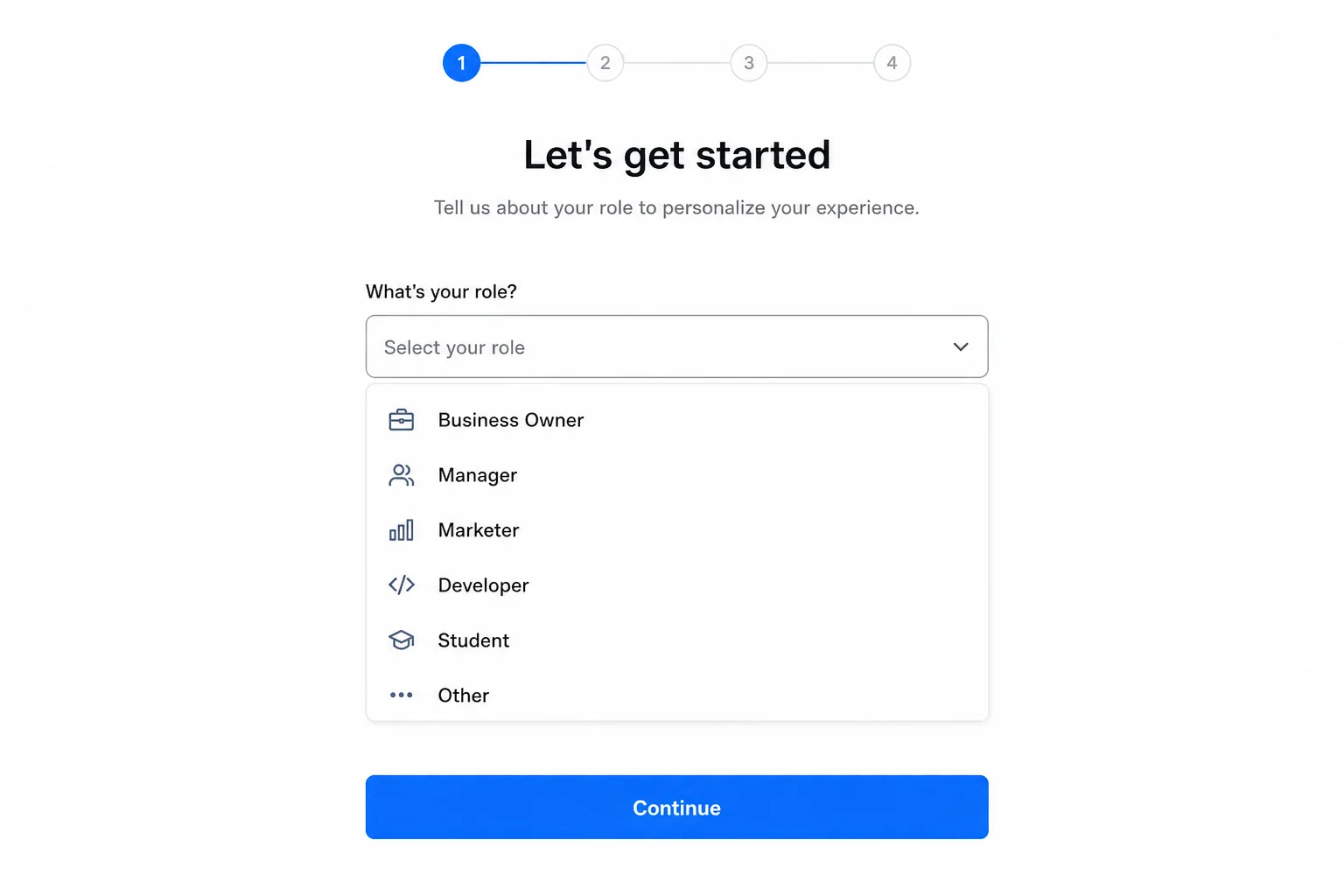
After your email is verified, GitLab will greet you with a "Welcome to GitLab" screen and ask you to select a role. If you are not sure what to pick, just select Software Developer. It does not affect your access to AI models.
Next, it will ask why you want to use GitLab. Select something like "I want to learn the basics of Git". Then it will ask what you would like to do — select Create a New Project and choose Just Me (since you are using this for personal access to AI models). Click Continue.
The next screen asks for a Group Name and a Project Name. You can enter anything — I am using "Hello Group" for both. Selecting a template is optional, so you can skip that. Then click Create Project.
This is a good point to think about what else you can build once you have access to powerful models. For example, you can set up a free AI lead generation system or explore AI businesses you can start this week.
Step 2: Activate the Free Trial
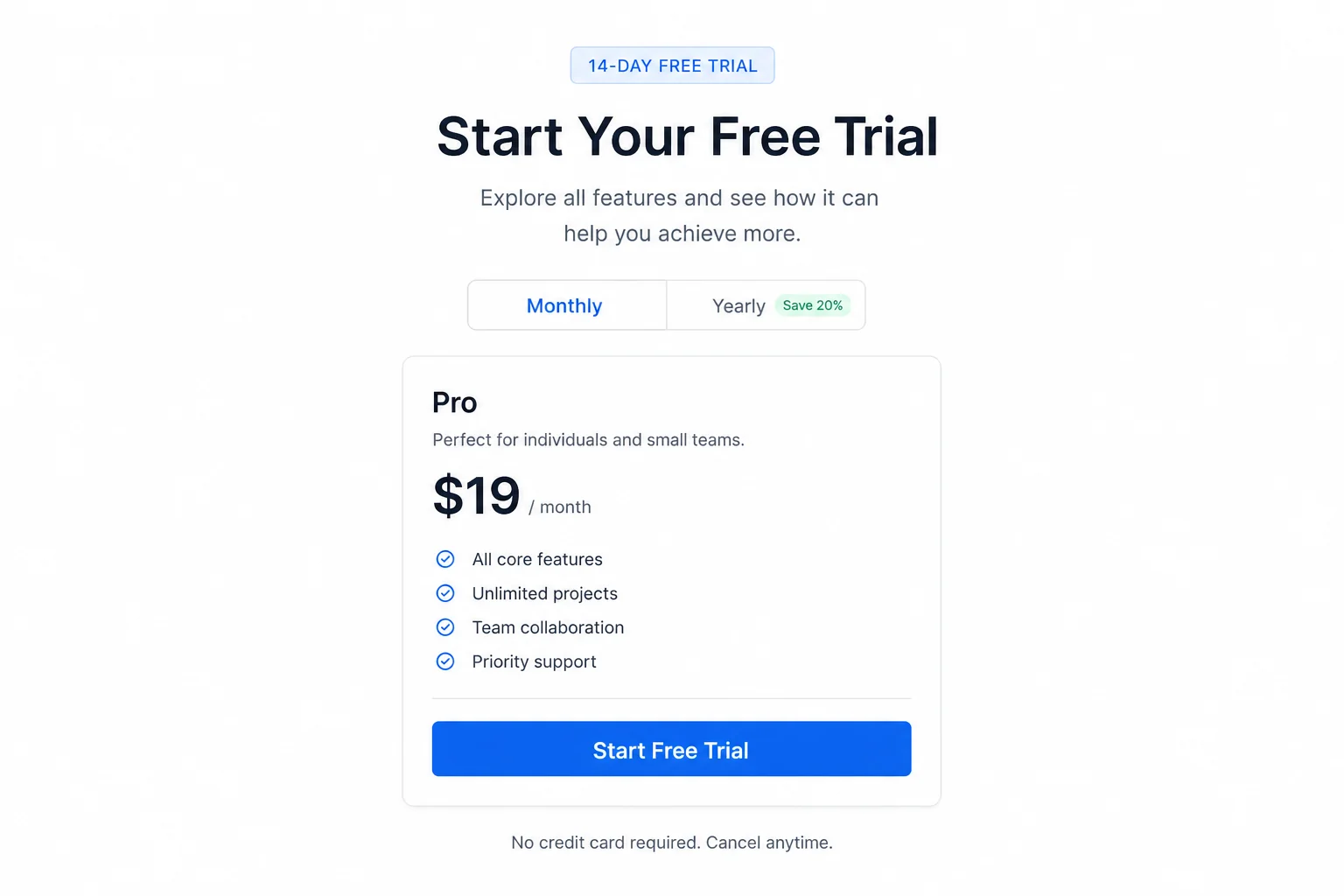
After your project is created, you will see the GitLab user interface. From here, look for the option that says Start a Free Trial and click it. This is what gives you 30 days of free access to all the AI models inside GitLab Duo.
Clicking that will open a short form. In the Company Name field, you can enter your own name or any name — it does not have to be an official business name. In the Country dropdown, select India. The telephone number field is optional, so you can leave it blank.
Fill in the required fields and submit the form. That is all it takes to activate the trial. No credit card is required for this step.
The free trial model also makes GitLab a good platform to experiment with AI agents and test different models before committing to a paid plan anywhere.
Step 3: Access Claude Opus 4.8 and Other AI Models
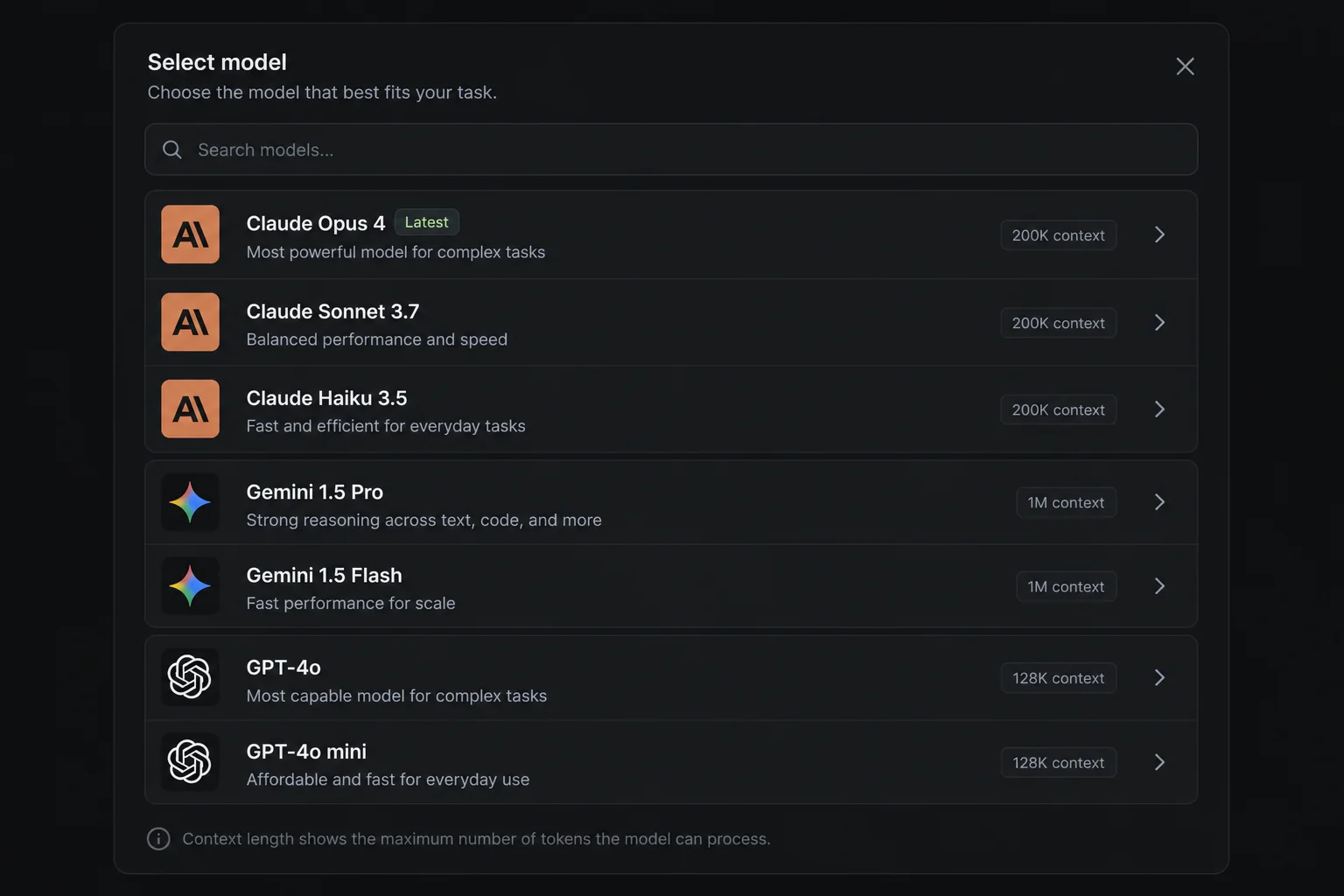
Once your trial is active, look at the side panel on the left of the GitLab dashboard. You will see an AI section there. Click to maximize it.
Scroll down through the model list and you will find Claude Opus 4.8 by Anthropic. This is the real, official model — not a wrapper or a clone. Click on it and start using it right away.
And that is not all. Inside this same panel, you also get access to Gemini 1.5 Flash and several OpenAI models as well. All of them are available during your 30-day free trial, giving you a full AI model playground at no cost.
If you want to go even further, you can combine tools like these with automation platforms. The n8n MCP update is one example of how you can wire AI models into full workflows without writing much code.
Want Claude Opus 4.8 in a Code Editor Too?
If you want to know how to use Claude Opus 4.8 inside a code editor — also for free — drop a comment and I will make a separate video covering that as well.
Make sure you subscribe to the channel so you do not miss it. These types of tips are the ones that most people find out about too late.