WhatsApp Business AI Agent: How to Set It Up for Free and Automate Your Customer Replies
WhatsApp has launched a free built-in AI agent for the WhatsApp Business app in India. Here is a complete step-by-step guide to setting it up and automating your customer replies.

WhatsApp just dropped what might be the biggest feature update for Indian businesses in years. On May 7, 2026, Meta officially launched WhatsApp Business AI Agents in India, and it is completely free to use inside the WhatsApp Business app.
No third-party tools. No monthly subscription. No complicated integrations. Just open your WhatsApp Business app, go to Tools, and you will find a brand new option called Your AI Agent.
This is a massive deal. If you run any kind of business on WhatsApp, whether you sell products, offer services, or run workshops, this feature can handle your customer conversations 24/7 while you focus on everything else. I have been running it live on my own WhatsApp, and the results have been genuinely impressive.
In this guide, I am going to walk you through every single step of setting it up, from collecting customer information to training the AI on your own knowledge base. By the end, your WhatsApp will be running on autopilot.
What is WhatsApp Business AI Agent and Why It Matters
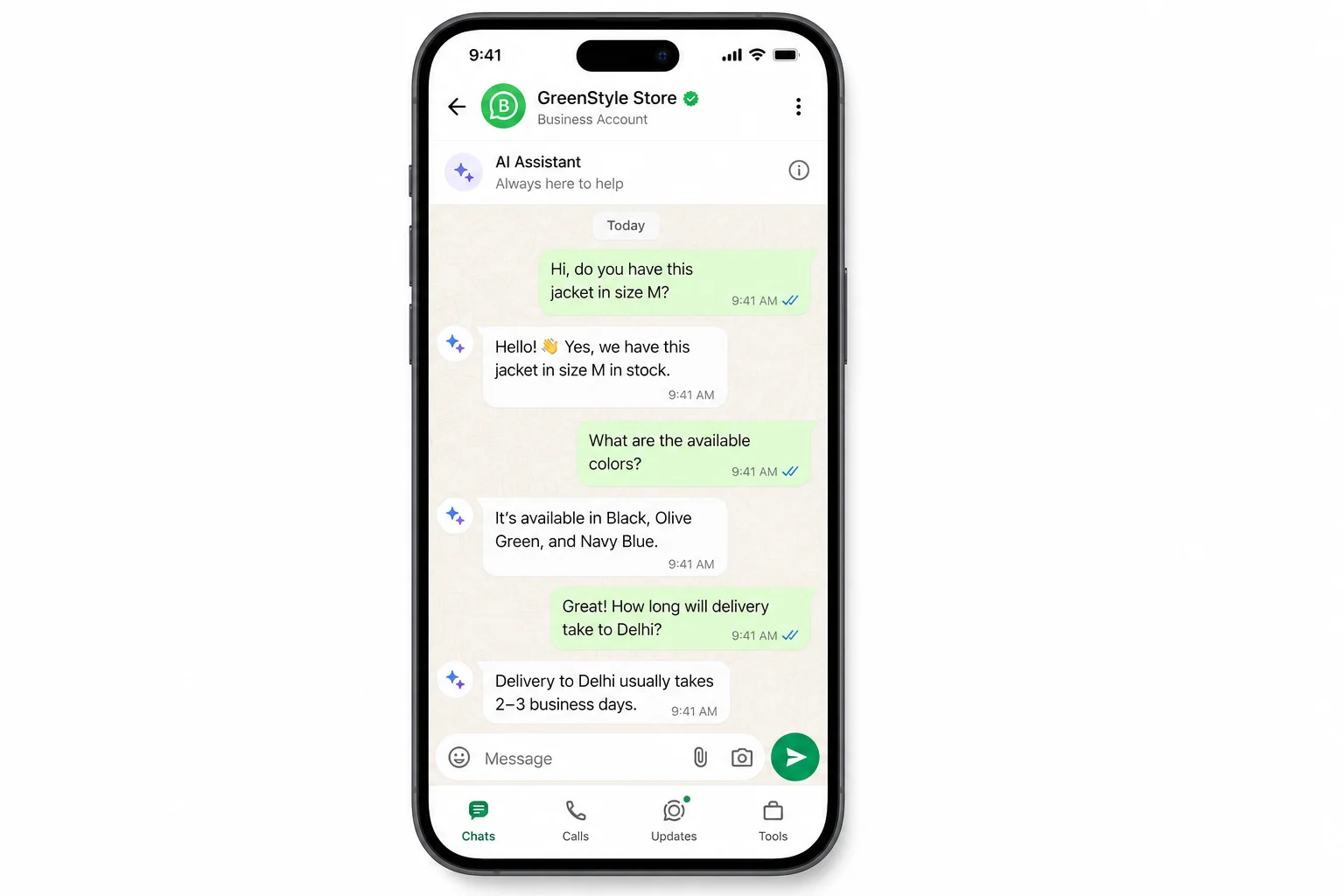
WhatsApp Business AI is a built-in conversational AI feature that responds to your customers automatically, collects their information, recommends products, books appointments, and even sends follow-up messages. The entire thing runs inside the native WhatsApp Business app, no external software required.
According to a 2025 Kantar study, 91% of online adults in India chat with a business on a weekly basis. WhatsApp is already the default customer communication channel for most Indian businesses. What this AI agent does is put that channel on complete autopilot.
Here is what makes it different from older automation tools like quick replies or away messages. Those tools give static, pre-written responses. This AI actually reads what the customer types, understands the intent, and responds in a natural, conversational way. It can switch languages mid-conversation if the customer prefers Hindi or any other Indian language. It can send product images, pricing details, UPI payment links, and appointment booking confirmations all by itself.
For anyone comparing third-party tools, I have covered the landscape in detail in my post on the best WhatsApp marketing tools for Indian businesses. The native AI agent is now a serious contender against paid options like AiSensy and Wati, especially for small businesses that do not want to add monthly costs.
Step 1: Accessing the AI Agent in WhatsApp Business
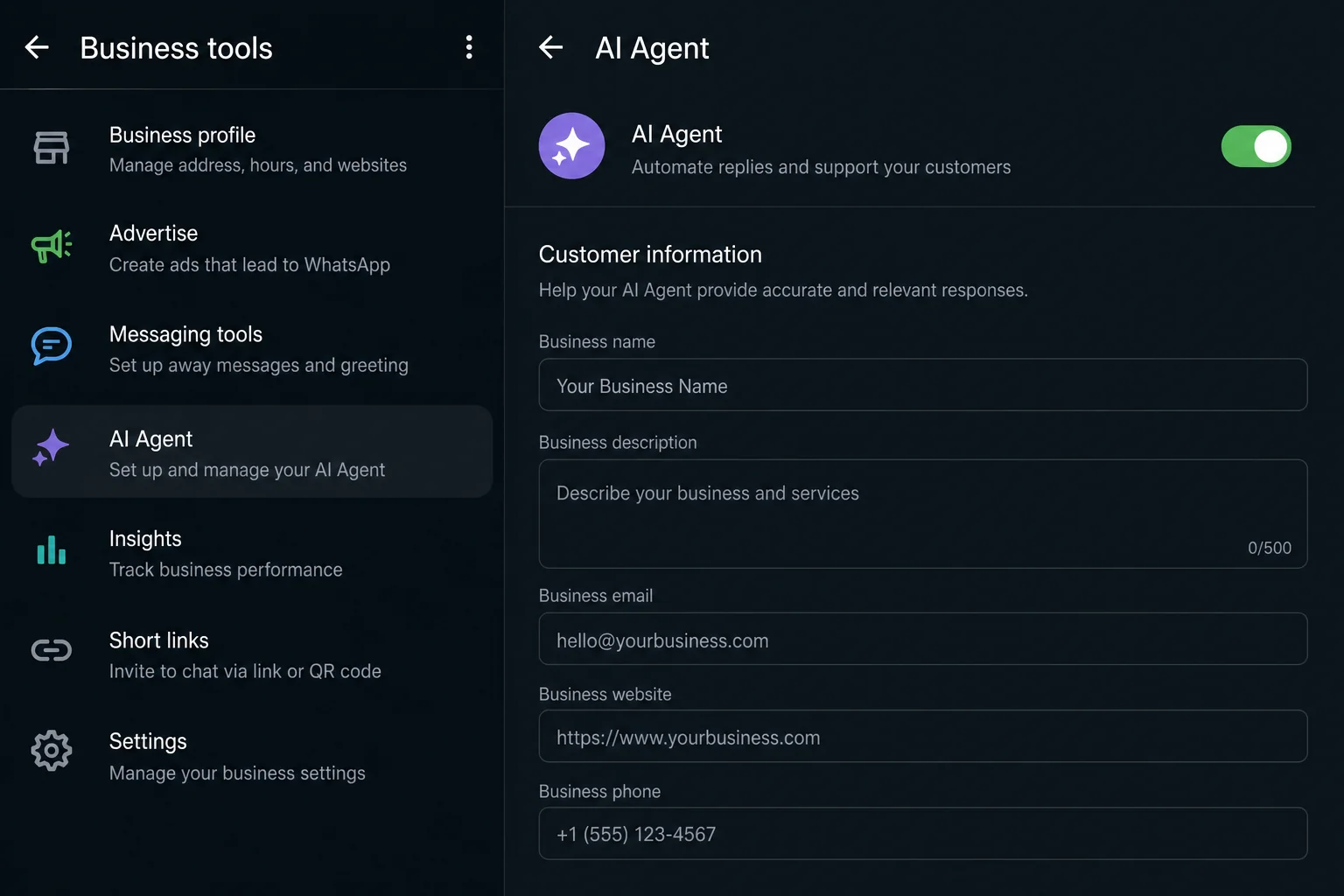
Getting to the AI agent is straightforward. Open your WhatsApp Business app and tap on Tools from the main menu. You will see a new option that says Your AI Agent with the description "Manage AI knowledge and replies." Tap on it and that is your control panel for everything.
The setup is organized into a few key sections. Each one handles a different part of the customer conversation flow. Think of it this way: you are essentially telling the AI what to collect from customers, what to share with customers, and how to behave when talking to them.
The first section you will configure is Customer Info. This is where you decide what information the AI will collect from every new customer who messages you. You can choose from name, phone number, location, address, or any custom fields that matter for your business.
You get two options for when to collect this information. The first is When someone is ready to buy, which triggers the info collection the moment the conversation signals purchase intent. The second is Custom moment, where you set a keyword like "order" or "book" that triggers the collection. Once a customer types that keyword, the AI immediately asks for the fields you have configured.
All collected customer data shows up in a clean downloadable sheet inside the app, with columns for name, phone, location, and product interest. For anyone doing lead generation, this alone is a massive time saver.
Step 2: Setting Up Appointment Booking
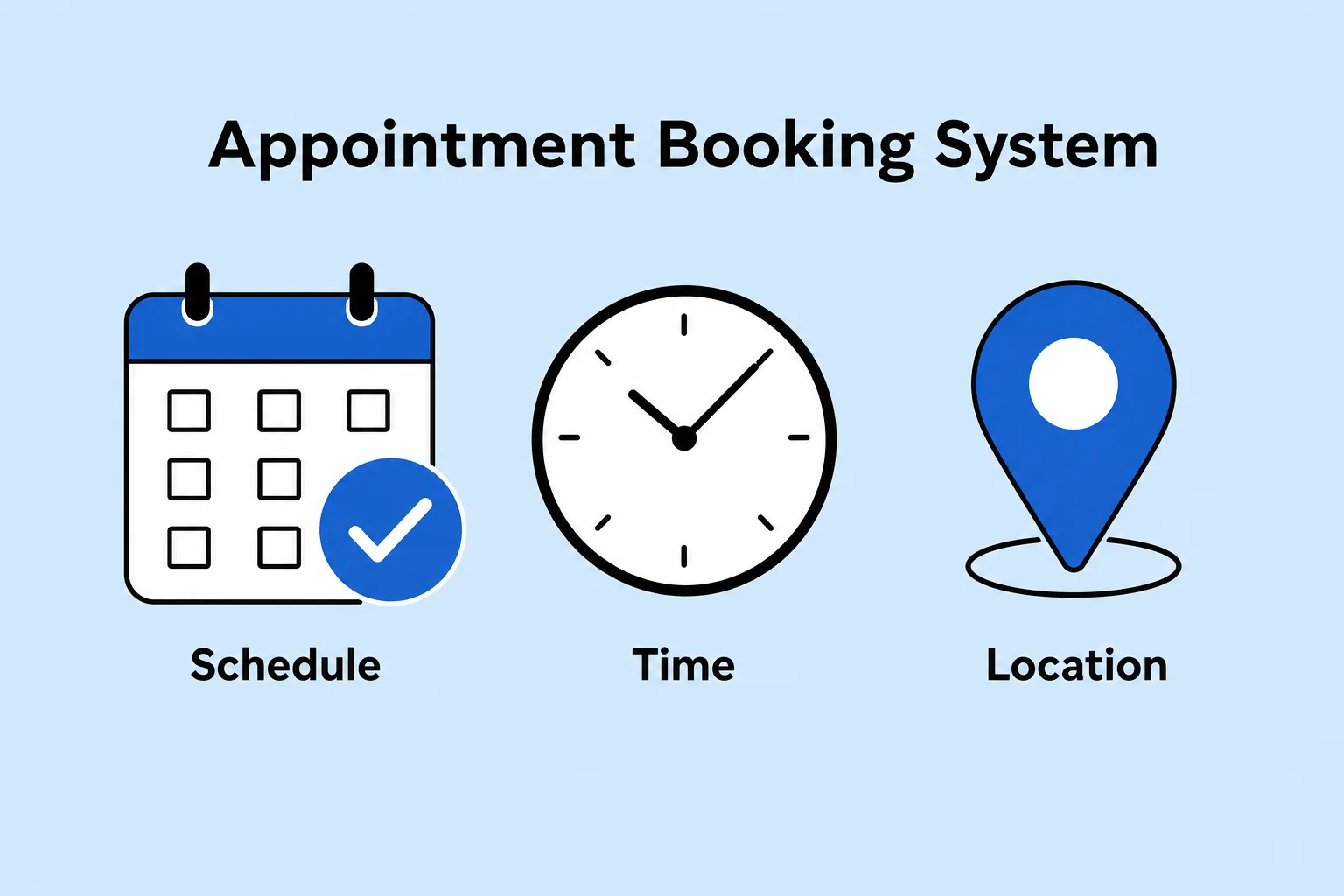
The appointment booking feature is where things get genuinely useful for service businesses. Tap on Book Customer Appointments and then select Add Appointment Type. You give the appointment a title, set the duration, pick your available days and time slots, and define the meeting format.
There are four meeting formats to choose from. Phone call is the simplest. In-person meeting is for anyone who wants customers to visit their office or store. Video call connects directly to Google Meet, so a meeting link gets auto-generated and sent to the customer. Custom location lets you specify any physical or virtual location you prefer.
You can also configure what information you want to collect at the booking stage. Beyond the standard name, phone, and email, you can add a free-text question like "Why do you want to meet?" so you show up to every call already knowing what the customer needs.
For consultants, coaches, workshop hosts, and freelancers, this feature alone removes the back-and-forth of manually scheduling calls. The AI handles the entire process from first message to confirmed booking.
Step 3: Building Your AI Knowledge Base
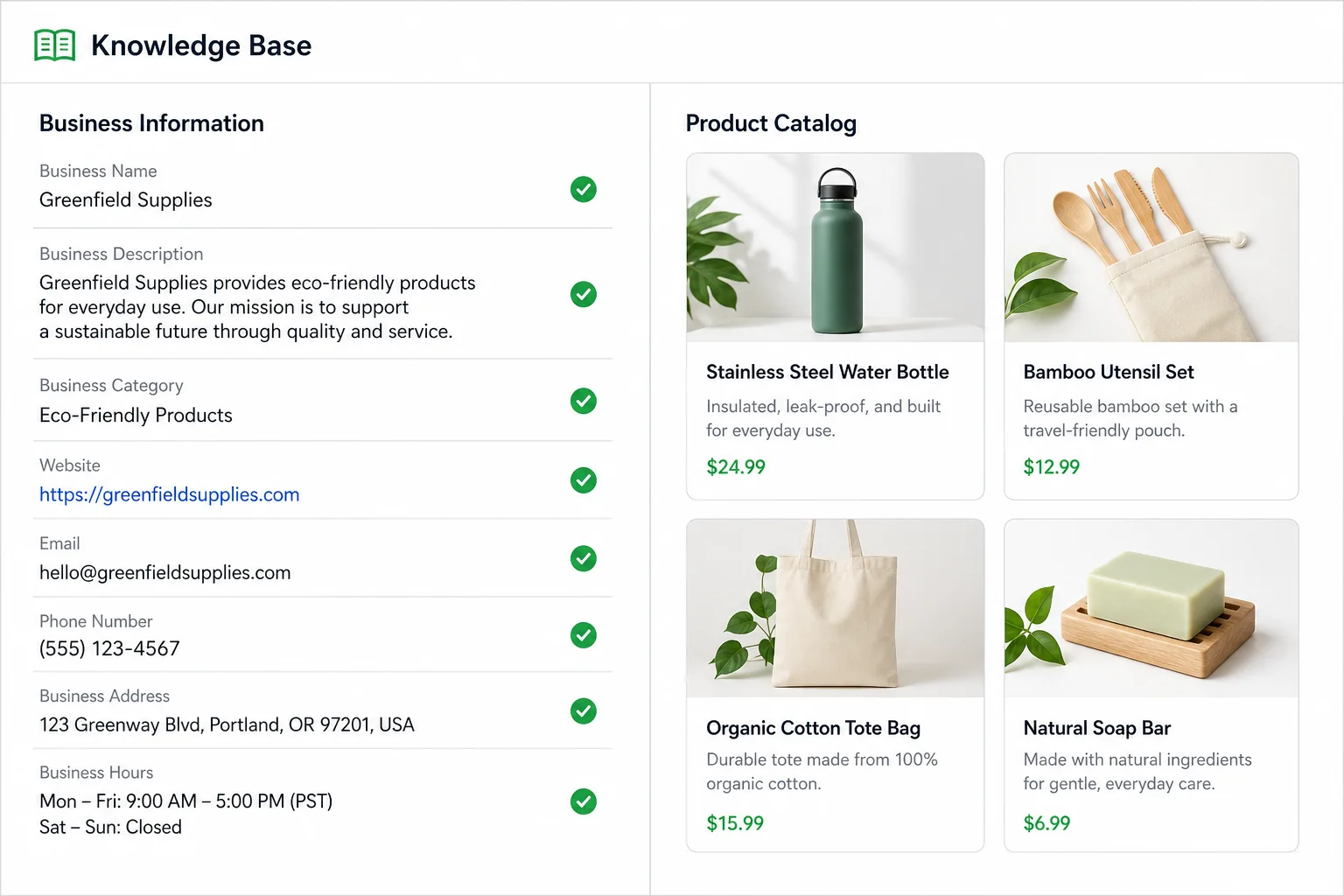
The knowledge base is the brain of your AI agent. The more you put in, the better and more natural the responses become. There are several ways to feed information into it.
Business Info and Best Sellers
Go to Share Business Info and fill in your business description, operating hours, address, email, and website. Then head to Recommended Best Sellers and add your top products or services from your catalog. Once this is done, the AI knows what your business does and what it should be pushing to customers.
Purchase Information and Policies
Under Share Purchasing Information, you can add your payment methods, UPI ID, bank account details, shipping policies, return and exchange rules, and any discount or bulk purchase offers. When a customer asks how to pay, the AI will pull this information and send it directly. This section is one of the most important to fill out accurately because the AI will use it in every sales conversation.
Product Catalog with Images
You can add individual products with a name, price, description, image, and purchase link. The product image gets saved to the AI's memory, so when a customer asks about that product, the AI sends the image automatically. For product-based businesses, this saves hours of manually forwarding photos to customers every day.
You can also upload Excel sheets directly. If your pricing changes frequently, just update the sheet and upload it. The AI reads the latest data and uses it in conversations, so customers always get accurate pricing.
Past Chat Training
This is one of the more powerful features. Go to the AI Agent screen, tap the plus icon in the top right corner, and select Add Past Chats. Export a conversation from a customer where you handled the sales process well, and upload it here. The AI studies your replies, picks up your tone, your phrasing, and your typical response patterns, then mimics them going forward.
This is how you move from an AI that sounds corporate and robotic to one that sounds like you. The more quality past chats you feed it, the better the output.
Knowledge Base Document
Under Sources inside the Knowledge Base section, you can upload a full document about your business. A good way to create this quickly is to use ChatGPT or any AI tool, give it all your business details, and ask it to write a knowledge base document. Then download it as a PDF or Word file and upload it here. This gives the AI a comprehensive understanding of your brand, your offerings, your stats, and your story.
If you want to explore more tools that connect with WhatsApp for deeper automation, check out this rundown of the best AI tools for WhatsApp automation in 2026.
Step 4: Training the AI with Custom Q&A Responses
Go to Respond to Customer Questions inside the AI Agent settings. Here you can add sample Q&A pairs that teach the AI exactly how to handle the questions your customers ask most often.
Some categories are pre-filled, like payment methods. You tap on payment methods, add your preferred response, and the AI will use it whenever anyone asks about payments. But the real power is in adding your own custom questions.
Think about the five or ten questions every single customer asks you. "When is your next workshop?" "How long is your course?" "Do you offer installments?" "Can I get a discount for group bookings?" For every one of these, write the question in the customer question field and write your ideal answer in the response field.
You can also add multiple example responses for the same question, which gives the AI flexibility to vary how it answers rather than repeating the exact same message every time. The more specific and natural your sample responses are, the better the AI sounds in actual conversations.
Step 5: Controlling When and How the AI Responds
Under Ways to Control Your AI, you will find the settings that determine exactly which conversations the AI handles and which ones it leaves for you.
Choosing Your Chat Scope
Tap on AI Reply and you will see four options. All new one-on-one chats makes the AI respond to everyone. One-on-one chats except with contacts means the AI handles unknown numbers only, so it never interrupts conversations with people already in your phonebook. One-on-one chats with ads is specifically for leads coming from WhatsApp click-to-chat ads. And Paused for new chats but learning keeps the AI studying your conversations without actively responding.
The most practical setting for most business owners is the second one: let the AI handle new, unknown numbers while you manage your existing contacts manually. This is the setup I use personally and it works very well.
Setting Behavioral Rules
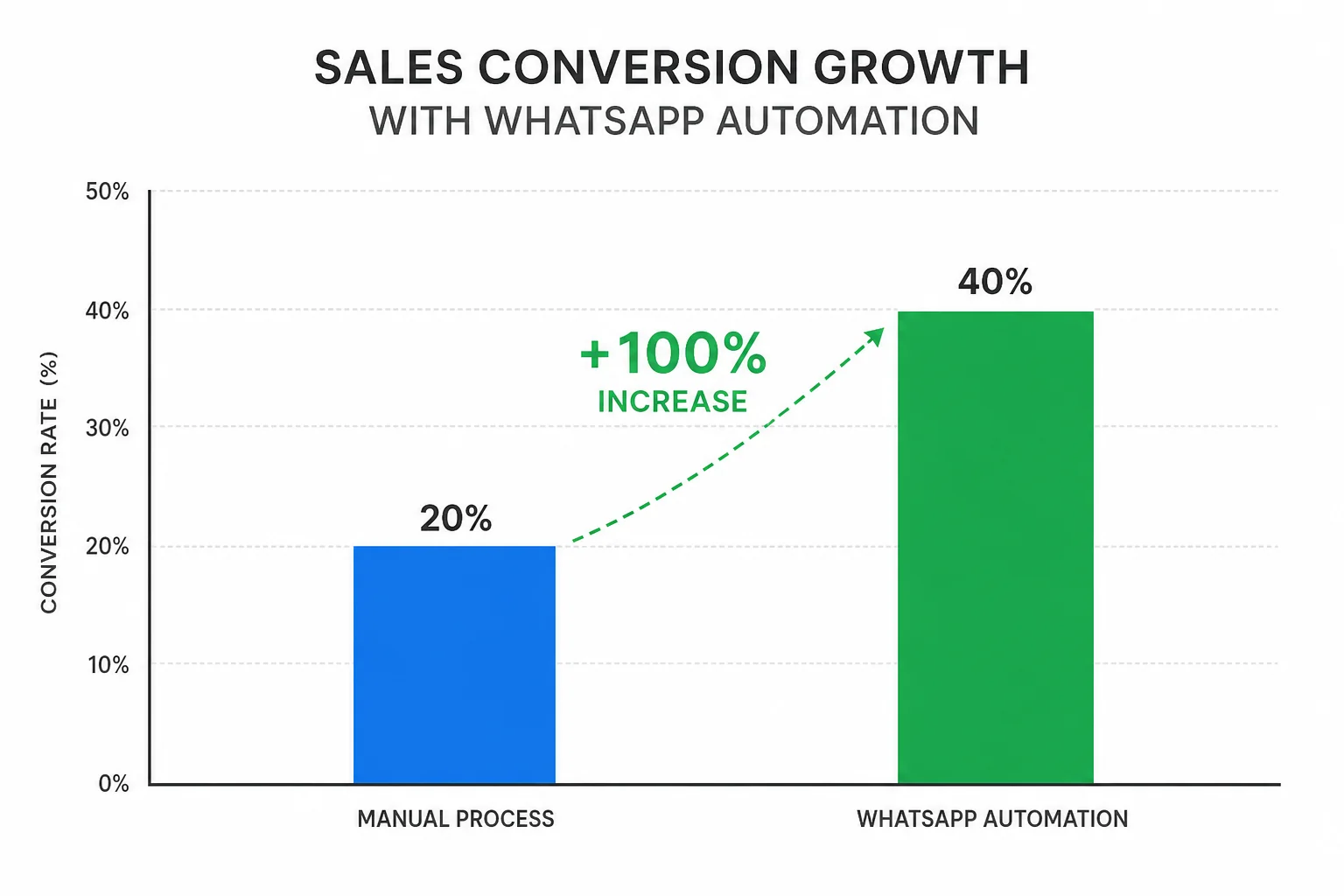
The Rules section is where you shape the AI's personality and behavior. You can toggle whether it uses emojis, whether it shares pricing, and whether it sends follow-up messages. The Send Follow Up Messages After 1 Hour option is a standout feature. If a customer stops responding, the AI automatically sends a follow-up after an hour. This alone has driven real sales conversions, because many customers get distracted and need a gentle nudge to continue.
You can also add custom instructions to the rules. For example: "Talk to my customers in very natural, simple English. Do not use complicated words. Do not write long sentences." Once you add this, the AI's tone shifts completely. It stops sounding like a formal chatbot and starts sounding like an actual person having a casual conversation.
Taking Over Manually
Any time you want to step in and handle a conversation yourself, just tap Respond Manually on that specific chat. The AI immediately steps back and you take over. Once you are done, you can let the AI resume. This hybrid control is exactly what makes the feature practical for real businesses, not just a demo toy.
For businesses that need a more structured CRM behind their WhatsApp, I have written a full guide on setting up a free open-source WhatsApp CRM that pairs well with this native AI feature.
Step 6: Testing Your AI Agent Before Going Live
Before you switch the AI on fully, use the built-in test panel inside the Knowledge Base section. It gives you a chat interface where you can type in sample customer questions and see exactly how the AI responds. Run through your most common scenarios here.
Ask it about your pricing. Ask it to book an appointment. Ask it in Hindi. Ask it something it does not know yet and see what it does. This is how you catch gaps in your knowledge base before real customers hit them.
If the responses feel too formal, go back to the Rules section and adjust your custom instructions. If the AI does not know something it should, go back to the Knowledge Base and add that information. Keep iterating until you are happy with how it sounds across a range of typical questions.
The whole setup from scratch takes about 30 to 45 minutes if you have your business information ready. After that, you are running a 24/7 customer support and sales operation on WhatsApp with no additional cost and no additional staff.
If you are thinking about how this fits into a bigger AI-powered business model, you might also enjoy my breakdown of 8 AI agents that can replace entire agency functions in 2026.
Who Should Use WhatsApp Business AI Agent
This feature is particularly valuable for a few specific types of business owners. Product sellers will benefit the most from automatic photo delivery, pricing responses, and UPI payment link sharing. Service providers like consultants, coaches, and freelancers get the most value from appointment booking and lead qualification. Workshop and event hosts can automate registration inquiries, seat availability updates, and follow-ups all through a single channel.
The limitation right now is that it does not fully replace a dedicated WhatsApp CRM for high-volume operations. If you are handling hundreds of conversations a day, you will still want a proper system behind it. But for small and medium businesses that are currently doing everything manually, this is a genuine upgrade with zero cost.
It is also worth noting that the feature is available in all native Indian languages, which makes it accessible for businesses in regional markets who communicate with customers in Hindi, Telugu, Tamil, Kannada, Marathi, Bengali, and beyond. The AI adapts to the customer's preferred language automatically within the conversation.
For those who want to take WhatsApp automation even further, including building multi-step sequences and connecting to external CRMs, the AiSensy vs Wati comparison is a good place to understand where the native feature ends and paid tools become worth it.
And if you are serious about building an AI-powered business beyond just WhatsApp, I also cover how to sell AI services to local businesses in India, which is one of the best opportunities right now if you want to monetize these skills.
Quick Recap: WhatsApp Business AI Agent Features
| Feature | What It Does | Best For |
|---|---|---|
| Customer Info Collection | Collects name, phone, location on trigger | Lead generation, sales |
| Appointment Booking | Books calls and meetings with Google Meet | Consultants, coaches, services |
| Product Catalog with Images | Sends product photos and prices automatically | E-commerce, product businesses |
| Knowledge Base Upload | Trains AI on PDFs, Excel, past chats | All businesses |
| Custom Q&A Training | Handles FAQs in your own tone | All businesses |
| Follow-Up Message | Auto follow-up after 1 hour of silence | Sales conversion |
| Multilingual Support | Switches language based on customer preference | Regional and national businesses |
| Manual Override | You can step in on any conversation anytime | Complex queries, high-value leads |
| Cost | Completely free | Everyone |
Frequently Asked Questions
Is WhatsApp Business AI Agent free?
Yes, it is completely free of cost. It is a native feature inside the WhatsApp Business app and requires no paid subscription or third-party tool.
Is WhatsApp Business AI available in India?
Yes. Meta officially launched it in India starting May 7, 2026. It is available in all native Indian languages and is rolling out to eligible WhatsApp Business accounts.
Will my customers know they are talking to an AI?
Not necessarily. If you train the AI well with past chats, natural language instructions, and good Q&A examples, the responses can sound very human. You can also instruct it to use simple words and short sentences so it does not sound like a corporate bot.
Can I stop the AI from responding to certain people?
Yes. You can set it to skip conversations with people already in your contacts. You can also pause it anytime and take over a conversation manually with one tap.
Can the AI send images and payment links?
Yes. You can add product images to the catalog and UPI or payment gateway links to the purchasing info section. The AI will send these automatically when customers ask about products or payments.
What languages does WhatsApp Business AI support?
It supports all native Indian languages. The AI adapts automatically to whatever language the customer writes in during the conversation.
Conclusion
WhatsApp Business AI Agent is one of the most practical AI features to land in the Indian small business space. It is free, it is built right into the app you are already using, and when set up properly it genuinely handles customer conversations from first message to appointment booking or sale.
The setup is not complicated. Spend an hour filling in your business info, uploading your knowledge base, writing your custom Q&A pairs, and adding your past chats. Then switch it on and watch it handle the repetitive customer communication that was eating hours of your day.
If you want to go deeper on WhatsApp automation beyond the native AI agent, and see how third-party tools compare for more advanced workflows, start with my post on the best AI tools for WhatsApp automation. And if you want to turn these AI skills into an actual income stream, my guide on selling AI services to local businesses is the right next step.