Free Open-Source WhatsApp CRM: Full Setup Guide (WA CRM on Meta API)
Stop paying ₹10,000/month for WATI or Interakt. WA CRM is a free, open-source WhatsApp CRM built on Meta's official API — set it up on your own server in a few hours.

You're paying ₹10,000 per month — or more — for a WhatsApp CRM. WATI, Interakt, AiSensy. They all run on the same official Meta API underneath. The difference between them and you? A monthly invoice.
There's a GitHub project called WA CRM — an open-source, self-hostable WhatsApp CRM that runs on the exact same Meta Business API those platforms charge you for. No unofficial scrapers. No third-party workarounds that can get your number banned. Just the real API, hosted on your server, for the cost of a cheap VPS.
This guide walks you through exactly how to set it up from scratch — fork the repo, configure Supabase, connect your WhatsApp number, set up the webhook, and deploy it to a live server — so it runs 24/7 without touching your local machine.
What Is WA CRM? The Free Open-Source WhatsApp CRM You Need to Know About
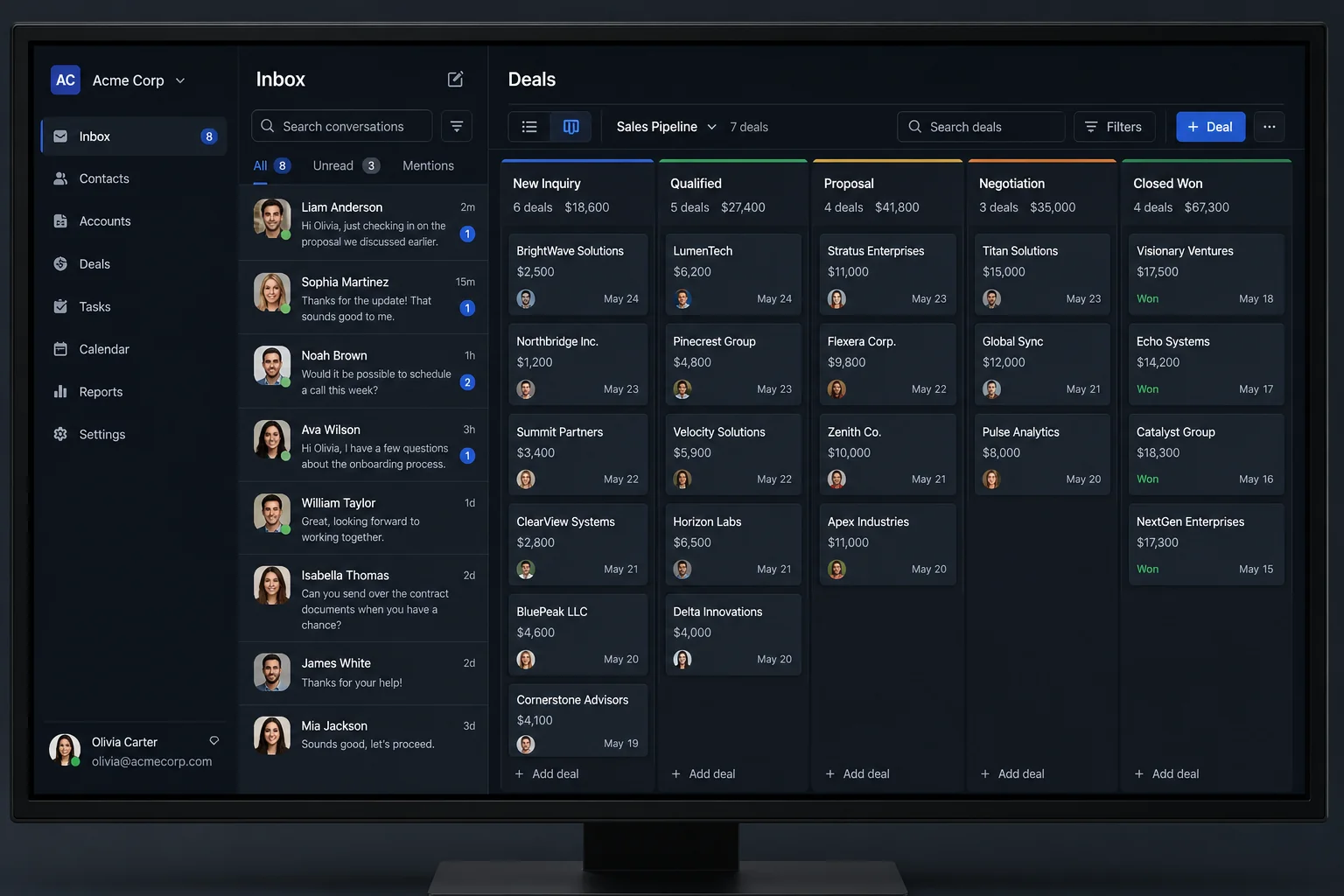
WA CRM is an open-source WhatsApp CRM available on GitHub. It uses the official Meta WhatsApp Business API — the same API powering WATI, Interakt, and AiSensy. That matters because it means your number won't get banned, your messages won't get flagged, and you're operating inside Meta's legitimate ecosystem.
Because it's open-source and self-hostable, you own everything: the code, the data, the branding. You can white-label it and sell it to clients as your own WhatsApp automation service. Or just use it for yourself and stop paying a monthly SaaS bill.
What the Tool Covers
- Dashboard — a clean overview of your activity
- Inbox — see all incoming messages from your contacts in real time
- Contacts — import, add, and manage your contact database
- Pipeline — a lead staging board where you can track deal status, just like a standard CRM
- Broadcasts — send bulk messages and track delivery, read rates, and reply rates per campaign
- Automations — pre-built flows like welcome messages, out-of-office replies, lead qualifiers, and follow-up reminders, plus a builder to create your own
- Settings — create or sync Meta templates, manage tags, and connect your WhatsApp number
For a free, self-hosted tool, the feature set is genuinely solid. It covers most of what a solopreneur, freelancer, or small agency would need from a WhatsApp CRM day to day. If you're already using an all-in-one CRM platform like GoHighLevel, think of WA CRM as the dedicated WhatsApp layer you can run on the side — or offer to clients as an add-on service.
Who Should (and Shouldn't) Use This
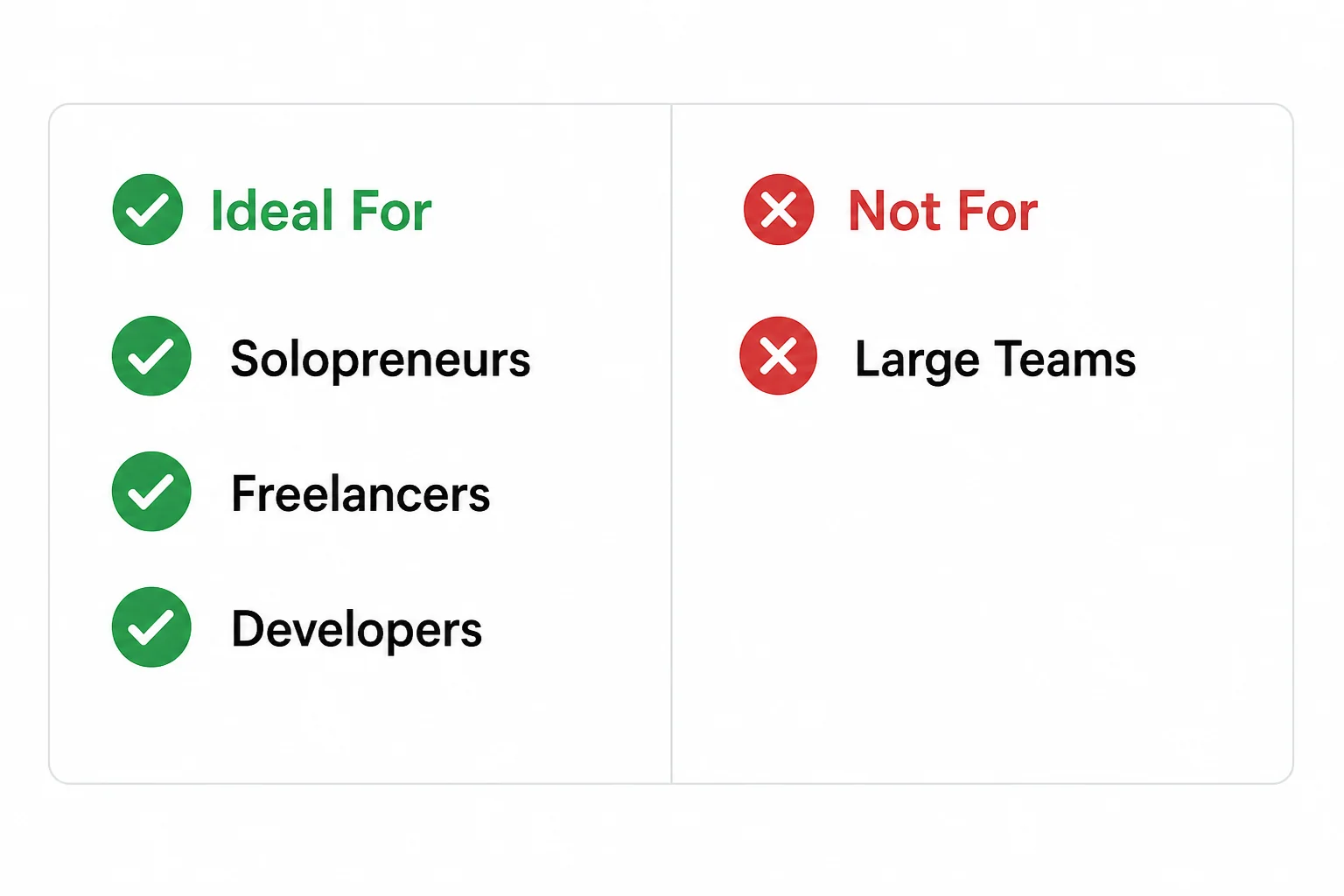
Before you invest an afternoon setting this up, be honest about what you need. WA CRM is a good fit for specific use cases — and a poor fit for others.
This Is for You If...
- You're a solopreneur or freelancer managing your own WhatsApp conversations and leads
- You're a technical person who wants to customize the code, add your own branding, and resell it as a WhatsApp automation service
- You want full data ownership — contacts, conversations, and history sitting in your own database, not a vendor's servers
- You're building a client service around WhatsApp automation and want to deploy an instance for each client
This Isn't for You If...
- You run a large business with multiple agents handling conversations who need team assignment, role-based access, and shared queues
- You need a built-in AI agent layer on top of WhatsApp (you'd need to build that yourself)
- You want a zero-maintenance plug-and-play solution — this requires initial technical setup
If you're in that second camp, WATI or Interakt may genuinely be the better call. But for freelancers and technical creators, this tool is a significant cost-saver. Especially if you're already running AI-based service businesses where WhatsApp is a key client communication channel.
Installation: Fork the Repo and Run It Locally
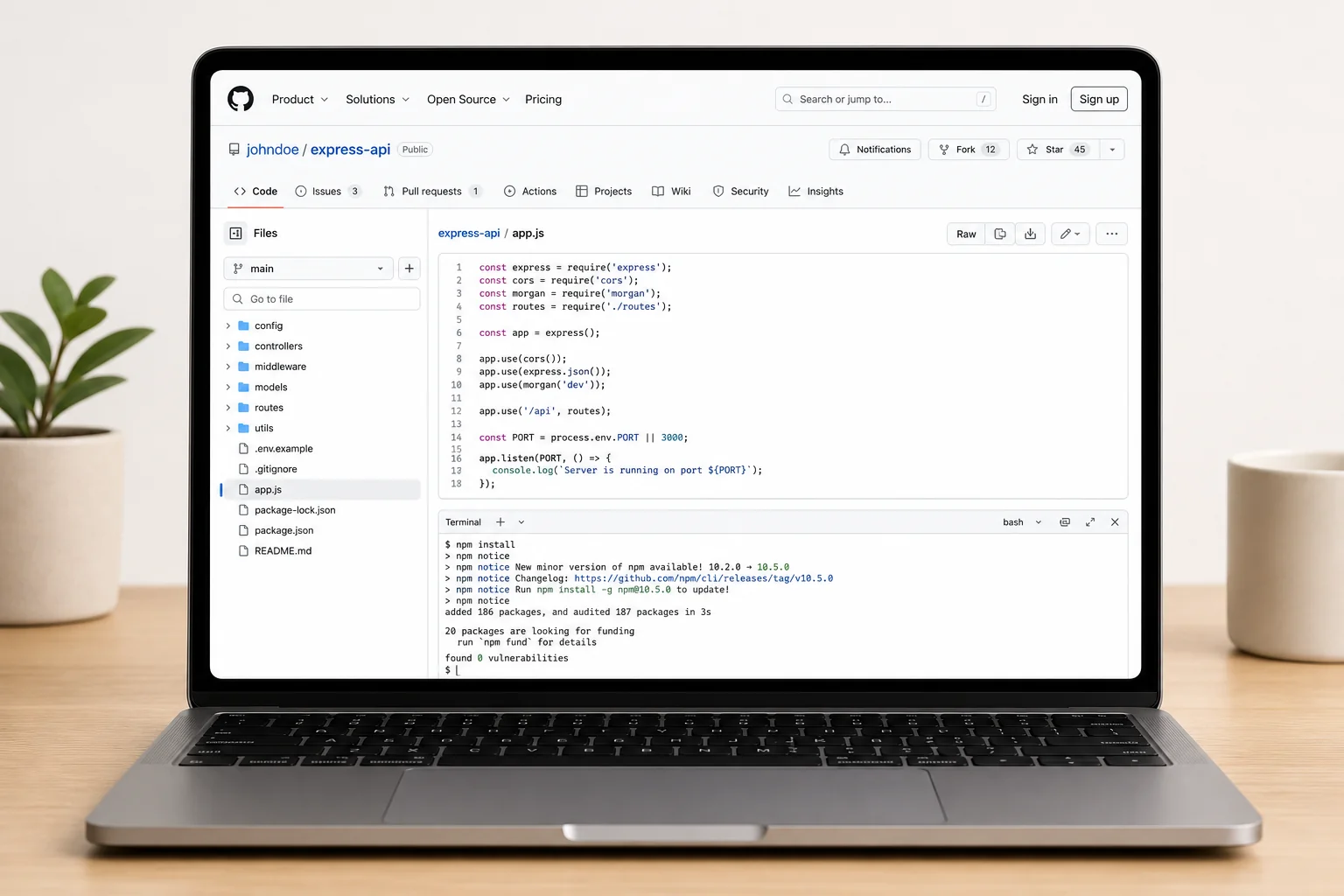
The WA CRM repo is available on GitHub (search "wacrm ArnasDon" or find the link in the original video description). Here's how to get it running locally first before we push it to a server.
Step 1 — Fork the Repository
Don't just clone the original repo directly. Fork it into your own GitHub account first. You'll be making changes — adding credentials, possibly tweaking code — and you need your own copy to push those changes to. On GitHub, click Fork at the top right of the repo page.
Step 2 — Clone and Install
Open your code editor (VS Code, Cursor, or anything you prefer). Open a terminal and run:
git clone [your forked repo URL] .— the dot keeps it in your current foldernpm install— installs all dependencies (Node.js required; if you don't have it, download it from nodejs.org)
Step 3 — Set Up the .env File
The repo includes a file called .env.local.example. Copy it and rename the copy to .env.local. This is where all your credentials go. Do not commit this file to GitHub — it contains sensitive keys.
The first credentials you need are your Supabase URL, anon key, service role key, and an encryption key. We'll get those in the next step.
Supabase Setup: Where All Your Data Lives
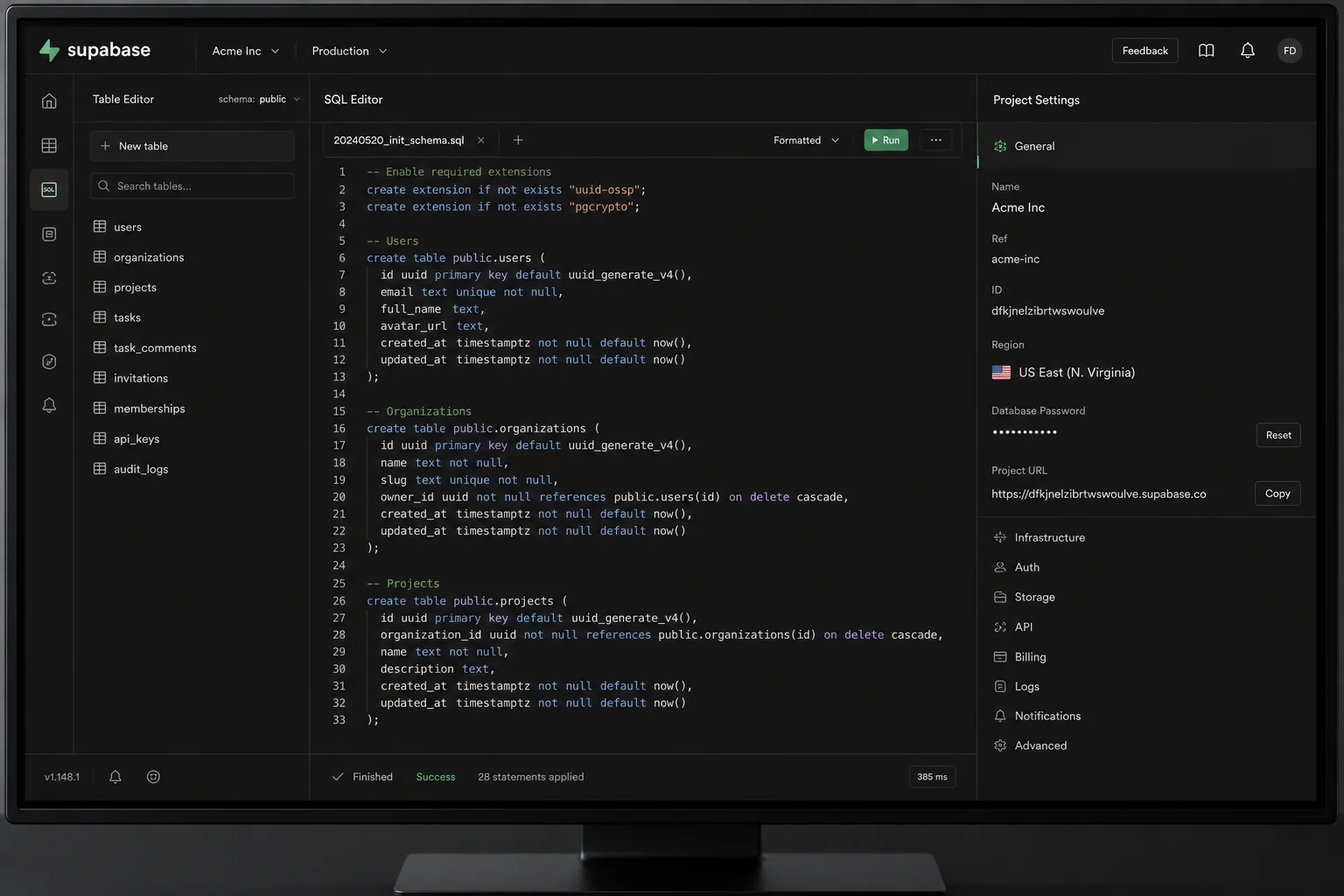
Supabase is the open-source Firebase alternative that WA CRM uses as its backend. It's free to start with, and it handles authentication, the database, and API access in one place.
Create Your Project
- Go to supabase.com and create an account
- Create a new organization, then a new project inside it
- Once the project is created, go to Project Settings → API to find your credentials
Add Your Credentials to .env.local
You need three values from Supabase:
- Project URL — found on the main project dashboard or by clicking "Connect"
- Anon Key — the public-facing API key (safe to use in frontend)
- Service Role Key — the admin key that bypasses row-level security. Never share this publicly. Paste it into your .env.local but keep it out of any public repo.
The repo also requires an encryption key. The README includes a one-line terminal command to generate one — copy it, run it in your terminal, and paste the output into your .env file.
Run the Database Migration
Before the app can function, you need to create all the database tables in Supabase. There are two ways to do this:
- Manual: Go to Supabase → SQL Editor, paste each migration file from the repo's
/supabase/migrationsfolder one by one, and run them in order - CLI (faster): Install the Supabase CLI, run
supabase linkto connect to your project, thensupabase db pushto push all migrations at once
After migration, go to Table Editor in Supabase — you should see all the tables created (contacts, messages, pipelines, etc.). Once that's confirmed, run npm run dev locally and you'll see the dashboard running without errors.
WhatsApp Config: Connecting the Meta Business API
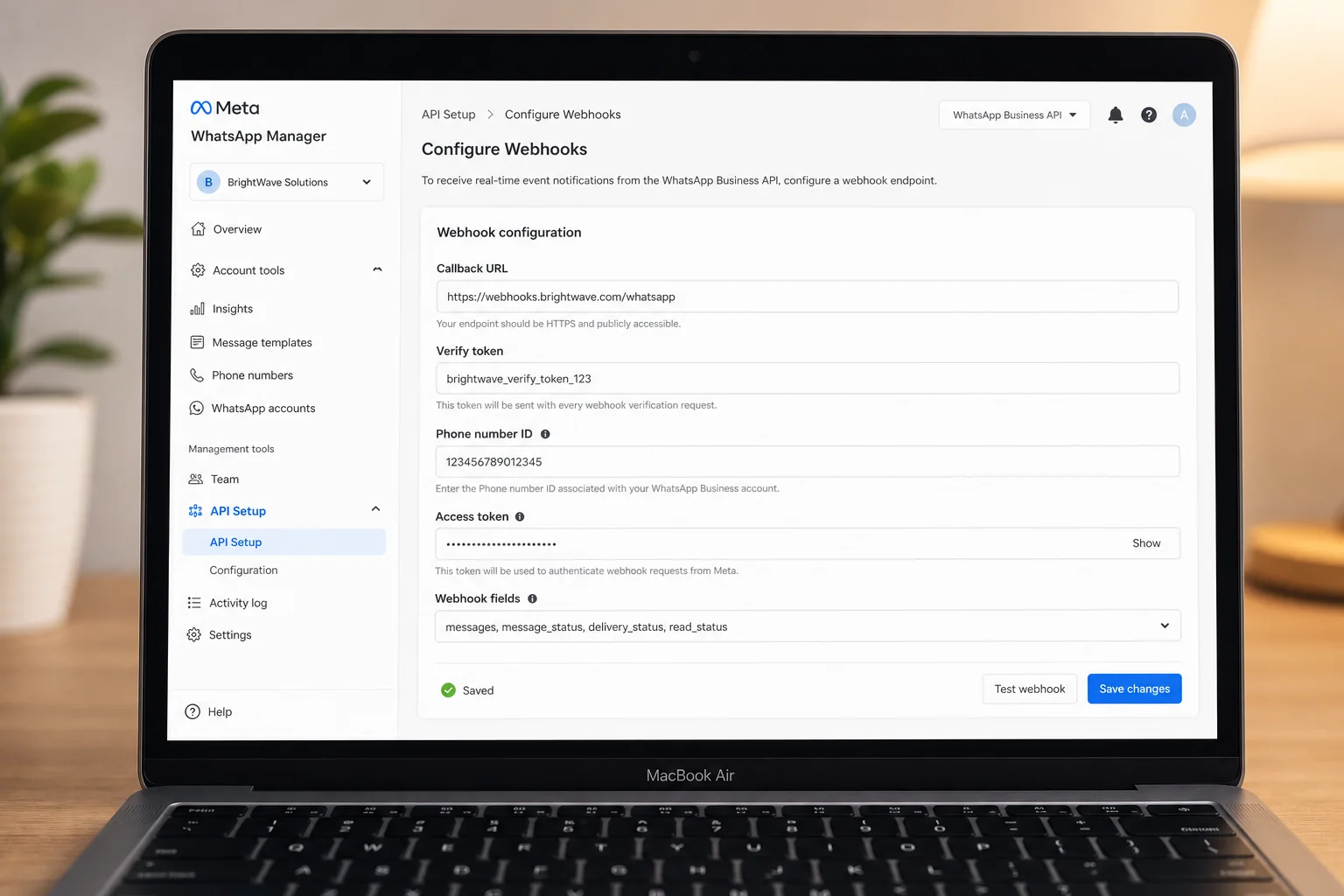
This is the part that trips most people up. WA CRM connects to Meta's official WhatsApp Business Cloud API — the same infrastructure WATI and Interakt use. To set it up, you need a Meta Developer account with a WhatsApp Business App already configured.
If you haven't done that yet, the video links to a separate Meta setup tutorial. Once you have a Meta app with WhatsApp access, here's what you need to grab:
Credentials Required
- App Secret — from Meta Developer Dashboard → App Settings → Basic → App Secret (you'll need to re-enter your password to reveal it)
- Phone Number ID — from your WhatsApp app → API Setup → select your phone number
- WhatsApp Business Account ID — shown alongside the Phone Number ID
- Permanent Access Token — generated from your Meta app (not the temporary one — you need the long-lived permanent token)
- Verify Token — you create this yourself; it can be any string. You'll use the same string in both the CRM settings and the Meta webhook config
Add all of these into your .env.local and also into the Settings → WhatsApp Config panel inside the CRM itself. After saving, click Test API Connection — you should see a connected confirmation with your WhatsApp display name.
Webhook Setup: So Meta Can Talk to Your Server
The webhook is what allows incoming WhatsApp messages to actually appear in your CRM inbox. Here's how it works: a user sends you a message → it hits Meta's servers → Meta forwards it to your webhook URL → your CRM processes and displays it.
Meta requires the webhook URL to be HTTPS. Since your local server runs on HTTP, you need a tunneling tool called ngrok to create a temporary HTTPS URL that points to your local port 3000.
- Install ngrok (ask ChatGPT or Claude if you're unsure — it's a very simple install)
- Run
ngrok http 3000in your terminal - Copy the HTTPS URL it gives you
- Go to your Meta App → WhatsApp → Configuration
- Set the webhook URL to:
[ngrok URL]/api/whatsapp/webhook - Set the verify token to whatever string you used earlier
- Click Verify and Save — if the page refreshes, it worked
To test: send a WhatsApp message to your connected number from another phone. You should see it appear in the CRM inbox within seconds. If it shows up — congratulations, your local setup is fully functional.
Note: ngrok is only for local testing. Once you deploy to a server, you'll replace the ngrok URL with your real domain URL in Meta's webhook settings.
Deploying to a Live Server So It Runs 24/7
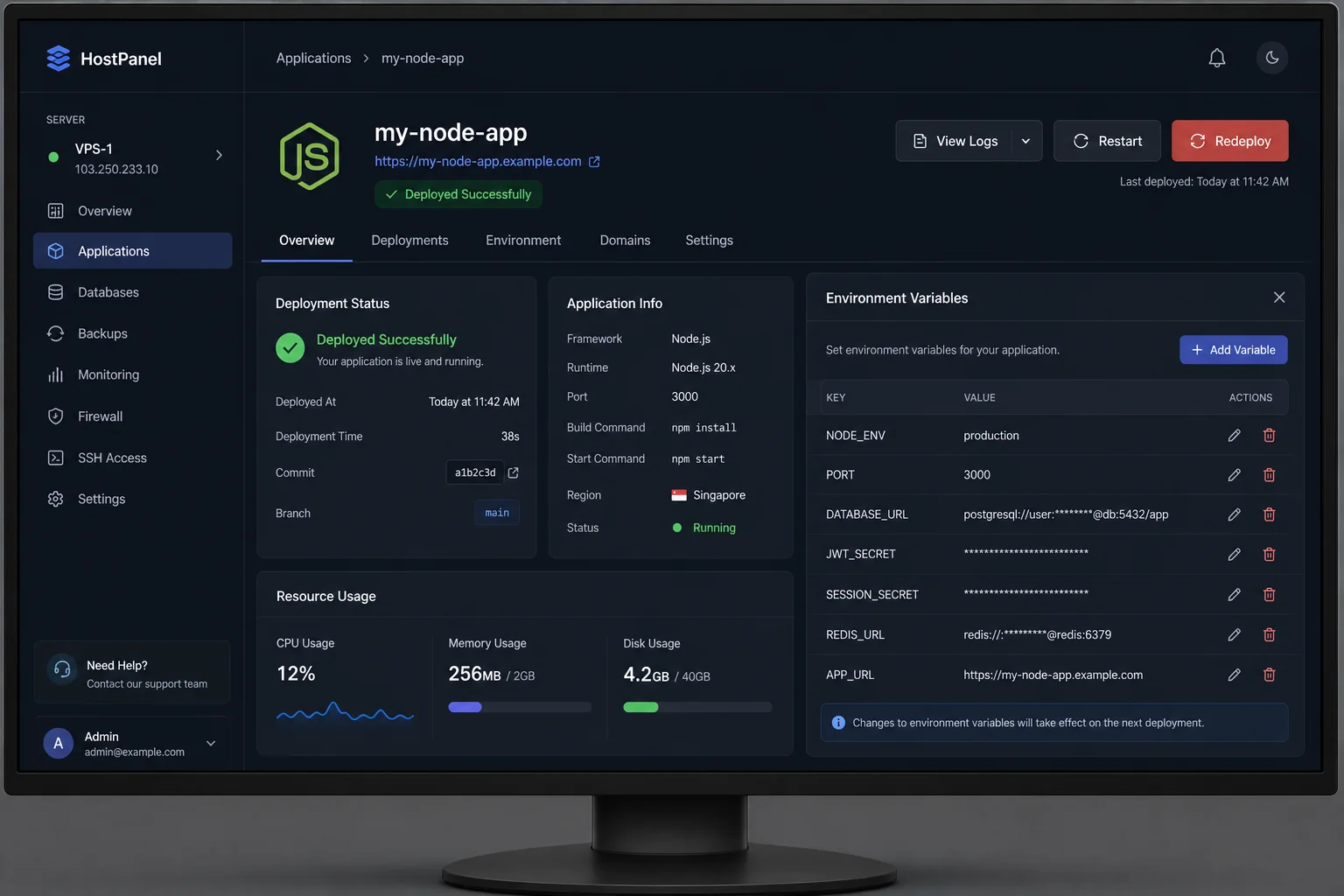
Your local machine can't run 24/7. For WA CRM to actually be useful — receiving messages, triggering automations, letting you check the inbox from your phone — it needs to live on a server. The good news is a basic VPS costs as little as ₹249/month, which is a fraction of what you'd pay for WATI.
Choosing a Hosting Provider
Any VPS that supports Node.js will work. Hostinger is what the original tutorial uses, and their plans start at a very reasonable price point for a Node.js web app. You can also use DigitalOcean, Hetzner, Contabo, or any provider you're already comfortable with.
Deployment Steps
- On your hosting panel, create a new website and choose Node.js web application as the type
- Connect it to your forked GitHub repository (this is why we forked instead of just cloning)
- Set the deployment branch to main
- Add all your environment variables — go through your
.env.localfile and add each key-value pair in the hosting panel's environment variables section - Click Deploy and wait for the build to complete
Once deployed, your CRM will be live on your domain name. Go to the URL, click sign in, enter your Supabase credentials — and you'll have your full WhatsApp CRM running 24/7.
Update Your Meta Webhook
Don't forget to go back to Meta Developer Dashboard and update the webhook URL. Replace the old ngrok URL with your new live domain: [your domain]/api/whatsapp/webhook. Verify and save. From this point, all incoming messages go directly to your live server.
This is also the kind of setup you can replicate for clients. If you're running an AI automation service for local businesses, you can deploy a separate instance for each client, charge a setup fee, and a small monthly hosting fee. The deployment takes 15–20 minutes once you've done it once.
Why This Beats Paying for WATI, Interakt, or AiSensy
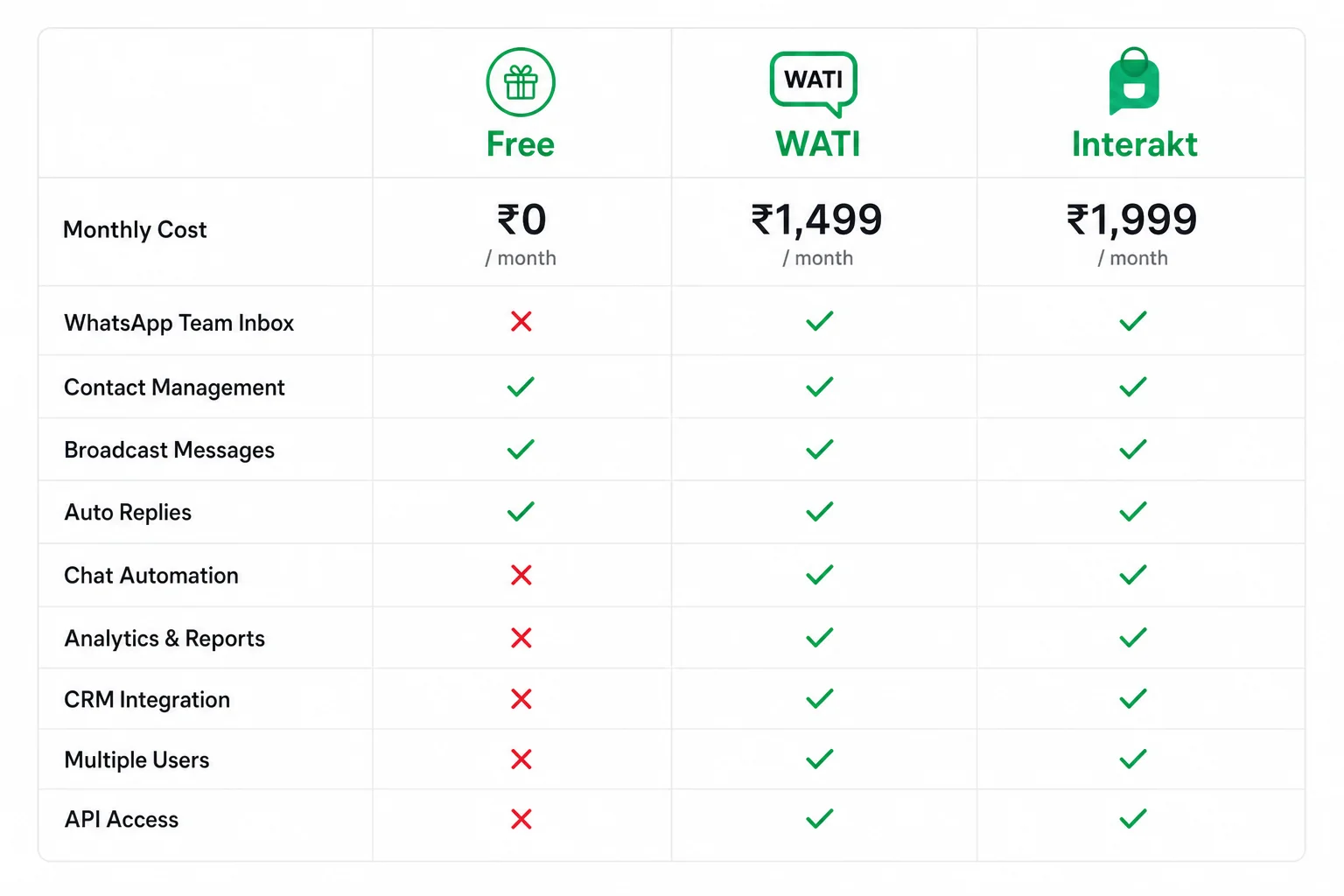
All three major WhatsApp CRM platforms — WATI, Interakt, and AiSensy — run on the official Meta API. The same API WA CRM uses. What you're paying for is their SaaS layer: their servers, their dashboards, their team. Here's how the case for WA CRM breaks down:
Cost
WATI's entry plan starts at around ₹2,500–₹4,000/month. Interakt and AiSensy are in a similar range. WA CRM's cost is essentially ₹0 for the software, plus ₹249–₹500/month for a VPS. For someone just starting out or running a lean operation, that's a ₹2,000–₹3,500/month saving.
Data Ownership
With WATI or Interakt, your entire contact database, conversation history, and broadcast data lives on their servers. If the company shuts down, changes pricing, or you decide to leave — data migration becomes complicated. With WA CRM and Supabase, everything lives in your own database. You can export it, migrate it, or back it up whenever you want.
Customizability
WA CRM is open-source. You can change the logo, colors, add features, remove features, integrate it with other tools, or build entirely new automations on top of it. No waiting for a product roadmap. No submitting feature requests. You own the code.
That last point is especially valuable if you're building this into a client service. You can brand it, price it however you want, and deliver it as your own WhatsApp CRM product. Compare that to how traditional CRM platforms handle reselling — most of them restrict white-labeling behind expensive agency plans.
Where WA CRM still falls short compared to the paid tools: no built-in multi-agent team assignment, no native AI chatbot layer, and limited enterprise-grade reporting. For a solo operator, that's fine. For a team of 10 handling 500 conversations a day — not quite yet. But the project is active on GitHub and the community is growing.
If you're also exploring other ways to build AI-powered automation systems for businesses, WA CRM can slot in as the WhatsApp layer alongside broader automation workflows.
Quick Recap: WA CRM Setup at a Glance
| Step | What You Do | Tool Used |
|---|---|---|
| 1. Fork & Clone | Fork the WA CRM repo to your GitHub, clone locally | GitHub, VS Code / Cursor |
| 2. Install Dependencies | Run npm install in the project folder | Node.js, npm |
| 3. Supabase Setup | Create project, copy URL + keys, run DB migrations | Supabase |
| 4. WhatsApp Config | Add Meta App Secret, Phone Number ID, Permanent Token | Meta Developer Dashboard |
| 5. Webhook (Local) | Use ngrok to expose localhost via HTTPS | ngrok |
| 6. Deploy to Server | Push via GitHub to VPS, add env variables, deploy | Hostinger / any VPS |
| 7. Update Webhook | Replace ngrok URL with live domain in Meta Dashboard | Meta Developer Dashboard |
Frequently Asked Questions
Is WA CRM actually free?
Yes, the software itself is completely free and open-source. You'll pay for hosting (a basic VPS starts around ₹249/month) and for Meta's message template costs — the same conversation-based pricing that applies to all WhatsApp Business API users. But there's no platform fee for the CRM itself.
Can I use this without any coding knowledge?
You need some comfort with the command line — things like running git clone, npm install, and setting environment variables. You don't need to write any code from scratch. If you can follow a step-by-step tutorial and use AI tools like ChatGPT or Claude to troubleshoot errors, you can get this running. The initial setup takes 1–1.5 hours for a first-timer.
Will using this get my WhatsApp number banned?
No — as long as you're using the official Meta WhatsApp Business API (which WA CRM is built on), you're operating within Meta's guidelines. The ban risk comes from unofficial scrapers and tools that emulate WhatsApp Web without authorization. This is not that.
Can I white-label and resell this to clients?
Yes. Since it's open-source, you can rebrand it with your own logo, colors, and domain name and offer it as a WhatsApp CRM service to clients. You deploy a separate instance per client, add your markup, and collect a monthly fee. Many freelancers doing AI automation services for businesses are already building this into their service stack.
What if I don't have a Meta Business API set up yet?
You'll need to create a Meta Developer account, create a WhatsApp Business App, verify your business, add a phone number, and generate a permanent access token. This is a one-time process. The original YouTube video links to a dedicated tutorial covering the full Meta setup if you need to start from scratch.
Is this better than GoHighLevel for WhatsApp?
They serve different purposes. GoHighLevel is a full-stack agency platform — CRM, funnels, pipelines, email, SMS, reputation management. WA CRM is specifically a WhatsApp CRM. If you only need WhatsApp management, WA CRM is far cheaper. If you need the full agency suite, GoHighLevel makes more sense.
Conclusion
There's no good reason to pay ₹5,000–₹10,000 a month for a WhatsApp CRM if you have even basic technical comfort. WA CRM gives you the official Meta API, a proper inbox, pipeline, broadcasts, and automations — all on your own server, with your own data, under your own brand.
The setup takes a few hours the first time. After that, deploying a new instance for a client or yourself takes 15–20 minutes. The cost savings compound fast, especially if you're setting this up for multiple clients as a service.
If you're building out automation services, this fits naturally alongside other tools in your stack. Whether you're running AI agents for business clients or just want to manage your own WhatsApp leads without the monthly SaaS overhead — this is worth the one-time setup investment.
Fork the repo. Follow the steps. And stop paying for something you can own.