How to Connect Claude AI to WordPress (The Easiest Way Using Novamira)
Learn how to connect Claude AI to your WordPress site using the free Novamira plugin. A step-by-step guide to giving Claude full access to your WordPress at the PHP level.

Connecting Claude AI to your WordPress site used to require either custom code, complex API setups, or just hoping someone else had figured it out. That's changed. There's now a free plugin called Novamira that turns your WordPress site into an MCP server — which means Claude can connect to it directly, read your content, execute PHP, query your database, install plugins, and build pages, all through a simple conversation.
This tutorial covers exactly what Darrel Wilson walks through in his video on connecting Claude to WordPress the easy way. Whether you're a WordPress beginner or a developer who just wants a faster workflow, this is one of the most practical AI integrations available right now — and it's free to get started.
By the end of this guide, you'll have Claude fully connected to your WordPress site and ready to act as your personal AI website assistant. Let's get into it.
What Is Novamira? (The Plugin That Makes This Possible)
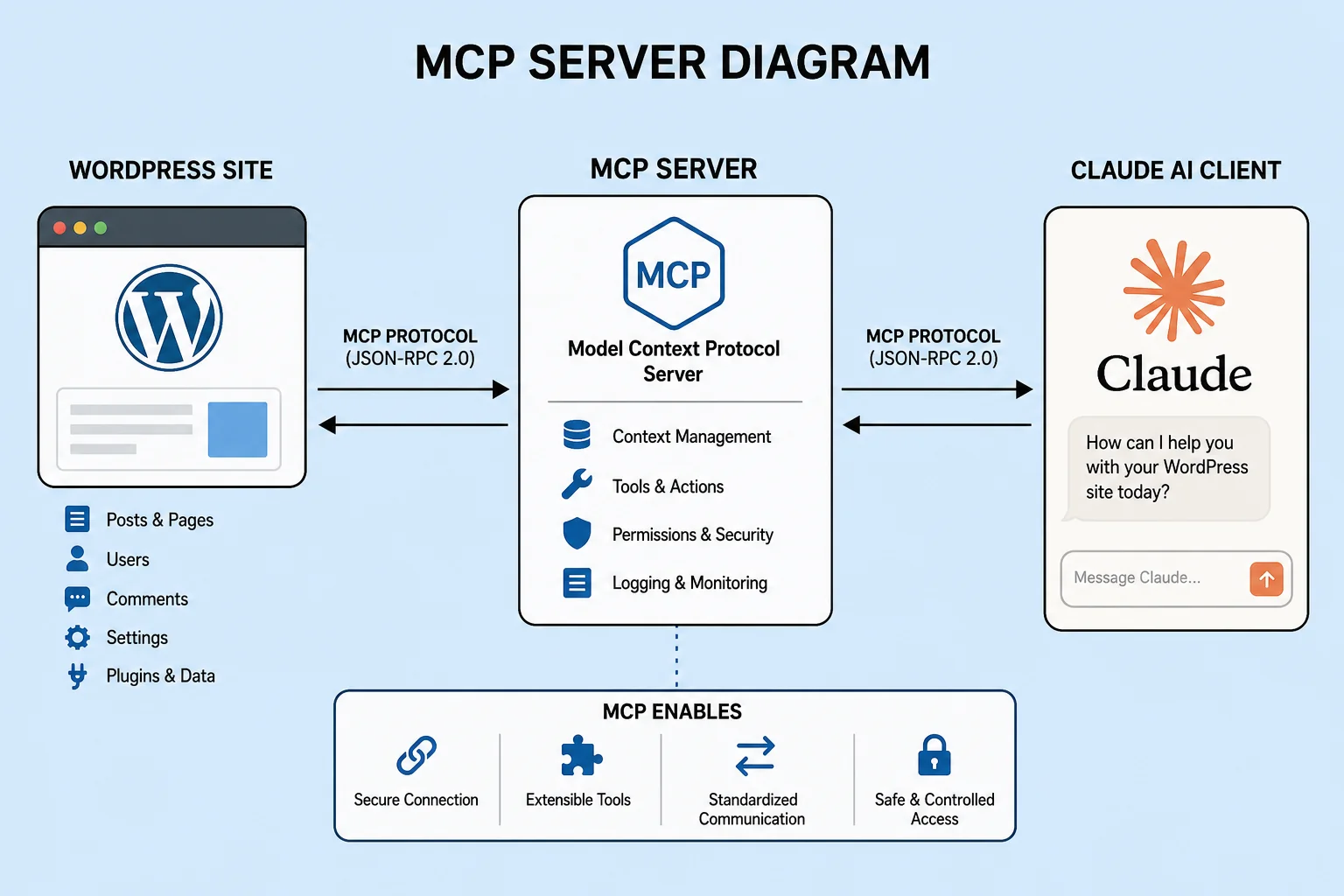
Novamira is a free WordPress plugin that runs an MCP (Model Context Protocol) server directly on your WordPress site. MCP is an open standard that lets AI models like Claude connect to external tools and data sources — and Novamira uses it to give Claude direct access to your WordPress at the PHP level.
The plugin was built by the team behind Dynamic Content for Elementor, so these aren't amateurs — they know WordPress inside out. The result is one of the most complete AI-WordPress integrations available anywhere.
Here's the key thing to understand: this isn't a writing assistant plugin that helps you generate blog text. Novamira gives Claude actual runtime access to WordPress. That means the AI isn't just reading static files — it can interact with your database, your active plugins, your theme structure, and your file system, exactly the way a developer logged into your server would.
Supported AI clients include Claude Desktop, Claude Code, Cursor, VS Code with GitHub Copilot, Windsurf, Zed, Gemini CLI, OpenCode, and any other MCP-compatible client. The video tutorial focuses on Claude Desktop, which is the easiest entry point for most users. If you're already building AI-powered systems for your business, this pairs well with other tools — similar to how GHL AI Studio is used to build lead generation systems without writing code.
What Claude Can Actually Do Inside Your WordPress Site
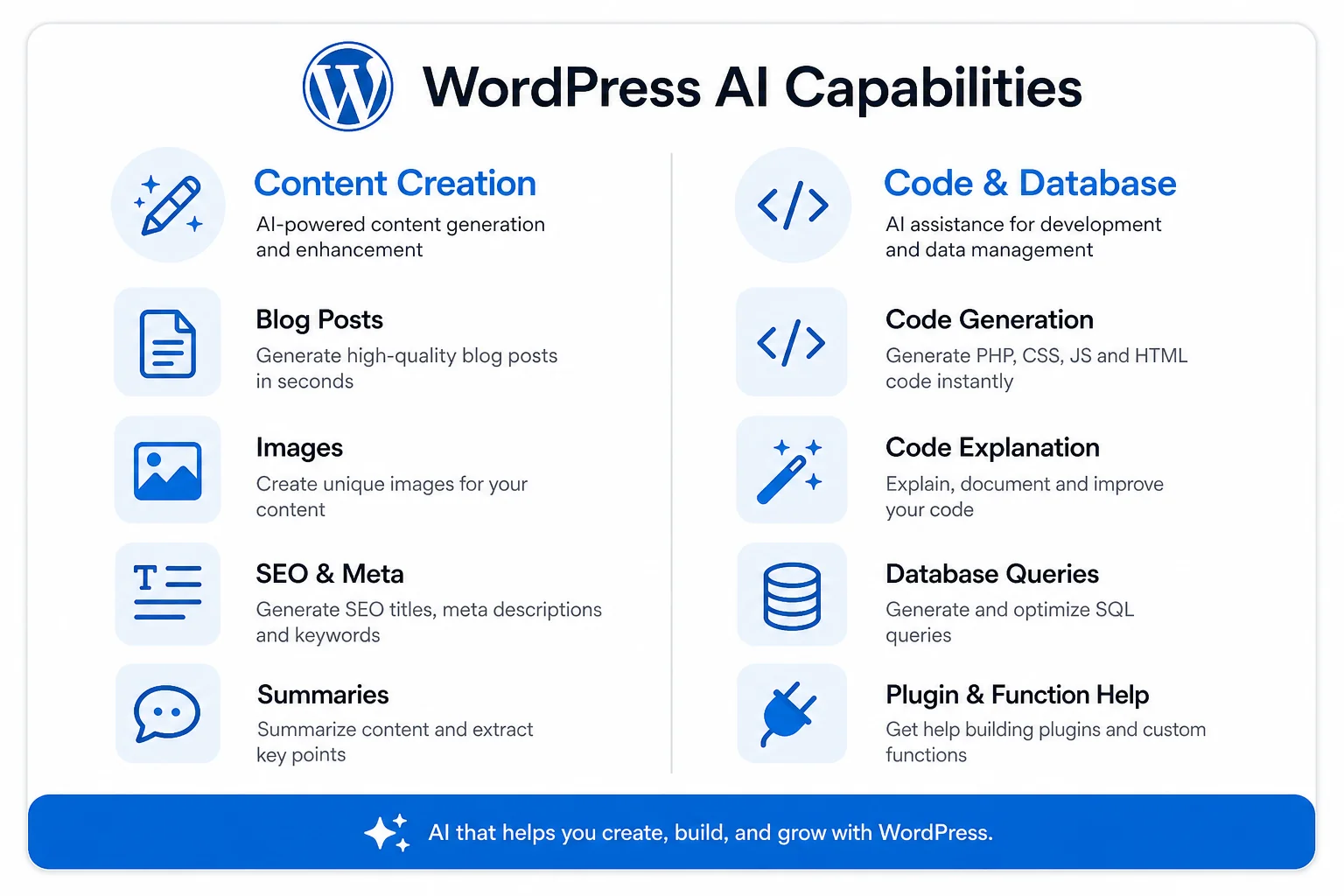
Before you set this up, it helps to understand what you're actually unlocking. Once Claude is connected to your WordPress through Novamira, here's what it can do:
- Create and publish pages and posts — write content, set categories, tags, meta data, featured images, and publish directly
- Install and configure plugins — Claude can install an SEO plugin and configure it in one conversation
- Run a site security audit — Claude checks your active plugins, WordPress version, and known vulnerabilities and gives prioritized recommendations
- Execute PHP inside WordPress — any PHP that runs in WordPress, Claude can run — including database queries, API calls, and custom logic
- Read and modify theme files — Claude can inspect your theme structure and make changes at the file level
- Query your database directly — posts, post meta, options, custom tables — all accessible
- Generate HTML reports — Claude can generate a clean client-ready audit report and even convert it to PDF
- Work with page builders — Elementor layouts are accessible and editable through the AI (with some complexity limitations)
This is a fundamentally different level of access compared to typical AI writing tools. You're not prompting Claude and then copying text into WordPress. Claude is operating inside WordPress, making changes directly. For local businesses and solo creators who want to build and manage websites faster, this is a significant time saver — similar to how AI voice agents can replace manual client communication for agencies.
Before You Start — Important Things to Know
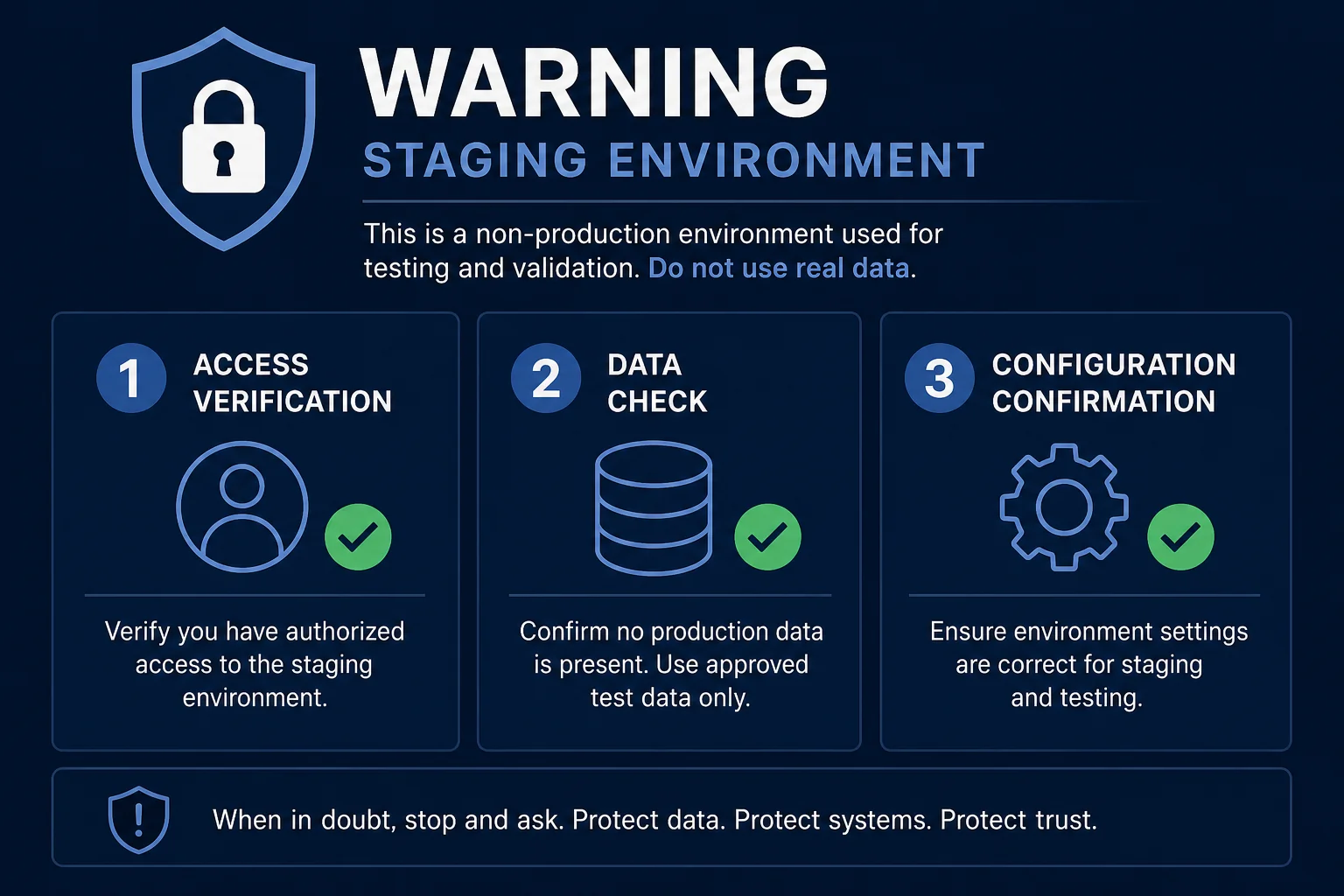
Novamira is powerful, and that power comes with a very clear warning from the developers themselves: use this on a staging or development site, not a live production site.
Here's why this matters. When Claude is connected through Novamira, it has access to execute PHP, read and write files, and make database changes. That's the same level of access your hosting admin panel has. If something goes wrong — a wrong instruction, a bad prompt, an error in execution — it can affect your site in real ways. On a staging site, that's fine. On a live production site with real customers and real data, the risk is much higher.
A few things to know before starting:
- The MCP server is disabled by default. You explicitly turn it on — it doesn't activate automatically.
- Authentication is required. Only admin users with WordPress Application Passwords over HTTPS can connect — no anonymous access.
- There's a 30-second execution time limit and a kill switch via URL parameter as additional guardrails.
- File writes are sandboxed to a dedicated directory with automatic crash recovery, but code execution itself is unrestricted.
- Back up your site before connecting. This isn't optional — do it every time before you start a new session.
With those understood, let's get into the actual setup.
How to Install Novamira and Connect Claude to WordPress
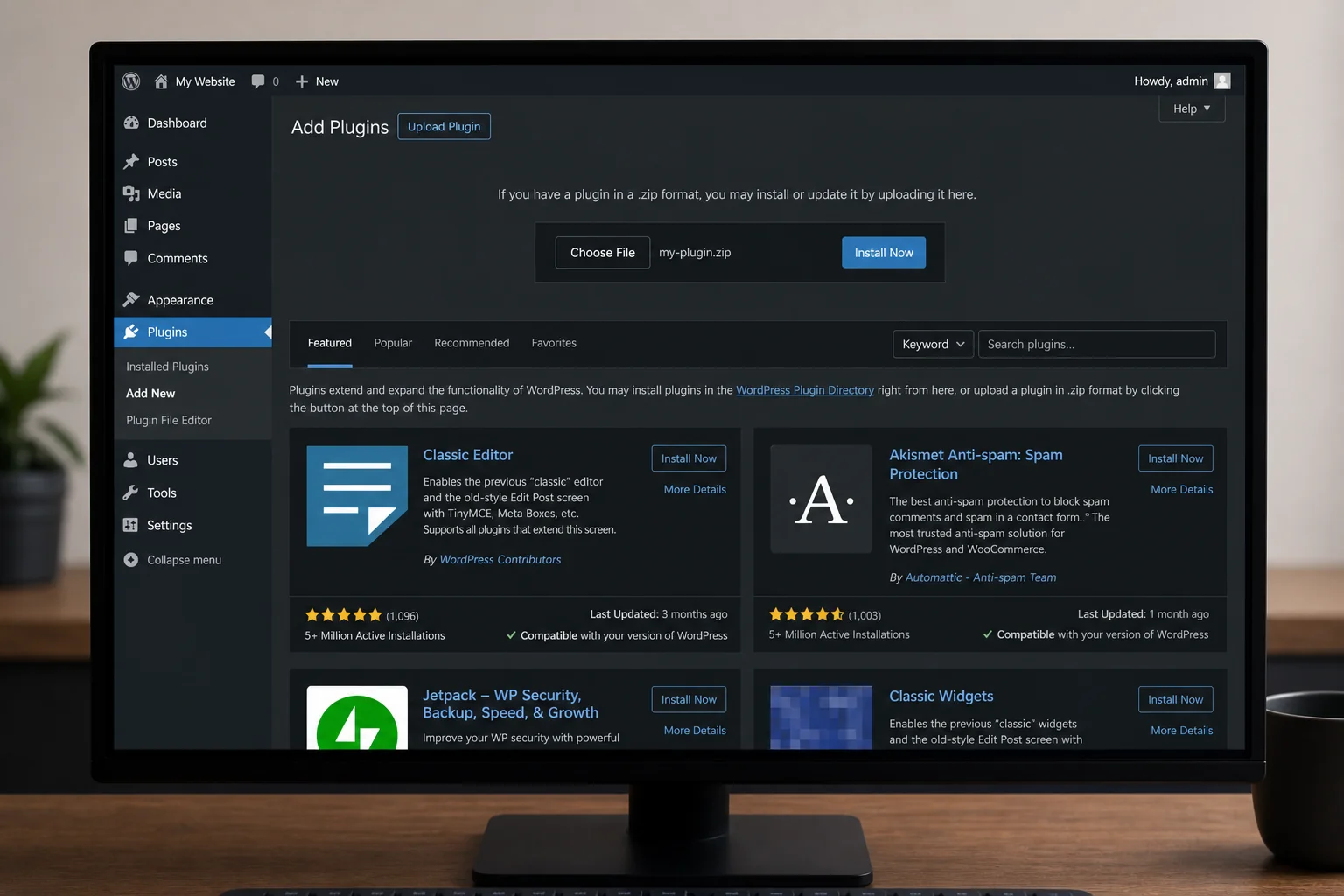
The setup is genuinely fast. Here's the full process:
Step 1 — Download Novamira
Go to novamira.ai (or the link in Darrel Wilson's video description at darrelwilson.com/novamira) and download the plugin ZIP file. Novamira isn't in the WordPress plugin repository, so you'll install it manually.
Step 2 — Install the Plugin on Your WordPress Site
In your WordPress dashboard, go to Plugins → Add New → Upload Plugin. Upload the Novamira ZIP file and click Activate. You'll see a new Novamira menu appear in your WordPress admin sidebar once it's active.
Step 3 — Enable AI Abilities
Open the Novamira settings page from your admin menu and enable AI Abilities. This step registers the MCP primitives — the actual tools that your AI client will use to communicate with WordPress. Without this, the connection won't work.
Step 4 — Create a WordPress Application Password
Inside the Novamira dashboard, create a WordPress Application Password specifically for this AI connection. Novamira handles this from within its settings — you don't need to go digging through WordPress user settings manually. Copy the generated password and keep it safe; you'll need it for the next step.
Step 5 — Connect Your AI Client
This is where Novamira makes things very easy. Go to Novamira → Connect in your WordPress admin. Select your AI client from the list (Claude Desktop, Claude Code, Cursor, etc.). Click Copy prompt, then paste that prompt directly into your Claude conversation.
Claude reads the connection details from the prompt and automatically writes the MCP configuration file for you. It then restarts the session. You don't need to manually edit any JSON config files — Claude handles the entire configuration step itself. This is the biggest usability improvement over older methods of connecting Claude to WordPress.
Step 6 — Test the Connection
Once the session restarts, ask Claude something like: "What plugins are currently active on my WordPress site?" If the connection is working, Claude will return an accurate list from your actual site. That confirms everything is set up correctly.
Real Things You Can Do Once Claude Is Connected
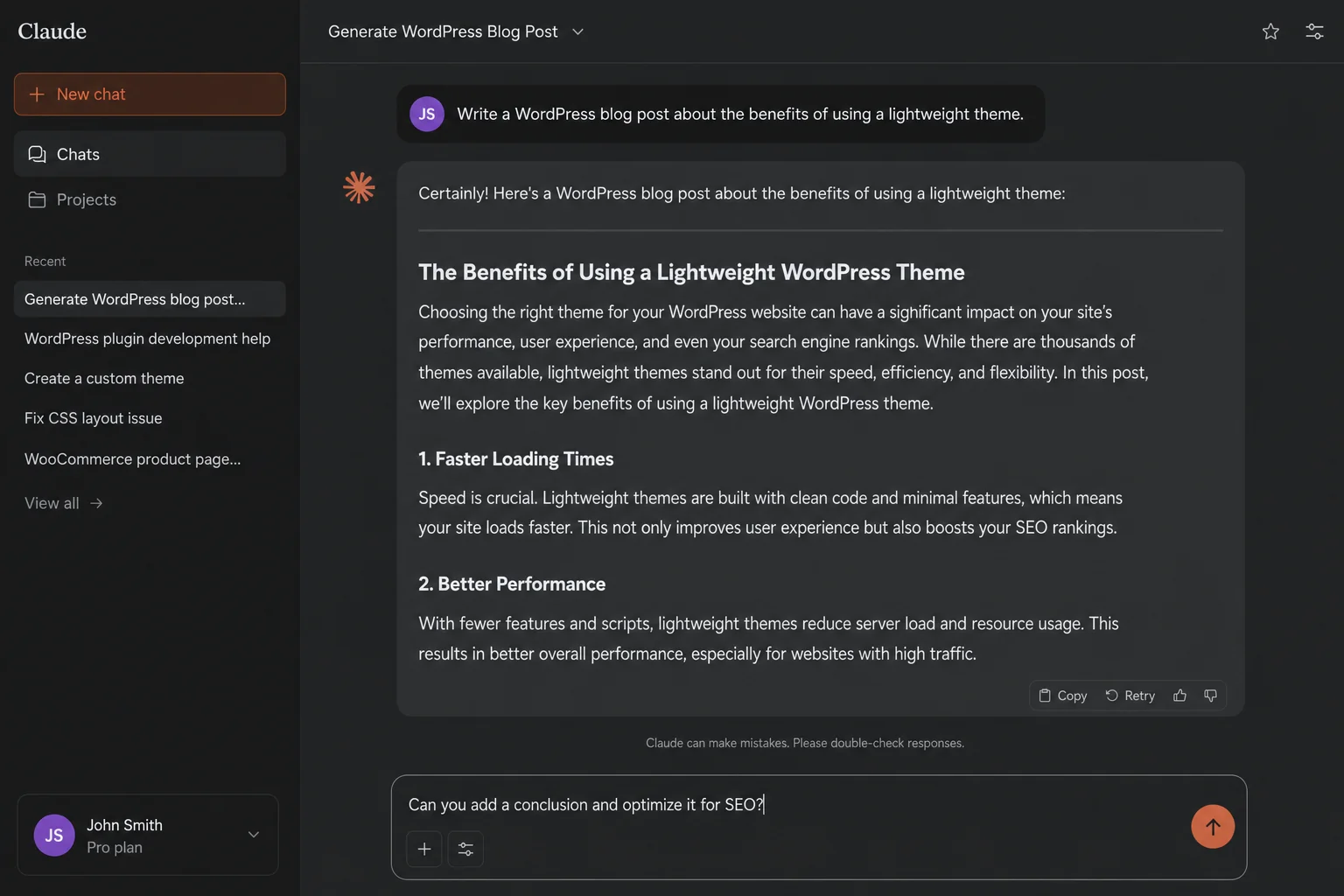
Once the connection is live, here are some of the practical workflows you can run immediately:
Quick Site Audit
Ask Claude to run a full audit of your site — it will check installed plugins (including whether they're up to date), WordPress version, known security issues, and server configuration. It then produces a prioritized list of recommendations. In the video walkthrough, Darrel generates a full client-ready HTML audit report from this process, which can be converted to PDF — the kind of deliverable a web agency would charge hours for.
Install and Configure an SEO Plugin
You can tell Claude: "Install and configure an SEO plugin for my site and make sure the homepage title and description are optimized." Claude will select an appropriate plugin, install it, configure the basic settings, and update the relevant meta fields — without you clicking through a single settings panel.
Publish SEO-Ready Content
Give Claude a topic and ask it to write a full post with categories, tags, meta description, and rich snippet schema, then publish it to WordPress. This is especially useful for agencies managing multiple client sites or content creators who want to move faster. It works well alongside AI content systems like the approach covered in our guide to AI tools for automating business workflows.
Fix Issues and Debug
If something on your site is broken — a PHP error, a plugin conflict, a template issue — you can describe the problem to Claude and have it read through the relevant files, identify the issue, write the fix, and deploy it directly to your site. No FTP client, no file manager, no copy-pasting code.
Work with Elementor Layouts
Claude can access Elementor's data structure through Novamira and make changes to page layouts. Complex multi-section designs still require some iteration, but for straightforward layout updates and section additions, this works reliably.
Novamira Free vs Pro: Is the Upgrade Worth It?
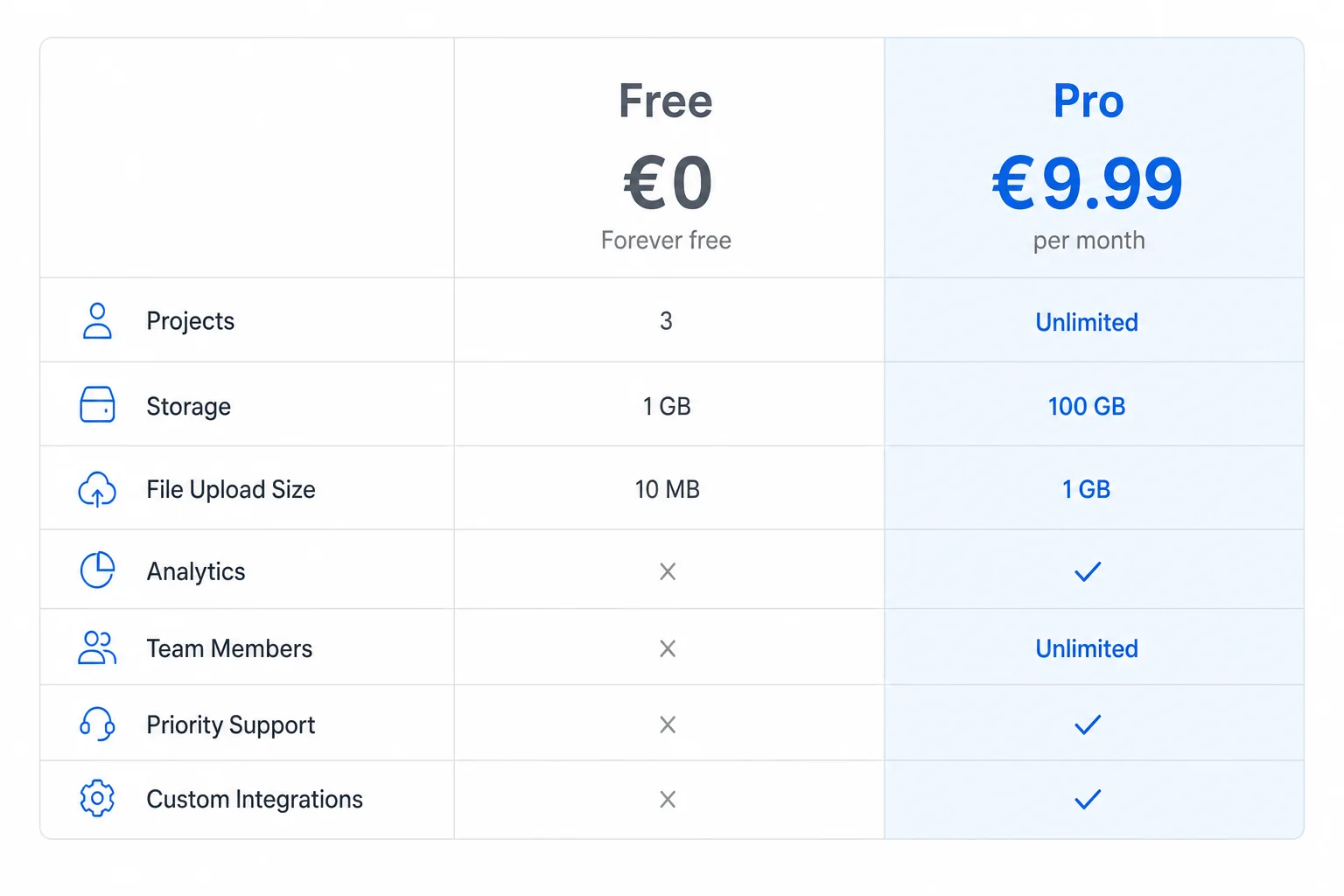
The free version of Novamira is genuinely capable. The core MCP server, PHP execution, database access, plugin management, and content creation all work on the free tier. For most individuals, freelancers, and small agencies testing this out, the free version is more than enough to get significant value.
Novamira Pro starts at €49/year and adds two main things:
- AI memory — the AI retains context about your WordPress setup between sessions, so you don't need to re-explain your theme, plugins, or preferences every time
- Deeper WordPress expertise — Pro includes additional prompt engineering and context that helps Claude make better decisions specific to WordPress architecture and common patterns
For someone using this daily to manage client sites or build their own product, Pro is a reasonable investment. For testing it out or occasional use, start free and upgrade when you hit the limitations. This is similar to how other platform decisions work — much like the GoHighLevel vs Systeme.io decision, it comes down to the level of depth you actually need.
Which AI Client Should You Use with Novamira?
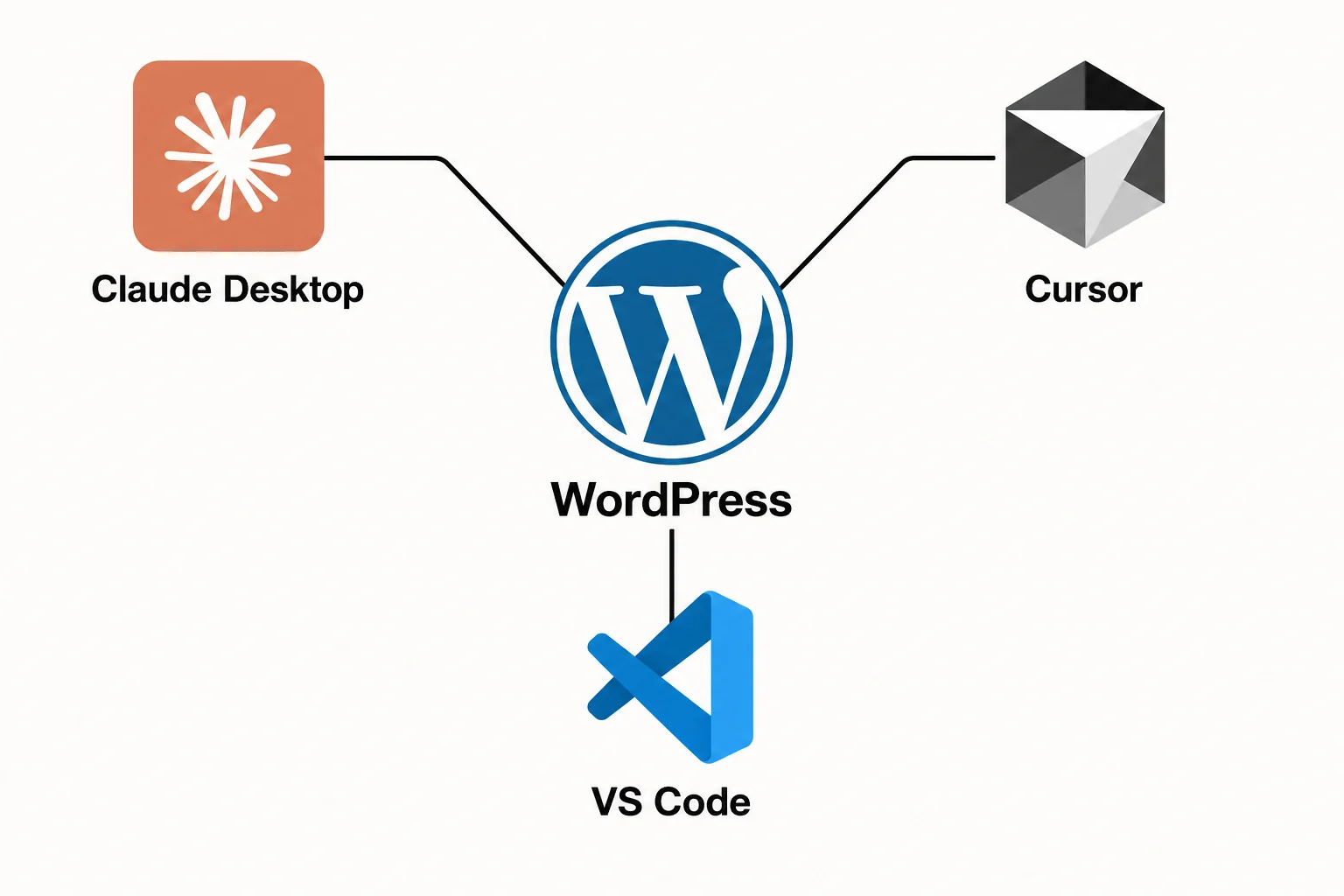
Novamira supports a wide range of MCP-compatible AI clients. Here's a quick breakdown of the main options:
Claude Desktop (Recommended for Beginners)
This is the easiest starting point and the one Darrel Wilson uses in his tutorial. Claude Desktop has a clean interface, handles MCP configuration automatically when you paste the Novamira connection prompt, and requires no coding knowledge. If you're new to this setup, start here. Claude Desktop is a free download from Anthropic.
Claude Code (Best for Developers)
Claude Code is Anthropic's command-line tool built specifically for agentic coding. It's more powerful for complex development tasks — refactoring entire codebases, running multi-step builds, working with version control — and connects to Novamira just as easily as Claude Desktop. If you're already using Claude Code for other development work, this is the natural choice. You can learn more about building AI agents for business workflows similar to what's covered in our GoHighLevel AI Voice Agent guide.
Cursor / VS Code with Copilot
If you're a developer already working inside Cursor or VS Code, Novamira connects to both. This is ideal if you want to switch between editing code in your IDE and making live changes to WordPress in the same workflow — without switching applications.
Windsurf, Zed, OpenCode, Gemini CLI
All supported. The Novamira quickstart page generates the correct configuration for whichever client you select — you don't need to figure out the config format yourself.
For most people reading this, Claude Desktop is the right starting point. It's free, the setup takes under 5 minutes, and the interface is clean enough that even non-developers can use it comfortably.
Quick Recap: Claude AI + WordPress via Novamira
| Detail | Info |
|---|---|
| Plugin name | Novamira |
| Plugin cost | Free (Pro from €49/year) |
| Setup time | ~3–5 minutes |
| Compatible AI clients | Claude Desktop, Claude Code, Cursor, VS Code, Windsurf, Zed, Gemini CLI, others |
| Access level | Full PHP-level access (database, files, plugins, theme) |
| Recommended environment | Staging / development only (not live production) |
| Authentication | WordPress Application Passwords over HTTPS, admin only |
| Works with Elementor | Yes (complex layouts require iteration) |
| MCP config auto-setup | Yes — Claude writes the config file for you |
| Download | novamira.ai |
Frequently Asked Questions
Can I use Novamira on my live WordPress website?
The developers strongly advise against it. Novamira gives Claude full PHP-level access to your site — which means any mistake can have real consequences on a live site. Always use it on a staging or development environment, back up before connecting, and test everything thoroughly before considering any live deployment.
Does Novamira work with any WordPress theme?
Yes. Novamira operates at the PHP level, so it works with any WordPress theme — whether you're using a block theme, a classic theme, Elementor, Divi, or a fully custom setup. It reads your actual theme structure and builds on top of it.
Do I need Claude Pro or a paid plan?
Claude's free plan is sufficient to test this setup. If you're using Claude Desktop for heavy daily use with Novamira, you'll likely want to upgrade to Claude Pro or Max for higher usage limits — but you can start for free and see what the workflow looks like first.
Is Novamira in the WordPress plugin repository?
Not at the time of this writing. You download the plugin ZIP directly from novamira.ai and install it manually through the WordPress dashboard under Plugins → Add New → Upload Plugin.
What's the difference between Novamira and using Claude just for writing content?
A regular AI writing tool generates text that you copy into WordPress. Novamira gives Claude direct access to your WordPress installation — it can create posts, install plugins, run PHP, audit your site, and make structural changes, all without you manually copying anything between tools.
Can I use this with GoHighLevel or other CRM platforms?
Novamira is specific to WordPress. For GoHighLevel, the AI workflow is different — check out our guide on building lead generation systems with GHL AI Studio for how AI connects to that platform.
Conclusion
Connecting Claude AI to WordPress used to mean either writing custom code or patching together a fragile workaround. Novamira changes that. Install the free plugin, paste one prompt into Claude, and you have an AI with full access to your WordPress site — ready to write content, audit your setup, install plugins, and build pages on command.
The setup takes about 3–5 minutes. The main thing to remember is to use this on a staging site, back up before every session, and treat Claude's access with the same care you'd treat admin-level server access — because that's effectively what it is.
If you're building websites for clients, managing multiple WordPress properties, or just want to work faster on your own site, this is one of the most practical AI integrations you can set up right now. Give it a try on a test environment first, see what Claude can actually do inside your WordPress — then decide how far you want to take it.
Questions about the setup, or running into a specific error? Drop it in the comments — I'll help you sort it out.