How to Pass UTM Parameters Through GoHighLevel Embedded Forms (Complete Guide)
Most GoHighLevel UTM guides only cover form-level tracking. Here's how to actually pass UTM parameters through an embedded iframe form using a simple JavaScript snippet.

If you have searched for how to pass UTM parameters in GoHighLevel, you have probably run into the same problem. Every video, every blog post, every AI tool gives you the same incomplete answer: add hidden fields to your form. That's it. That's where they stop.
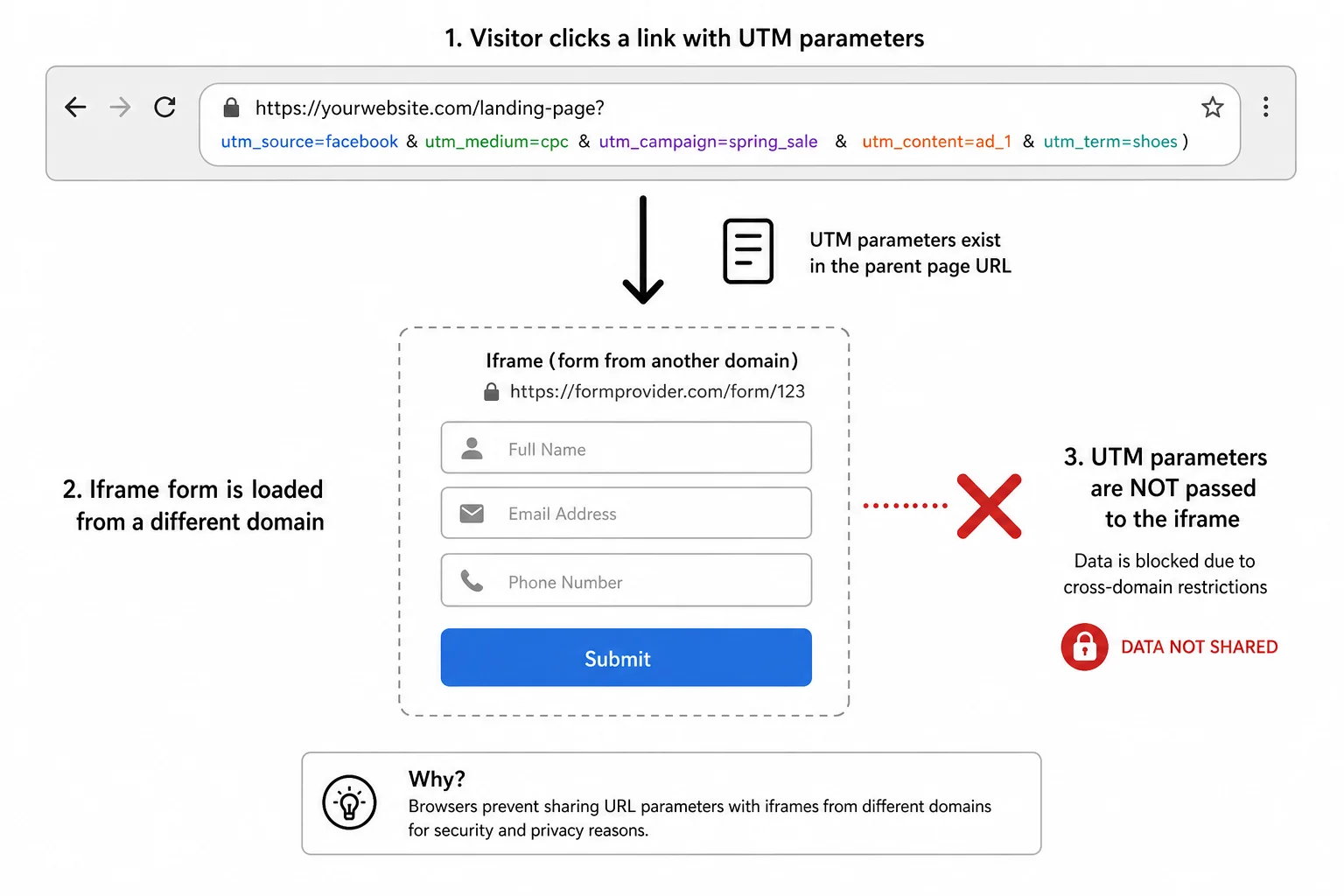
But here's the thing. That approach only works if your form is hosted directly on GHL's own domain. The moment you embed that form inside a funnel or a website, the whole thing breaks. The UTM data sitting in your browser URL never makes it into the form, because the form is running inside an iFrame, and iFrames are sandboxed from the parent page.
This guide covers the complete setup, both parts. You will set up the hidden fields correctly, create the custom fields in your CRM, embed the form inside a funnel with a custom domain, and then use a JavaScript snippet in the footer to bridge the gap between your browser URL and the embedded form. By the end, every lead that comes through your ads will have full UTM data attached to their contact record in GoHighLevel.
Why Most UTM Tracking Guides for GoHighLevel Get It Wrong
The confusion comes from one thing: most guides show you how to capture UTM parameters inside a form that is hosted directly on GHL's lead connector domain. You know the URL, something like api.leadconnectorhq.com/widget/form/... That is the standalone form URL, and yes, you can pass UTM data to it directly.
But nobody is running ads to a LeadConnector URL. You are running ads to your own domain. Your own funnel. Your own landing page. And on that landing page, the GHL form is embedded as an iFrame.
An iFrame is essentially a separate browser window running inside your page. It has no automatic access to the URL parameters of the parent page. So even if someone lands on your funnel with ?utm_source=facebook&utm_campaign=spring_launch in the URL, the embedded form has no idea those parameters exist. They just disappear.
That is the gap nobody is filling. And that is exactly what this guide fixes.
The Real Problem: Your GHL Form Lives Inside an iFrame
When you use the GoHighLevel form builder and embed the form on a funnel page, the form is loaded inside an iFrame. The funnel page is your domain. The form is LeadConnector's domain. Two completely separate origins.
Here is how the data flow is supposed to work when everything is set up correctly:
- Someone clicks your Facebook ad with UTM parameters in the URL
- They land on your funnel page, UTM parameters are in the browser URL
- Your JavaScript reads the UTM parameters from the URL and saves them to localStorage
- The same JavaScript finds the embedded form's iFrame and appends the UTM parameters to the iFrame's source URL
- The form receives the parameters and populates the hidden fields
- The contact submits the form and all UTM data is saved to their CRM record
Without the JavaScript step, the chain breaks at step three. The UTM data never gets from the browser URL into the iFrame. This is also why you need a funnel with a custom domain instead of just sharing the raw form URL. Forms cannot use custom domains. Funnels can. And you need your own domain for ads anyway, so this is the correct approach regardless.
You can build this entire setup inside a GHL AI Studio lead generation system that tracks every lead source from day one.
Step 1: Build Your GHL Form with Hidden UTM Fields
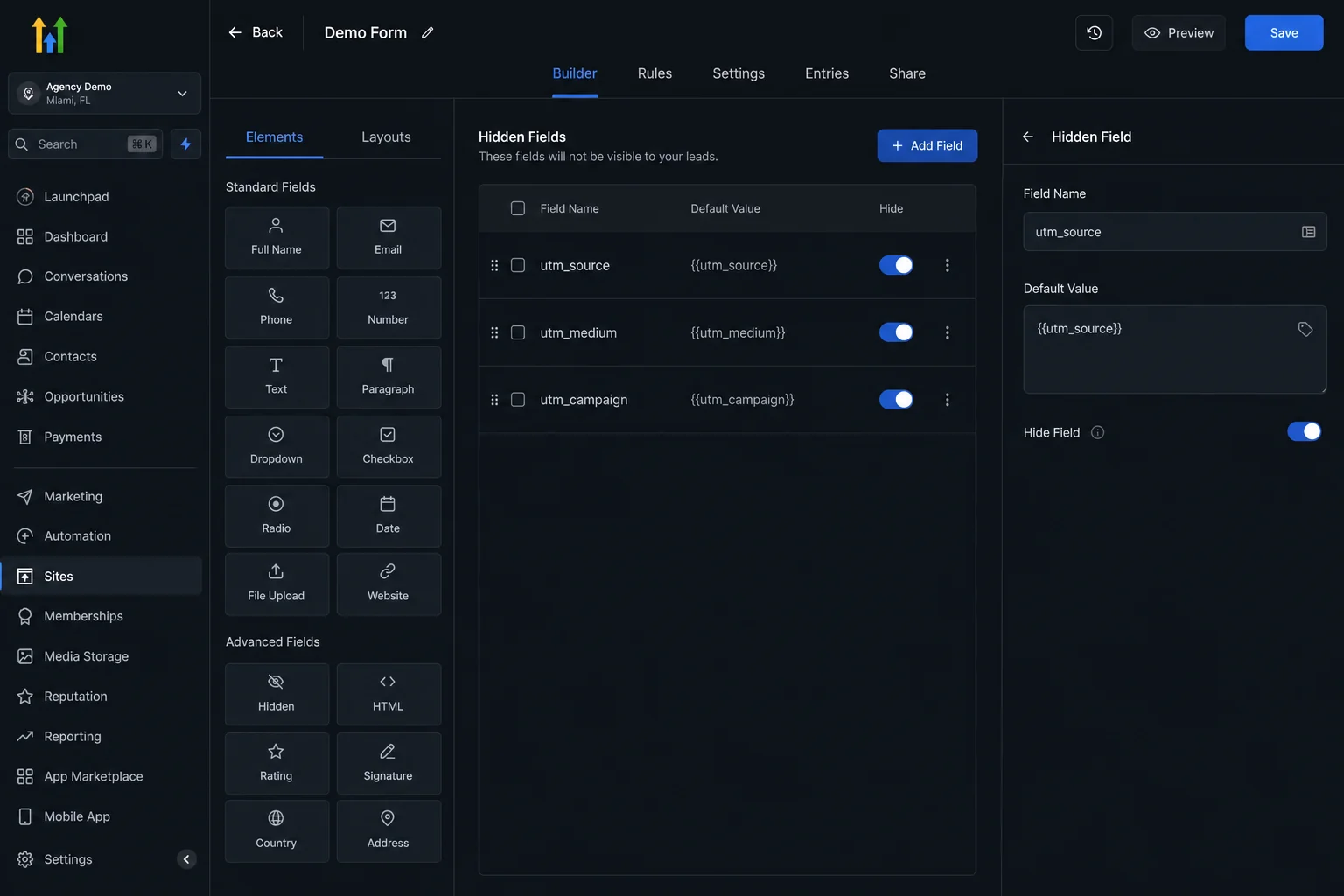
Go to Sites > Forms > Builder in your GHL account. Open your existing form or create a new one from a template. You will need to add hidden fields for every UTM parameter you plan to capture.
Click the + button to add a new element, then add a single line text field. Name the field label and field name both exactly utm_source. Then go to the advanced settings and toggle it to Hidden. Repeat this for each parameter you want to track.
The parameters used in the JavaScript code shared below are:
- utm_source, utm_medium, utm_campaign, utm_term, utm_content
- utm_id, adset_id, adset_name, ad_id, ad_name
- placement, platform
You do not have to use all of them. If you are only running standard Google or Facebook campaigns, the first five are enough. Just make sure the field names in your form match exactly what is in the JavaScript. Any mismatch means that parameter will not be captured.
Once all hidden fields are added, save the form. Do not share the form URL directly. We are not done yet.
Step 2: Create Custom UTM Fields in Your CRM
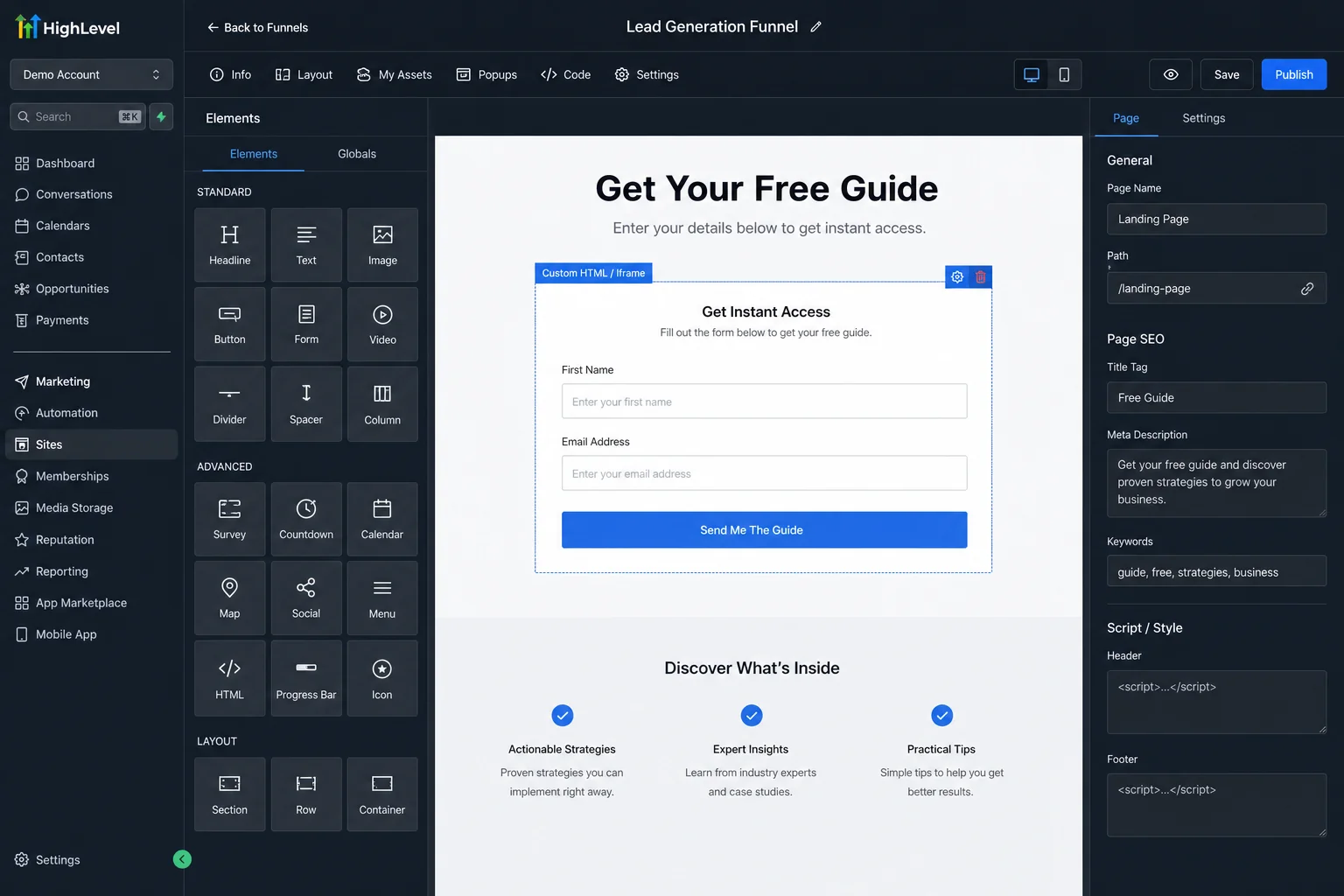
The hidden form fields capture UTM data when a contact submits. But for that data to show up on the contact's record in your CRM, you need matching custom fields inside GHL's contacts settings.
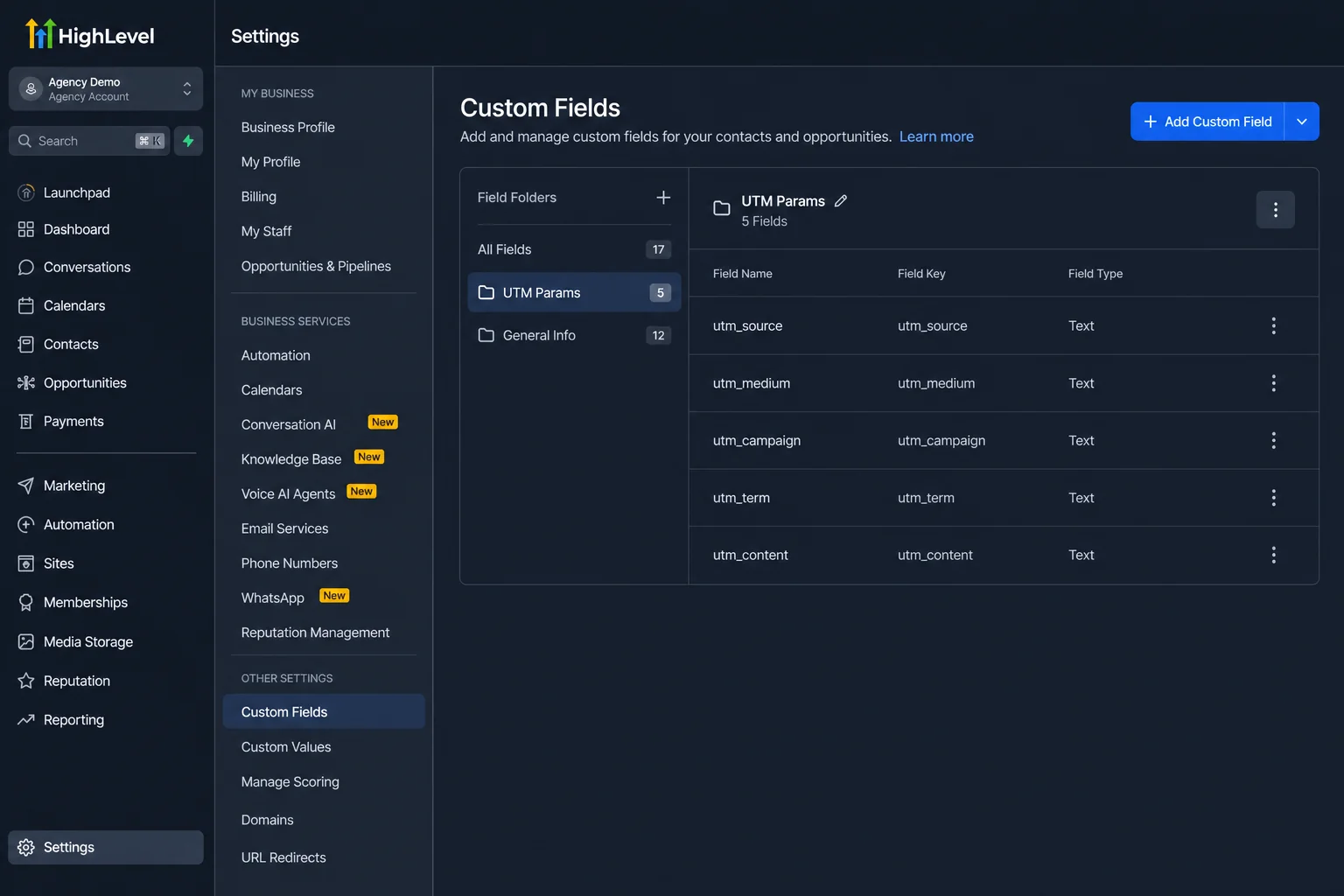
Go to Settings > Custom Fields. Before creating individual fields, first create a folder. Click Add Folder and name it UTM Params. This keeps things clean and easy to find later when you are reviewing contact records.
Inside that folder, create a Single Line Text field for each UTM parameter. Name them exactly the same as your form fields: utm_source, utm_medium, utm_campaign, and so on for every parameter you added to the form.
Once the custom fields exist in your CRM, GHL will automatically map form submissions to those fields when the names match. This is what makes the UTM data show up on each contact's profile after they submit the form.
This setup is also what enables you to later build workflows and automations that trigger based on UTM values, which is a powerful way to segment leads by traffic source. Combined with tools like AI tools for WhatsApp automation, you can trigger personalized follow-up sequences based on exactly which ad a lead clicked.
Step 3: Embed the Form Inside a GHL Funnel
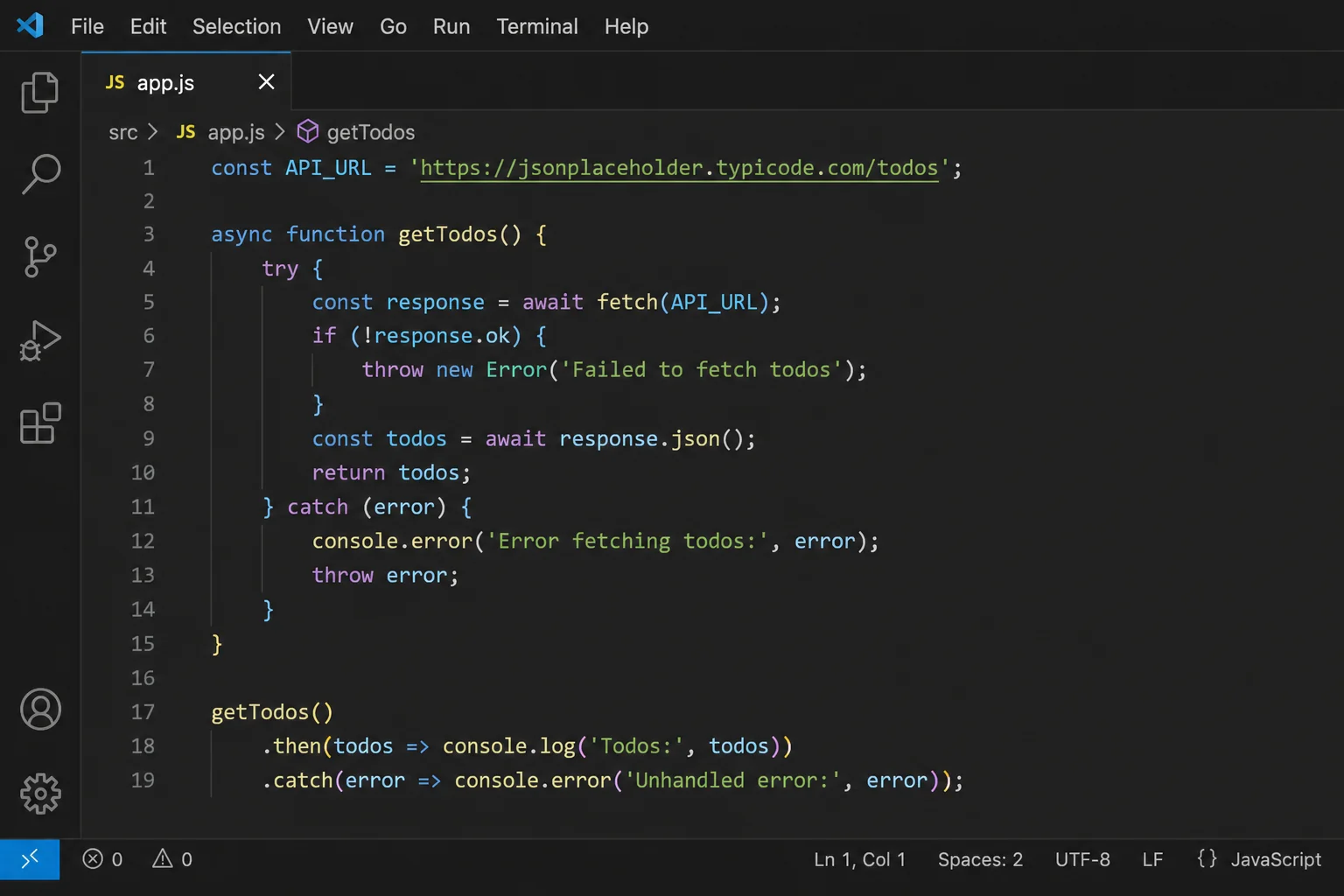
Go to Sites > Funnels and create a new funnel. Name it whatever makes sense for your campaign, then add two steps: an optin page and a thank you page.
Open the optin page and click Edit. Inside the page builder, click Insert Element and look for the Forms option under the sections tab. Drag the form element onto your page. Then click on it and select the form you just built from the dropdown. It will embed as an iFrame automatically.
Set the form's button action to go to the next step in the funnel (the thank you page) when submitted. Then build out a simple thank you page as well, even just a headline is fine for testing.
The most important step here: connect a custom domain to this funnel. You cannot run Facebook or Google ads to leadconnectorhq.com. You need your own domain. Go to the funnel settings, select your domain, save it, and publish the funnel.
This is the reason why you cannot just send people directly to the form URL. Forms do not support custom domains. Funnels do. And beyond domains, funnels give you far more design flexibility, tracking options, and control over the user experience than standalone forms.
Step 4: Add the UTM JavaScript to Your Funnel Footer
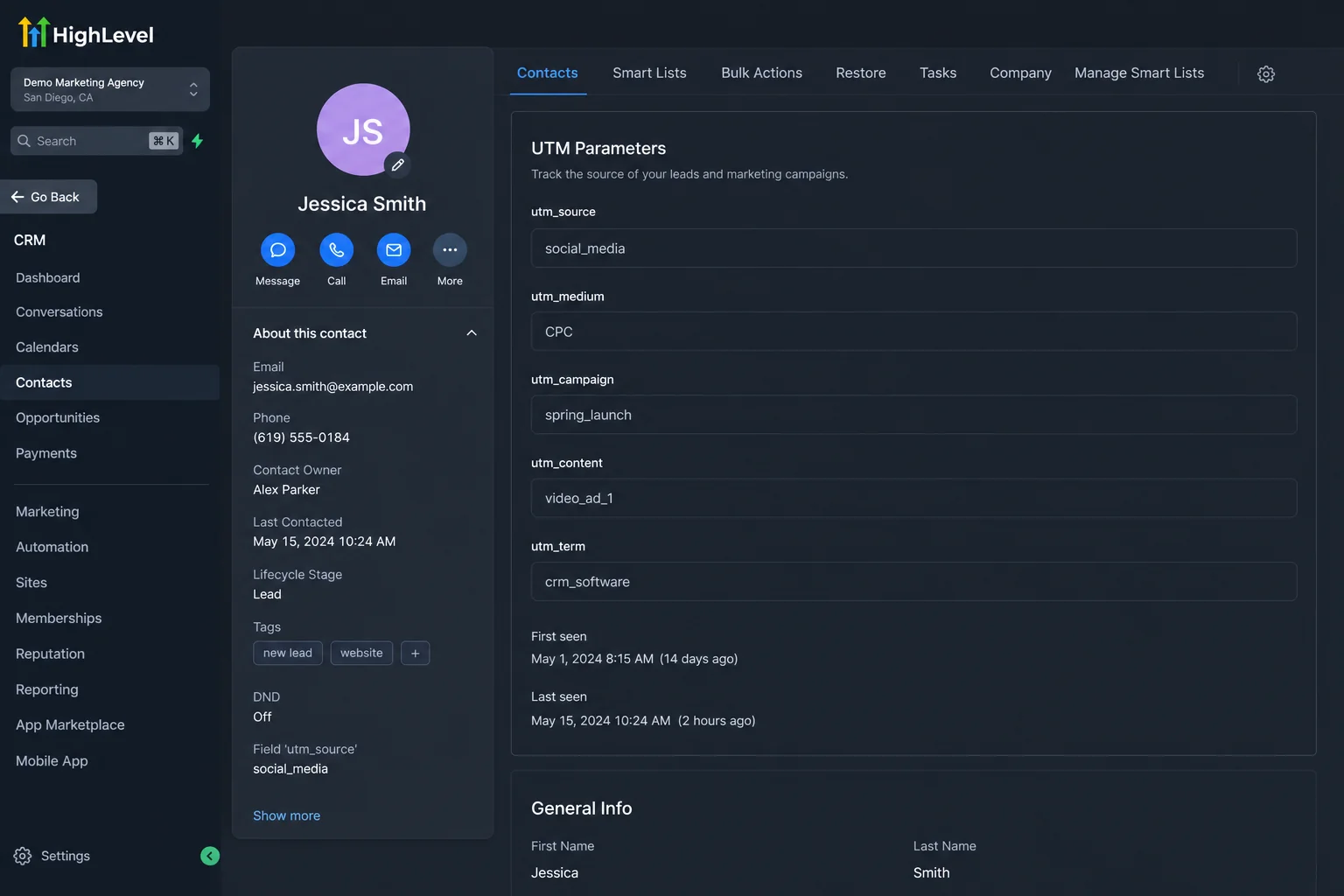
This is the part that actually makes everything work. Go to your funnel settings and find the Tracking Code section. Open the Footer Tracking tab. Paste the following JavaScript into that field, then save and publish the funnel.
Here is the complete code. You will find this below, and it is also in the description of the YouTube video this post is based on.
<script>
(function(){
  var PARAMS = [
    'utm_source','utm_medium','utm_campaign','utm_term','utm_content',
    'utm_id','adset_id','adset_name','ad_id','ad_name',
    'placement','platform'
  ];
  function getParam(name){
    try {
      var u = new URL(window.location.href);
      return u.searchParams.get(name) || null;
    } catch(e){ return null; }
  }
  var data = {};
  PARAMS.forEach(function(k){
    var v = getParam(k) || localStorage.getItem('ghl_'+k);
    if(v !== null && v !== undefined) {
      data[k] = v;
      localStorage.setItem('ghl_'+k, v);
    }
  });
  function buildQS(obj){
    var qs = [];
    for(var k in obj){
      if(obj[k] !== null && obj[k] !== undefined){
        qs.push(encodeURIComponent(k) + '=' + encodeURIComponent(obj[k]));
      }
    }
    return qs.join('&');
  }
  function tryInject(){
    var iframe = document.querySelector('iframe[src*="leadconnector"]')
                 || document.querySelector('iframe[src*="gohighlevel"]')
                 || document.querySelector('iframe');
    if(!iframe) return;
    try {
      var qs = buildQS(data);
      if(qs){
        var src = iframe.getAttribute('src') || '';
        if(src.indexOf('?') === -1 || src.indexOf(qs) === -1){
          var sep = src.indexOf('?') === -1 ? '?' : '&';
          iframe.setAttribute('src', src + sep + qs);
        }
      }
      try {
        iframe.contentWindow.postMessage({
          type: 'GHL_UTM_TRANSFER',
          utm: data
        }, '*');
      } catch (errPost) {}
      try {
        var doc = iframe.contentDocument || iframe.contentWindow.document;
        if(doc){
          PARAMS.forEach(function(k){
            var input = doc.querySelector('input[name="'+k+'"]');
            if(input && data[k]){
              input.value = data[k];
            }
          });
        }
      } catch(e){}
    } catch(e){}
  }
  var attempts = 0;
  var maxAttempts = 20;
  var timer = setInterval(function(){
    attempts++;
    tryInject();
    if(attempts >= maxAttempts) clearInterval(timer);
  }, 500);
  tryInject();
  window.addEventListener('message', function(ev){
    try {
      var msg = ev.data || {};
      if(msg && msg.type === 'GHL_REQUEST_UTM'){
        ev.source.postMessage({ type: 'GHL_UTM_TRANSFER', utm: data }, ev.origin || '*');
      }
    } catch(e){}
  }, false);
})();
</script>
What This Code Actually Does
The script runs as soon as the funnel page loads. Here is the logic in plain terms:
- It reads UTM parameters from the current page URL
- It saves them to localStorage so they persist even if the visitor navigates away and comes back
- It finds the embedded GHL form iFrame on the page
- It appends the UTM parameters directly to the iFrame's source URL so the form can read them
- It also sends a postMessage to the iFrame as a fallback
- It retries up to 20 times over 10 seconds to handle slow-loading iFrames
One important thing: the PARAMS array at the top of the script must exactly match the parameters you have set up in your form and your CRM custom fields. If you want to track fewer parameters, remove the ones you don't need from all three places: the script, the form, and the CRM fields.
Do not randomly pass variables you haven't created fields for. Every parameter in the PARAMS array needs a matching hidden field in the form and a matching custom field in the CRM.
Step 5: Test Your UTM Tracking Setup
Once you have published the funnel with the JavaScript in the footer, testing is straightforward. You just need to open the funnel URL with UTM parameters manually appended.
The easiest way to generate a test URL with random UTM values: go to Gemini or ChatGPT, paste your funnel URL, and ask it to add the UTM parameters from the PARAMS list with random values. Copy that URL and open it in your browser.
Now fill out the form with any dummy details. Use a different email from your real one so you can find the contact easily. Submit the form and land on the thank you page. Then go back to Contacts in your GHL account, find that contact, open their record, and check the custom fields under your UTM Params folder.
If everything is set up correctly, you will see values like:
- utm_source: social_media
- utm_medium: CPC
- utm_campaign: spring_launch_2026
- utm_term: marketing_automation
- utm_content: video_ad_v2
If the UTM fields are empty, the most likely causes are: the iFrame is not loading before the script tries to inject (refresh and try again), the field names in the form do not exactly match the PARAMS array in the script, or the funnel was not published after pasting the code. Check all three before troubleshooting further.
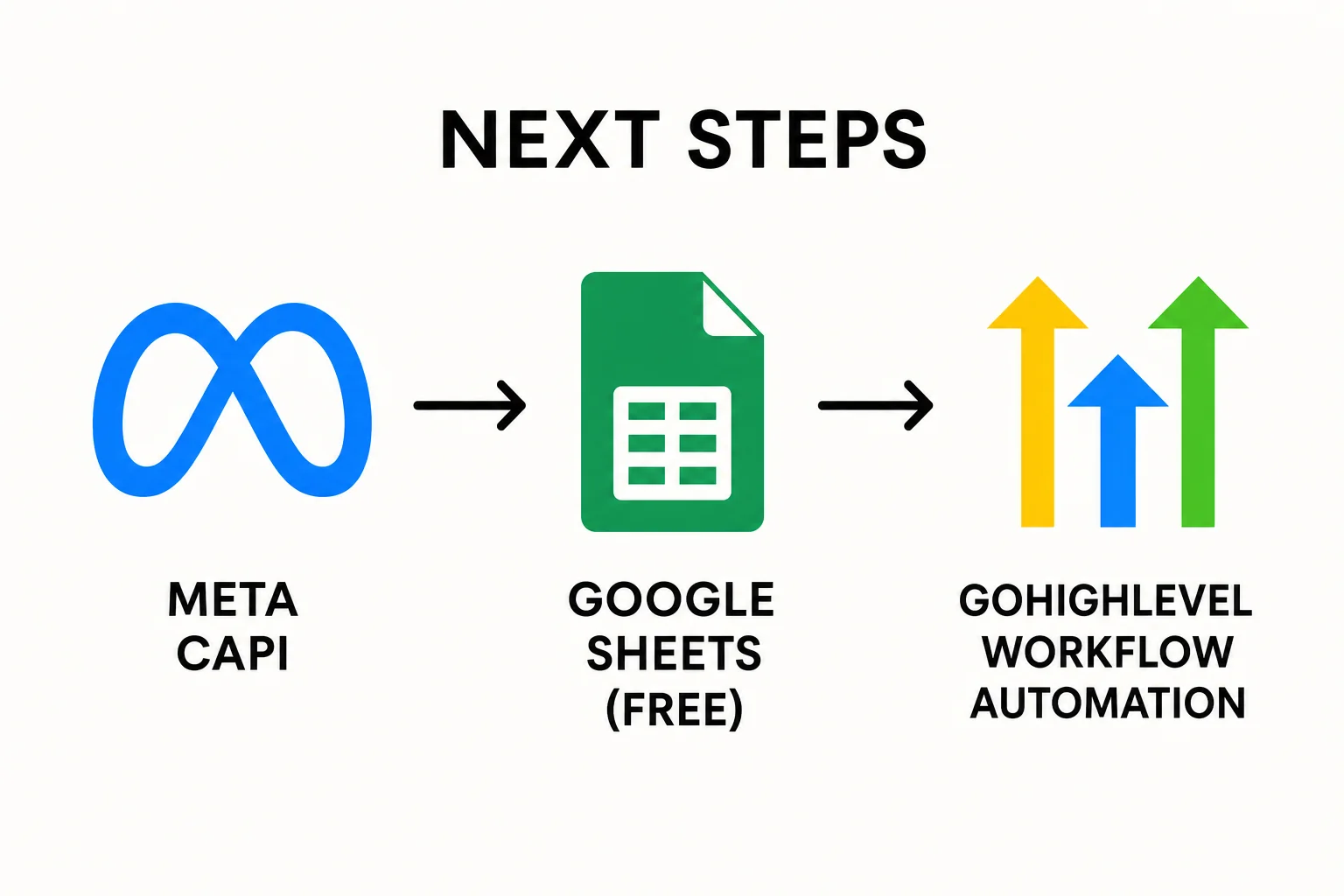
What Comes Next: Meta CAPI and Free Spreadsheet Passing
Getting UTM data into your GHL contacts is the foundation. Once it is there, you have two powerful things to do with it.
Setting Up Meta Conversion API
With UTM data on your contacts, you can pass richer conversion signals back to Meta through the Conversions API. This is important because browser-side tracking (the Pixel) is increasingly unreliable due to ad blockers and iOS restrictions. The Conversions API sends the same event data from your server, matching it with Meta's user graph for accurate attribution.
There is a clean way to set this up inside GoHighLevel without third-party tools. A full walkthrough is coming in the next video.
Passing UTM Data to a Spreadsheet for Free
Most GHL tutorials that show you how to push data to Google Sheets use the premium Webhook node or a paid Zapier-style connector inside workflows. You do not need any of that. There is a way to pass UTM data and contact details to a Google Sheet using only the free nodes available in GHL workflows, and it takes about 10 minutes to set up.
Once this is running, you get a live spreadsheet showing every lead, their source, campaign, and which specific ad drove the conversion. That is a real attribution report, built entirely for free inside the tools you are already using. You can combine this with a complete lead generation system in GoHighLevel to see the full picture from ad click to conversion.
Quick Recap: The Full Setup in Order
| Step | What to Do | Where |
|---|---|---|
| 1 | Add hidden UTM fields to your GHL form | Sites > Forms > Builder |
| 2 | Create matching custom fields in your CRM | Settings > Custom Fields |
| 3 | Create a funnel and embed the form on the optin page | Sites > Funnels |
| 4 | Connect a custom domain to the funnel | Funnel Settings |
| 5 | Paste the JavaScript into the footer tracking section | Funnel Settings > Tracking Code |
| 6 | Publish the funnel and test with a URL containing UTM params | Your funnel URL |
| 7 | Verify UTM data on the submitted contact record | Contacts > UTM Params fields |
Frequently Asked Questions
Why can't I just use the standalone form URL for ads?
The standalone form URL is hosted on GHL's lead connector domain, not your own. Ad platforms like Meta and Google require you to run ads to pages on a verified domain you control. Beyond verification, you also lose all funnel customization, page design control, and the ability to set up multi-step flows with a proper thank you page.
Do I need to use all 12 UTM parameters in the script?
No. You only need the ones you actually use in your ad campaigns. The five standard parameters (utm_source, utm_medium, utm_campaign, utm_term, utm_content) cover most setups. The additional ones like adset_id, ad_id, placement, and platform are useful if you are running Meta or Google campaigns and want granular ad-level attribution. Just make sure whatever you keep in the PARAMS array also has a matching field in the form and in your CRM custom fields.
Will UTM data persist if someone leaves the page and comes back?
Yes, because the script saves UTM values to localStorage when they are first captured. The next time the same person visits the funnel, even without UTM parameters in the URL, the script reads from localStorage and injects the original values. This is useful for multi-visit attribution where someone clicks an ad, leaves, then comes back directly and fills the form.
What if the UTM fields are showing up empty after form submission?
Check three things in order. First, confirm the field names in your form match the parameter names in the PARAMS array exactly, including underscores and lowercase. Second, make sure you published the funnel after pasting the JavaScript. Third, test with the UTM parameters in the URL, not without them. The script can only inject values that are either in the URL or already saved in localStorage from a previous visit.
Can I use this same setup on a GoHighLevel website instead of a funnel?
Yes. The GHL website builder also has a footer tracking code section. You can paste the same JavaScript there. The form embed process is identical, as websites also render forms as iFrames. Just make sure the website is on your custom domain.
Is GoHighLevel worth using for this kind of setup?
If you are running ads and need a CRM that tracks lead attribution, manages follow-up automations, and lets you build landing pages and funnels all in one place, then yes. GoHighLevel is one of the few platforms that handles forms, funnels, CRM, and automation in a single tool without needing to stitch together five different apps. You can try it and decide for yourself.
Conclusion
The reason so many marketers have broken UTM tracking in GoHighLevel is not because the platform doesn't support it. It's because the standard guides skip the iFrame step entirely. They show you how to add hidden fields to a form, which is necessary, but not sufficient when that form is embedded inside a funnel.
The JavaScript snippet in this guide bridges the gap. It reads UTM parameters from your funnel's URL, persists them in localStorage, and injects them into the embedded form's iFrame before the user submits. The result is clean, accurate UTM data on every contact record, with no paid tools, no Zapier, and no third-party scripts required.
Set this up once and it runs automatically for every lead that comes through your funnels. If you are building out a full ad attribution system in GHL, this is the foundation everything else depends on, including Meta CAPI matching, which is covered in the next video in this series.
If you found this helpful, the best WhatsApp marketing tools for Indian businesses and AI WhatsApp automation tools are worth checking out as well if you're running GHL for local business marketing.