How to Build a Free AI Lead Generation Agent With n8n, Apollo.io, and Gemini
Build a free n8n AI agent that finds leads via Apollo.io and Apify, drafts personalized emails with Gemini, and logs everything to Google Sheets.

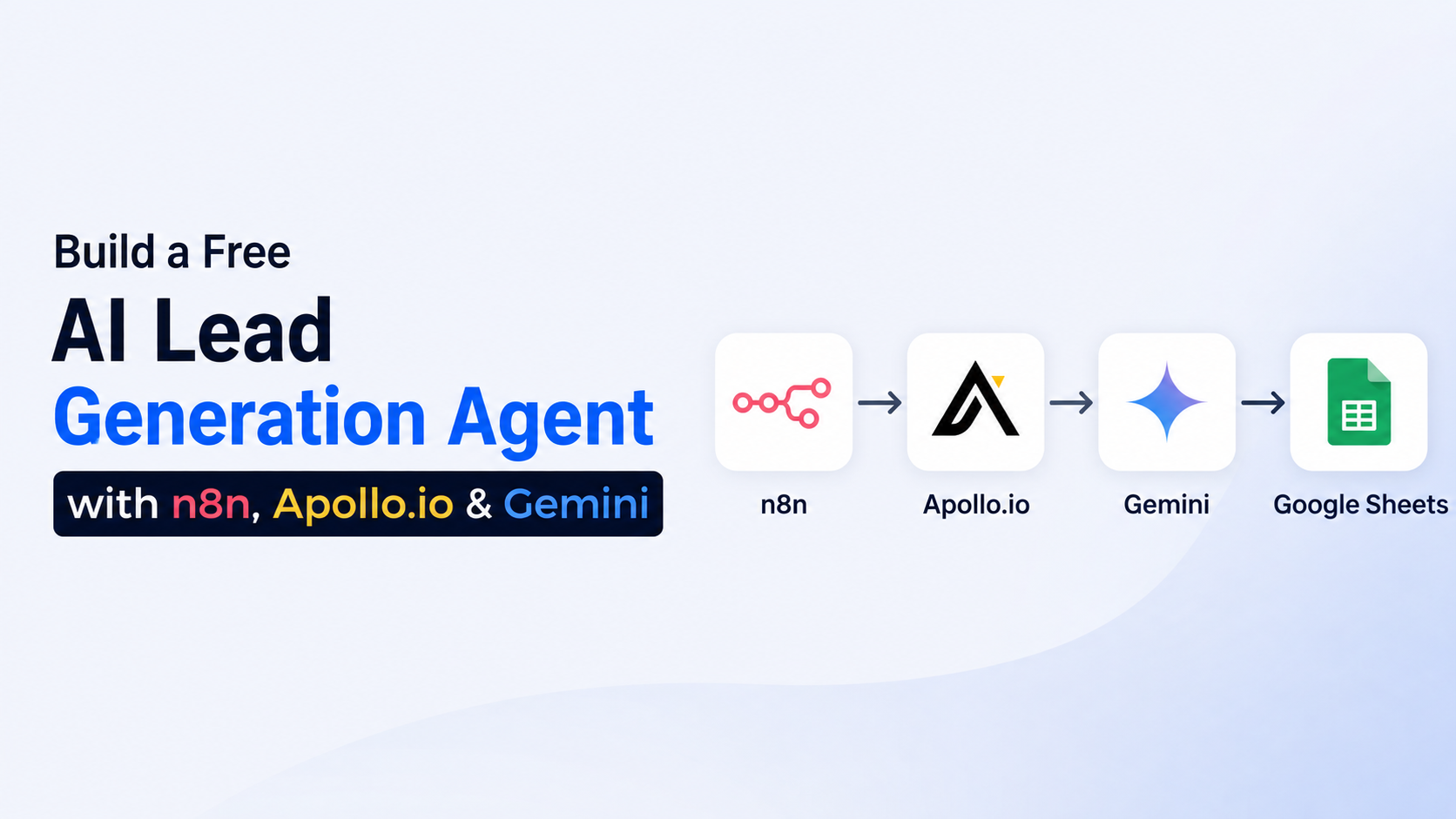
In today's post, we're going to build, live, an AI agent using n8n that finds leads on its own. It will use AI to write each lead a personalized email, send that email, and store all the data in one place. I'm also going to give you the complete template to download for free, so you can use it in your own company or sell it if you want. Let's go to the laptop screen and start building.
Hosting n8n on a Hostinger VPS
We've come to the laptop screen, and n8n is open right now. We're going to build the whole workflow on n8n. If you don't know how to set up n8n, there are two or three main ways to do it. The first is to host it locally on your laptop, but if you take your workflows live after that, they stop working. The second is to get your own server from Digital Ocean and host n8n on it, but that gets a bit technical and complex. Besides these, you'll find plenty of other methods on YouTube using third-party apps, but then you'll just get stuck in them instead of doing the main job, which is building automations.
So the best way, and the one I personally use, is to get hosting and host n8n on it. The easiest and cheapest setup I found was Hostinger. I personally use it too, and I'll show you step by step how to set it up.
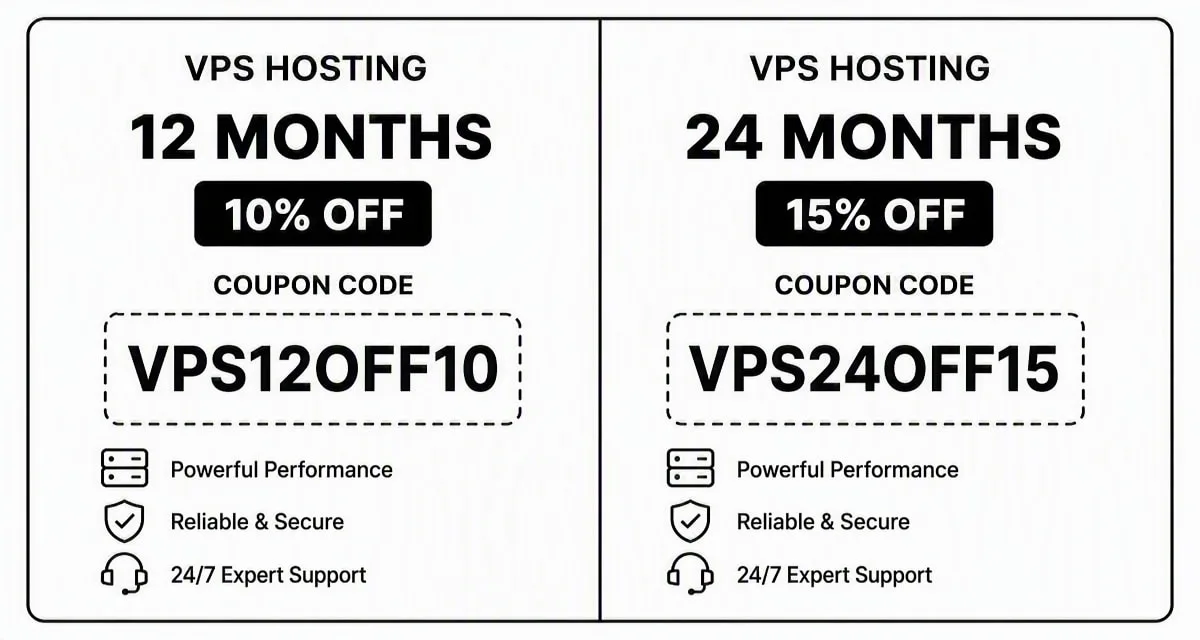
To set up n8n, you can go to Hostinger's website, go to Services, and click on Self-Hosted n8n. After that, go to Choose Your Plan, and you'll see multiple plans. I'm currently using KVM 2, and KVM 2 will be the best choice for you too. If you take the 24-month plan, use the coupon code SOLO15 for an extra 15% off, bringing 2 years of hosting down to just ₹11,199.
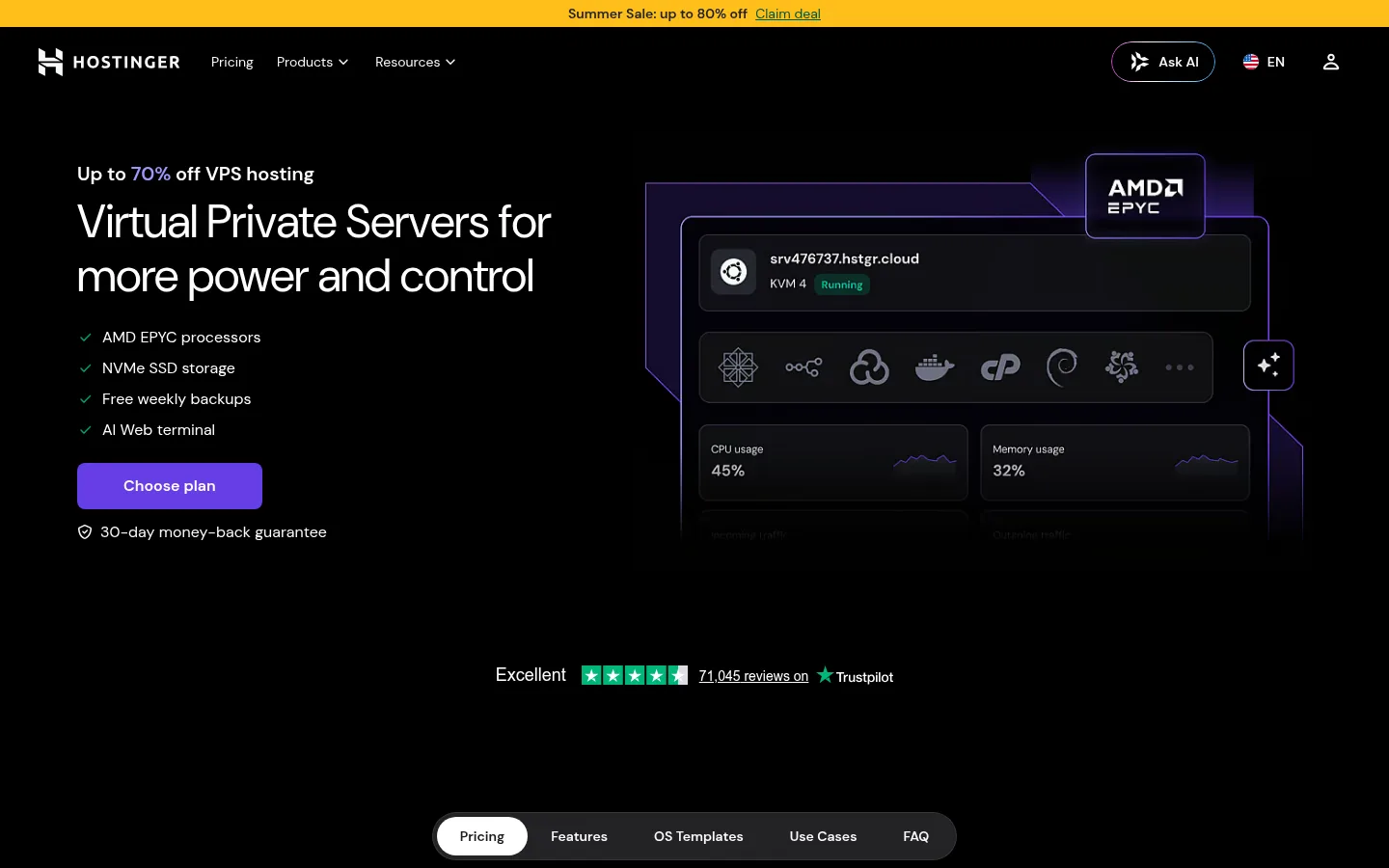
After payment, click Setup, then Start Now. Set the location, I selected India since that's where we're building these automations, then click Continue. Search for "n8n" under Plain OS, select the first option, and click Continue. Set a password of your choice, click Continue again, and your setup is done. Click Finish Setup, and it'll take a little time to complete. Once it's done, you'll get options to add your own domain. To use n8n, click Manage VPS, then Manage App. A short form appears first, and once you fill it in and click Manage App, n8n opens up and you can set up your own n8n account. This is one of the simplest setup options I've come across for n8n so far.
If you purchase Hostinger's hosting using my link, I get a commission from it and you still get 15% off anyway. On the 12-month plan you'll get an extra 10% off with the coupon code SOLO10, and on the 24-month plan you'll get 15% off with SOLO15. If you'd rather self-host n8n alongside other apps on a single server instead of a one-click plan, our guide to hosting multiple apps on one VPS with Coolify covers that route too.
Building the Workflow: What We're Setting Up
Once n8n is set up, click Create Workflow and you'll get a clean slate. I'm going to give you this workflow as a template so you can import it and it'll come in automatically. You can click Import from URL or Import from File, and the workflow appears. I'll show you how to set it up at the end, but first let's look at what this automation will actually do.
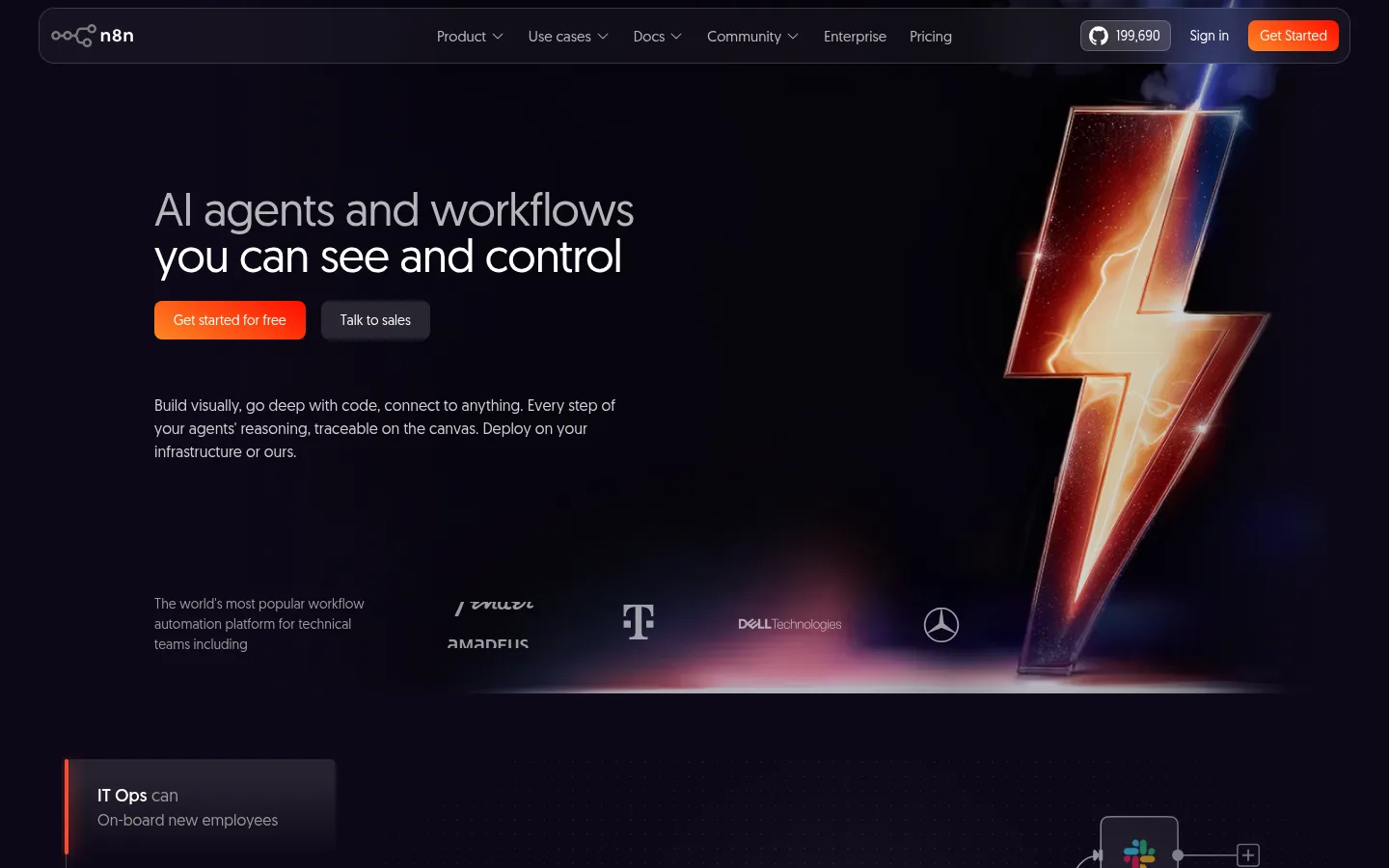
The automation we'll build will basically find leads and then automatically send those same leads an email. The leads will come from apollo.io, a platform where you can find leads, but it turns out to be quite expensive. If you've used it, you'll know Apollo is pretty expensive, so we'll discuss the cheaper, free way to do this too. Once we have a lead's name and email address, we'll send them a cold email, and we'll get that cold email written by AI. You can use Gemini or OpenAI for this, both work, but I'm going to use Gemini here for the free method.
The free alternative we'll use instead of Apollo.io is Apify, again a platform, a marketplace where you'll find cheap scrapers. It's a very powerful tool and you're going to learn how to use it in this post too. This whole automation can be built for free, but if you want to do things at scale, you'll need paid plans, like OpenAI for better email writing, or Apify credits at volume. For this post, though, everything we build is going to be completely free. That's basically all we need, plus n8n. If you want a broader look at what else n8n can automate beyond lead gen, our guide to n8n automation, self-hosting, and workflows is a good next read.
Setting Up Apollo.io, Apify, and Google Sheets
Let's set up Apollo first. Go to apollo.io, sign up for free, and log in. After logging in you'll get a dashboard with some free credits, where you can find companies, find people, build lists, and find emails. But again, it turns out expensive, which is why people lean on scrapers instead.
Let's say I was looking for SaaS founders, so I searched "SaaS Founder." There are a lot of filters, which can get a bit overwhelming. The founder's name, title, and company come up, along with a lot of other details. Whatever type of leads you want to find, or whoever you want to reach out to, search for that first so you have a dataset to work with.
Once you've done this, we need Apify. After logging into Apify, you get a dashboard with $5 in free credits, and a lot of "actors," which are basically scrapers that let you pull data from all kinds of sources. If you go to the Apify Store, there are multiple actors here, and all of them can be used to find data, whether it's Google Maps data, Instagram data, Twitter data, TikTok, LinkedIn job listings, and a lot more. If you watch this video all the way through, you can use these yourself to build different SaaS apps and different automations.
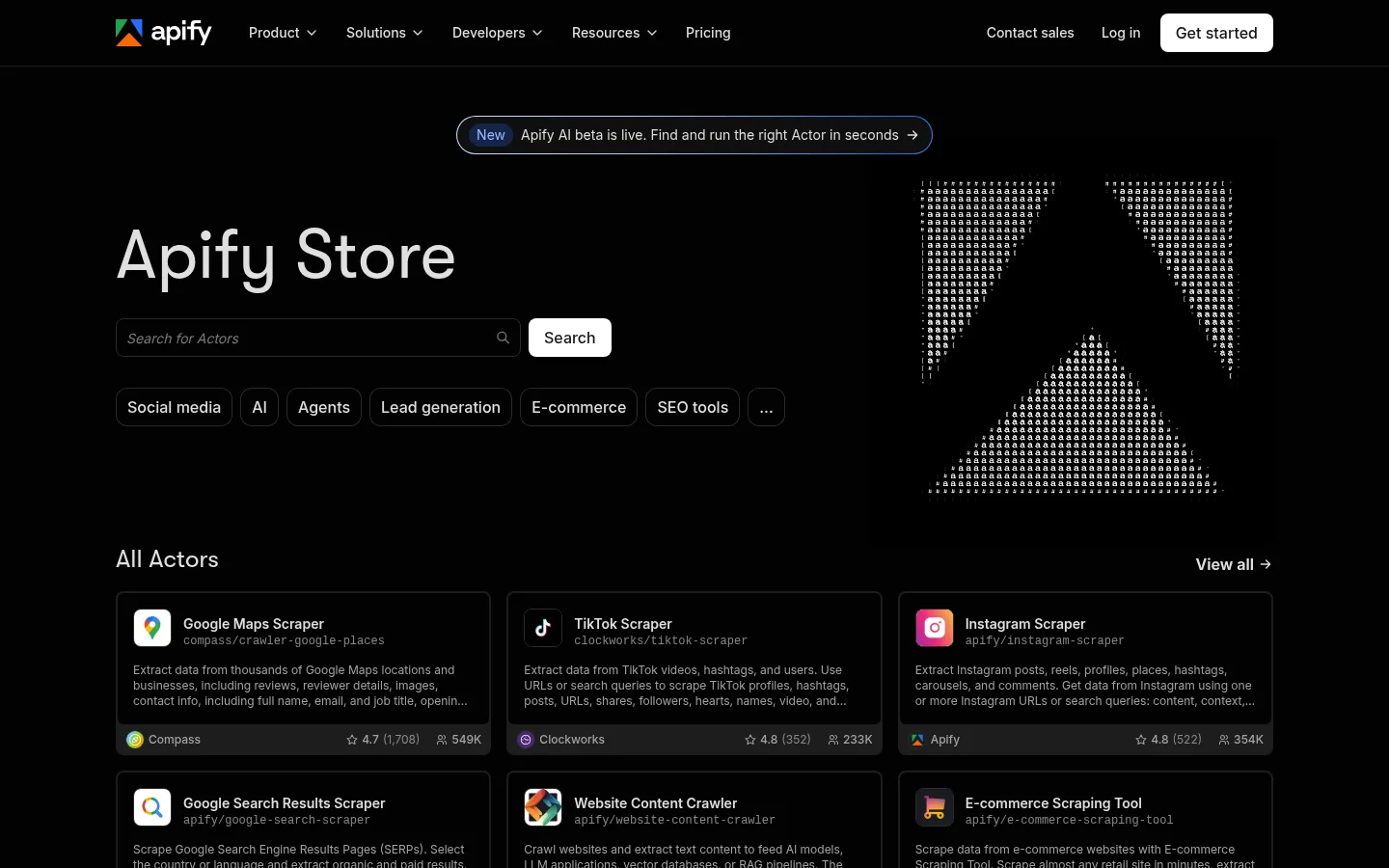
Here we need the Apollo Scraper. There are a lot of scrapers under that name, so search "Apollo Scraper," and you'll get multiple options you can test out to see which works best. Some are paid, some are free, and mostly you can rent them by the hour. For example, you might get 2 free hours before you need to pay, and the minimum cost isn't high. We're going to use one actor here, basically a scraper that will find leads for us from Apollo.
Besides this, we'll need a Google Sheet. Create a sheet named, let's say, "Leads." Inside it, add one tab called "URLs" and another called "Leads Data." The URLs tab holds the Apollo search URL we want to scrape, like the SaaS Founders search URL we opened earlier, copied from the page and pasted in. The Leads Data tab holds fields like first name, last name, email, website URL, and any other data we can bring in for the lead. We'll also write and store the personalized email here, whether it's sent or saved as a draft. This sheet lets us pull the URL we want to scrape, so if you want to scrape multiple searches, you can add more URLs here and use them in n8n. If our prerequisites are all set up, let's move to the next step.

Pulling the Lead Search URL Into n8n and Scraping With Apify
Back in n8n, we'll now start building the workflow. First, we need a trigger to start the workflow. We'll select Manual Trigger for now, since we're building live, but it can be changed later based on your need. You can set it on a schedule, or on an action, like as soon as you add a new URL in a Google Sheet, the automation starts scraping right away. Google Sheets can even be used as the trigger itself.
Next, we need the URL we stored earlier for scraping. To bring it in, search for Google Sheets and select Get Row(s) in a Sheet, then connect your Google Sheets credentials. Once connected, select the Leads sheet, and specifically the URLs tab, since that's where our URL lives. If I execute this, the URL from row number 2 comes through. Simple, we now have the URL.
Now, a bit about how Apify works. On the actor we were using, this actor basically scrapes all the emails and data we were seeing on Apollo. It might look like this data is showing for free, but it isn't, it's entirely paid data. What we need to do is take the same URL we put in Sheets, the URL of that Apollo search page, copy it, and paste it into the actor. Set how many results you want, let's say 100, and click Save and Start. It'll bring back whatever data is on that URL. This is running on free credits right now, $5 given to every Apify account. On the Startup plan it's a bit more, but $39 a month is nothing if it's doing the work of three or four people for you.
This takes a bit of time because pulling 100 people's data is a lot in one go, and at scale this could be 1,000 or 100,000 results, though you'd need to pay for that volume. Compared to Apollo, though, these scrapers turn out quite cheap. If you hit your free credit limit like I did here, switching to a different Apify account is one workaround, though the tradeoff of the free tier is that you'll keep running into these limitations.
To use this inside the workflow rather than on the Apify platform directly, click the plus sign, search Apify, and select Run an Actor and Get Dataset. Click Install Node, then set up the credentials using your Apify API key, found under Settings, API and Integrations, in your Apify account. Paste it into n8n and save. Under Resource, choose Actor, and for Operation, select Run an Actor and Get Dataset. Choose the actor you're using, the Apollo Scraper, and you'll need to paste a JSON input, which you get from the actor's page on Apify by clicking JSON and copying it.
That JSON contains the URL the actor will use for scraping, but instead of hardcoding it, we'll drag and drop the URL field from our Google Sheets node, so it changes dynamically as you build more automations on top of this. Once that's set up, click Execute Step, and the actor runs automatically inside n8n, pulling in the same data we saw on the Apify platform earlier: founder names, photo URLs, email addresses where available, and company names, viewable in Schema, Table, or JSON format.
Filtering for Leads With a Valid Email
Now we need to filter this data, which is simpler than people think. Click the plus sign and select the Filter node. First, every lead needs to actually have an email, since without one we can't send anything. Drag and drop the email field, and under String select Exists. This removes any founders whose email is null.
Because we also want to personalize each email using data from the founder's own website, we need the website URL to be present too. Skip employment history, and under organization, find the website URL field, drag and drop it, and again set it to Exists.
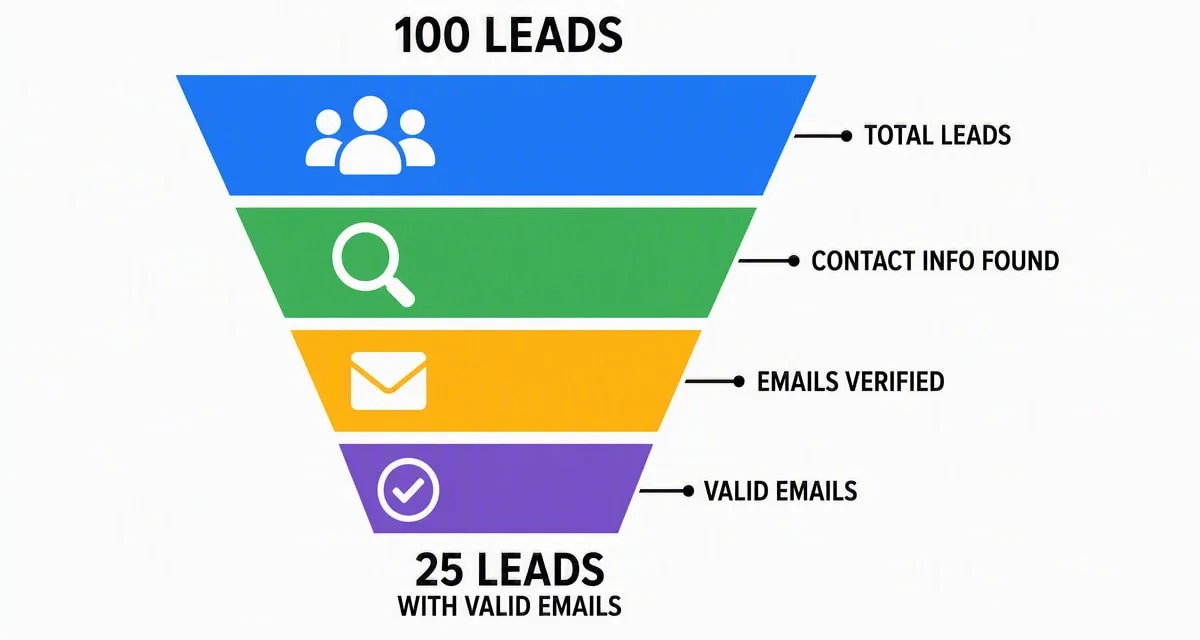
With both conditions set, executing the filter removes any founder missing an email or a website URL. Out of the 100 items that came in from Apollo, only 25 people make it through, since only 25 had emails available in this particular list. Our data is now filtered down to founders we can actually reach and personalize for.
Now we need to send these founders emails, store the data in Google Sheets, and write a personalized email for each one using AI. Whenever a scenario like this comes up, where we have multiple people and need to do the same work for each one, we use a loop, so the work happens one item at a time.
Looping Through Leads: Scraping Websites and Writing Personalized Emails With Gemini
Click the plus sign and search for Loop, then delete the "Replace Me" node that comes with it by default. Whatever nodes we add inside this loop will run once for each of the 25 items.
First, since we want a personalized email, we need to scrape the data from each founder's website. This time we use an HTTP Request node, a built-in n8n feature for scraping a website's data. Before that, add a Set node to pull the email and website URL out into their own clean fields, using drag and drop from the earlier data, so you don't have to keep hunting for them. Once set, the HTTP Request node's method stays as GET, pointed at the website URL, and executing it brings back the full HTML of that page. It's a lot of raw data, but for this video we're keeping the workflow simple rather than filtering it further.
Next, add an AI node to write the email from this data. Select AI, then Message a Model, and choose Google Gemini. Pick the Flash model to keep token usage low. You can get a free Gemini API key from Google AI Studio: log in, create a free account, click Get API Key, then Create API Key, and connect it in n8n the same way we connected Apify earlier.
Now we need to set the prompts that shape the email. The system prompt is simple: "You are a helpful and intelligent scraping assistant." The model prompt includes an example of the output I want, in my case an email inviting SaaS founders onto my podcast, since that's the use case I built this for. You can swap in your own example, ideally one that has already worked for you, and change the prompt to fit your use case.
The user prompt says: "You will be given the name of the founder and the name of the company he runs, and the HTML data of his website. You need to write a professional email using the name and the company of the founder. Use the HTML data to personalize the email. The email should be about inviting them to the podcast on the Sole Entrepreneur channel," followed by the rest of the details. To fill in the three variables it needs, the founder's name, company name, and HTML data, drag and drop the HTML data from the HTTP Request node, the company name from the organization name field in the Apify data, and the founder's first name from the same dataset. Executing this node returns a subject line, something like "Podcast Invitation," and a full email body. For more ideas on personalizing outreach at scale, our piece on finding ready-to-buy B2B leads and closing them with AI covers a similar approach with a different toolset.
Extracting the Subject and Body, Then Saving Drafts and Logging Leads
You can't drop the AI node's raw JSON straight into Gmail, so we need to extract the subject and body cleanly. Add a Set node first to hold the whole AI output in one place, then write an expression for Subject and another for Body that pull each field out on its own. If you're not sure how to write these expressions, describing what you need to ChatGPT and asking it to generate the expression works well. Executing this node gives you a clean subject and a clean body, ready to use however you like.
Add a Gmail node next. Select Create a Draft so you can review the email before it goes out, though you could select Send instead if you'd rather it go straight out. Connect your Gmail credentials, drag the subject into the Subject field and the body into Message, then execute it. Checking Gmail confirms the draft has been created, complete with the personalized subject line and body written for that specific founder. If you swap Create a Draft for Send, the email goes out automatically instead, and this whole sequence can run as often as you like, on as much data as you bring in.
Finally, add another Google Sheets node, this time using Append Row in a Sheet rather than Get Row, so a new row gets added to our Leads Data tab for every founder. Since the sheet already has a column named "Email" for the founder's actual email address, rename the column that stores the AI-written email to Email Body so the two don't collide. Then match up the columns: drag in First Name, Last Name, and Email from the filtered data and the Set node, Website URL, Headline (a short description of the founder's organization), and State for location. Phone Number will come through if Apollo had one for that lead, and stays blank otherwise. Drop the generated email into Email Body. Executing this appends a new row to Google Sheets with the founder's details and their personalized email, giving you a running log of who's already been contacted and a base you could later build follow-up automations on top of.
Testing the Complete Workflow
Now let's run the whole workflow end to end. Since the loop would otherwise process all 25 filtered leads and burn through credits while testing, add a Limit node right before the loop and set it to 3, so only three items go through for a test run. At scale, you wouldn't need this step.
Because the Apify data was pinned earlier, triggering the workflow again reuses that same dataset instead of re-running the actor and spending more credits. Everything downstream- the AI email generation, the Gmail drafts, and the Google Sheets logging- runs on that pinned data for each of the three test leads.
The workflow executed successfully: three drafts appeared in Gmail, one each for the three founders in the test batch, each with a different company name and a different personalized email body pulled from their own website's data. Checking Google Sheets confirmed the same three rows had been appended with their details. Phone numbers were missing in this run since none of the three had one on Apollo, but if you want to only work with leads that have a phone number too, just go back to the Filter node and add a condition that the phone number field exists.
That's the complete build: an n8n automation that finds leads from Apollo.io through Apify, filters for the ones you can actually reach, writes each one a personalized cold email with Gemini based on their own website, and logs everything to Google Sheets, all for free.